By default, WP Conversion Tracker records the Sub-ID in your own stats and leaves the destination address alone. The visitor arrives at your clean destination with only wct_click_id added. Forwarding is an extra you switch on per link when the page or network at the other end needs to see the Sub-ID too.
Why You Might Want It:
- An affiliate network credits sources only when the Sub-ID is in its own URL, for example https://example.com/offer/your-sub-id/ or https://example.com/offer?sub_id=your-sub-id.
- Your landing page shows different content per source and reads a parameter to decide.
- Your analytics tool should see the same source names your tracker uses.
Where To Find It:
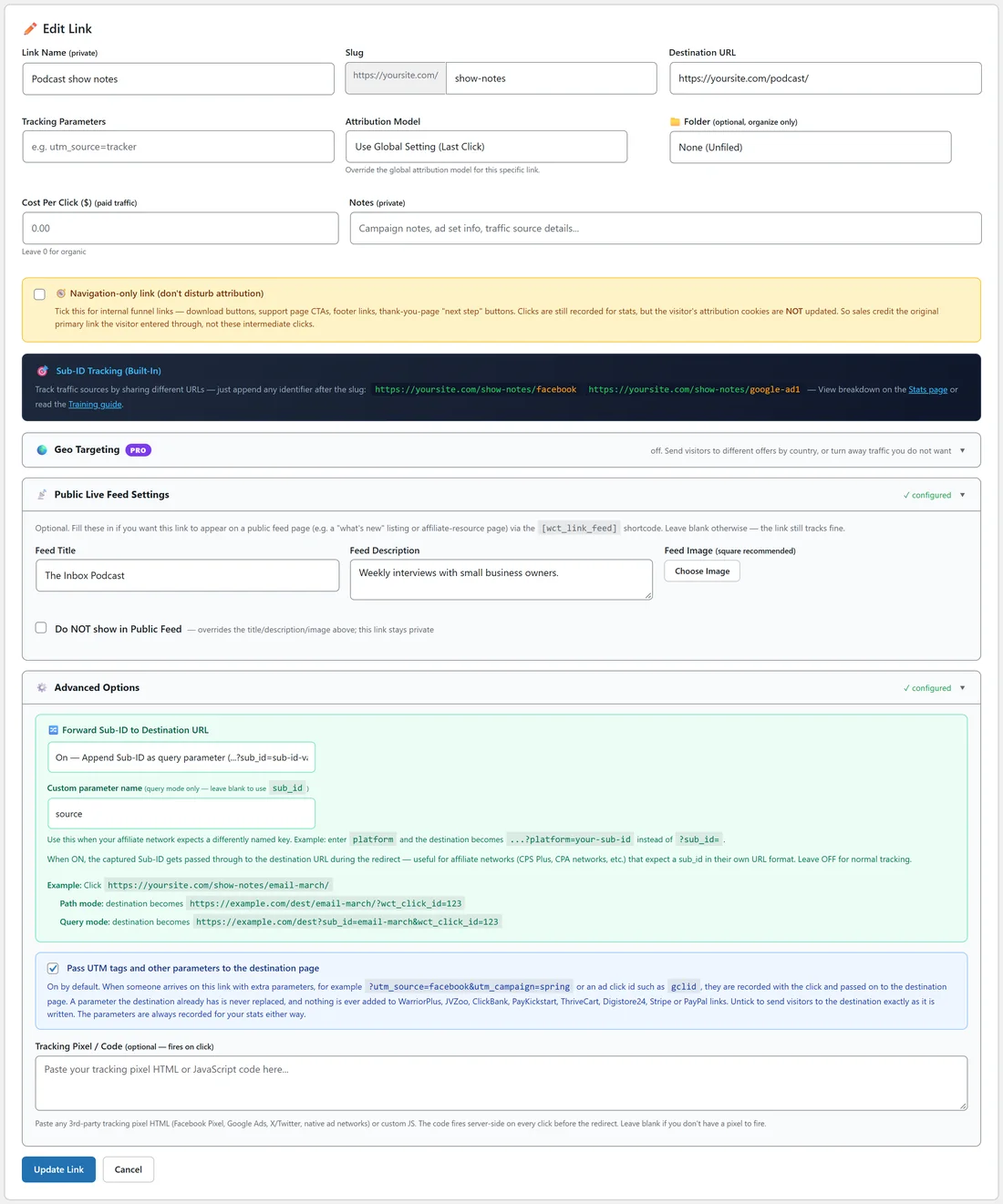
- Open ➕ Create Link, or click ✏️ Edit on a link in 🔗 All Links.
- Open the ⚙️ Advanced Options panel at the bottom of the form.
- Use the 🔀 Forward Sub-ID to Destination URL drop-down.
The Three Choices:
- Off, Sub-ID captured to stats only (default). The destination is untouched apart from wct_click_id.
- On, Append Sub-ID as path segment. The Sub-ID is added to the end of the destination path, for example https://example.com/dest/email-march/?wct_click_id=123. Use it for networks and pages that route on the address itself.
- On, Append Sub-ID as query parameter. The Sub-ID is added as a parameter, for example https://example.com/dest?sub_id=email-march&wct_click_id=123. Use it for most networks, for analytics, and whenever a Sub-ID might contain spaces or unusual characters.
Choosing The Parameter Name:
In query mode, the Custom parameter name box sets the name used. Leave it blank to use sub_id. Type another name, for example platform, and the destination receives ?platform=your-sub-id instead. Letters, numbers, dashes and underscores are accepted.
Setting It Up Step By Step:
- Open the link's form and the ⚙️ Advanced Options panel.
- Choose the path or query option.
- In query mode, type a Custom parameter name if the other side needs one.
- Click Update Link, or ➕ Create Link for a new link.
- Test it: open yoursite.com/your-slug/test1 in a private window and look at the address bar on the destination.
A Real Example:
yoursite.com shares its podcast with the link show-notes, which points at yoursite.com/podcast/. Each episode's show notes use their own Sub-ID, such as /show-notes/ep12. Forwarding is set to query parameter with the name source, so a listener from episode 12 lands on yoursite.com/podcast/?source=ep12&wct_click_id=123. The podcast page can greet them, and the Sub ID Breakdown in the tracker shows the same ep10, ep11 and ep12 rows.
WarriorPlus Links:
Leave forwarding Off on links that go to WarriorPlus. The tracker already uses WarriorPlus's own sub-ID fields, aff_sub and the +number on the end of the affiliate link, to carry the click ID, and that is how a sale finds its way back to the click. If path forwarding or an aff_sub parameter name is set on a WarriorPlus link, the plugin leaves those out on that link so the click ID is kept. Your Sub-ID is still recorded on the click.
How It Behaves:
- Forwarding is Off on every new link until you choose otherwise.
- Existing parameters and # parts of the destination are kept.
- If a destination address cannot be read, the visitor is sent to it unchanged, so the redirect always works.
Choosing Between Path And Query Mode:
- Query mode suits almost everything: networks that read a parameter, landing pages, analytics tools, and any Sub-ID with spaces or symbols.
- Path mode suits pages that are built from the address itself, where /dest/email-march/ is a real page or route.
- If you are not sure, start with query mode and check the destination page receives the value.
Tips:
- Your own stats record the Sub-ID either way. Forwarding only adds a copy to the destination.
- For UTM tags and other parameters on the link, see UTM Tags And Custom Parameters. They are passed on by a separate switch in the same panel.
- See Sub-ID Tracking For Traffic Sources for how to choose good Sub-IDs.