Out of the box, tracking links sit right after your domain, for example yoursite.com/inbox-course. If another link or redirect plugin is installed, both plugins can try to answer the same address, and one of them wins. A Slug Prefix gives WP Conversion Tracker AI its own part of your site's addresses, so both plugins work side by side.
What A Prefix Does:
With the prefix track, every tracking link lives under /track/:
- Before: yoursite.com/inbox-course
- After: yoursite.com/track/inbox-course
PrettyLinks keeps /go/, ThirstyAffiliates keeps /recommends/, and WP Conversion Tracker answers /track/.
Setting A Prefix Step By Step:
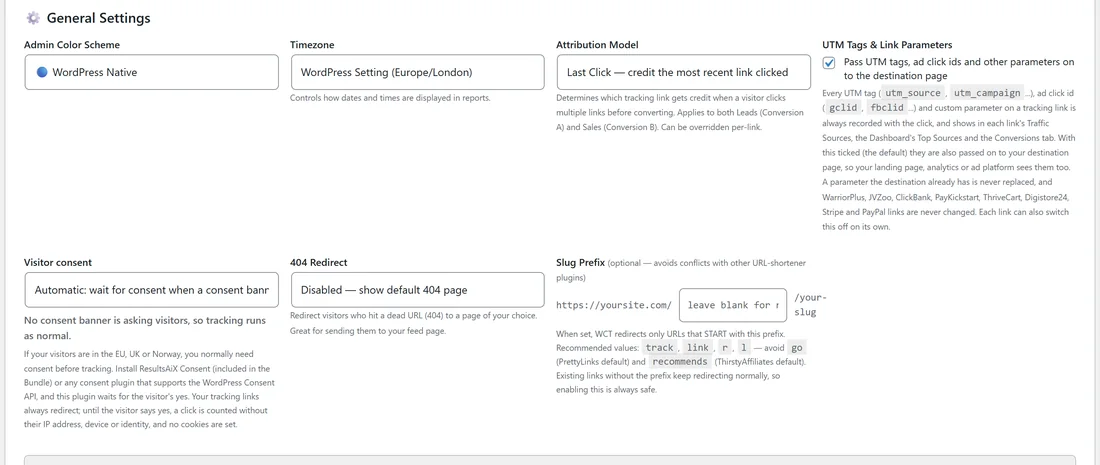
- Click ⚙️ Settings, then ⚙️ Settings in the menu.
- In ⚙️ General Settings, find Slug Prefix (optional, avoids conflicts with other URL-shortener plugins). Your site address is shown in front of the box and /your-slug after it, so you can see the result.
- Type a prefix such as track, link, r or l.
- Click 💾 Save General Settings.
Good Values:
- Recommended: track, link, r or l.
- Avoid go, the PrettyLinks default, and recommends, the ThirstyAffiliates default.
- Avoid any word that is already the address of a page on your site.
The box accepts letters, numbers, dashes and underscores, up to 30 characters. Leave it blank for no prefix.
Turning It On Is Always Safe:
When a prefix is set, the plugin answers new addresses that start with it, and links you shared before keep working at their old addresses. You do not need to re-share anything. The Create Link, Edit Link and Copy Link buttons all show the full address with the prefix included, so what you copy is what works. Rotator links from Pro Tools use the prefix too.
Checking For Conflicts:

Click ⚙️ Settings, then 🩺 Diagnostics. The Plugin Compatibility card scans for PrettyLinks, PrettyLinks Pro, ThirstyAffiliates, YOURLS Link Creator, Link Whisper, Redirection and Simple 301 Redirects. When it finds one, it explains the clash and lets you set a Slug Prefix right there. When there are none, it shows NO CONFLICTS. The same scan runs on step one of the Setup Wizard.
Testing One Address:
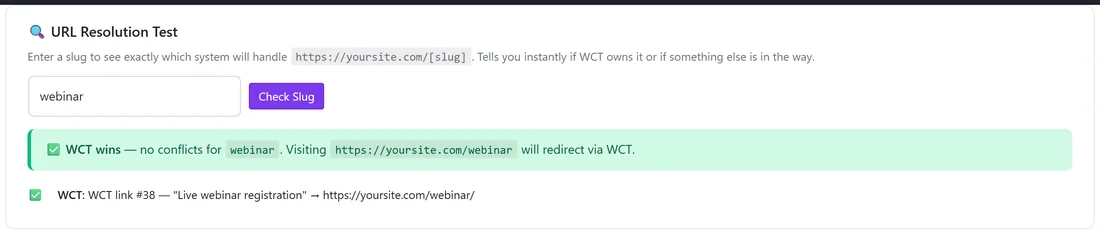
The 🔍 URL Resolution Test on the same screen tells you who answers a slug. Type a slug and click Check Slug. It reports whether the tracker handles it and which link it belongs to, for example WCT wins, no conflict for webinar, with the destination it will redirect to.
Real Pages Always Win:
The plugin only answers yoursite.com/your-slug and yoursite.com/your-slug/sub-id, with your prefix in front if you set one. If an address belongs to a real page, post or product on your site, it is left alone and the page shows as normal. A page whose address simply ends in the same word as one of your slugs is left alone too.
A Real Example:
yoursite.com once used ThirstyAffiliates for old blog links. The owner sets the prefix track, saves, and creates new links as usual. New links are shared as yoursite.com/track/black-friday, old blog links keep working through ThirstyAffiliates at /recommends/, and older tracking links that were already shared still redirect too.
Moving To A Prefix Gradually:
- Set the prefix in Settings.
- Keep sharing old links as they are. They keep working.
- Share new links with the prefix, which the Copy Link button includes.
- Over time, update links in places you control, such as your website menus and email templates, to the prefixed form.
There is never a moment where links stop working, so you can switch at your own pace.
Tips:
- Pick the prefix once and keep it, so every new link follows the same pattern.
- See Diagnostics And Cloudflare Checks for the other checks on the Diagnostics screen.