Some people should never get a broadcast: people who told you they have no interest in offers, people who already own the thing you are selling, people part-way through a launch automation. Remembering to exclude them on every single broadcast is the kind of job that gets forgotten once, and once is enough to annoy them.
Always leave out does it for you. You write the rules once, and every broadcast obeys them at the moment it sends.
Where to find it:
Setup, then Settings, then scroll to 🙅 Always leave out of broadcasts.
Setting up your rules:
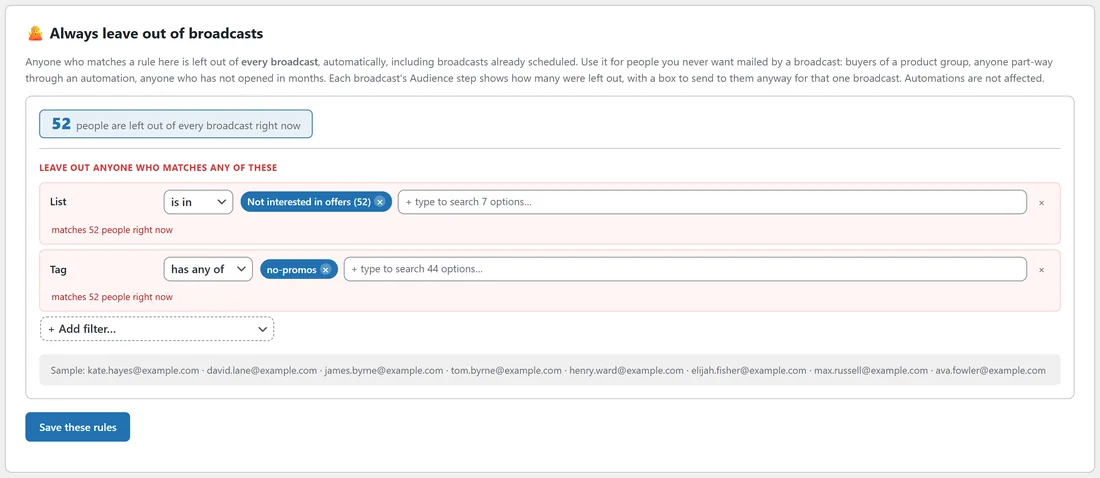
The section uses the same audience builder as the composer, but only the remove side: every rule describes people to leave out.
- Press + Add filter... and choose what the rule looks at, for example List.
- Choose how it matches, for example "is in", and pick the values, for example Not interested in offers.
- Add more rules the same way. Someone who matches any one rule is left out.
- Check the numbers: the box at the top says how many people are left out of every broadcast right now, each rule says how many it matches, and a sample of addresses shows underneath.
- Press Save these rules.
What you can use as a rule:
Anything the audience builder can do, for example these.
- A list, such as a "Not interested in offers" list.
- A tag, such as no-promos.
- A product, or a product group such as Bundle owners (see Product Groups: Name A Set Of Products Once).
- In an automation, for example anyone in a launch automation right now.
- Engagement, such as anyone who has not opened in a long time.
- Country, custom fields and the rest of the filters.
When it applies:
The rules are checked at the moment each broadcast sends, not when you write it. So a broadcast you scheduled last week obeys the rules you saved today. Each wave of a broadcast sent in waves obeys them too, and so does a resend.
Automations are not affected. Always leave out is for broadcasts only.
Seeing it on each broadcast:
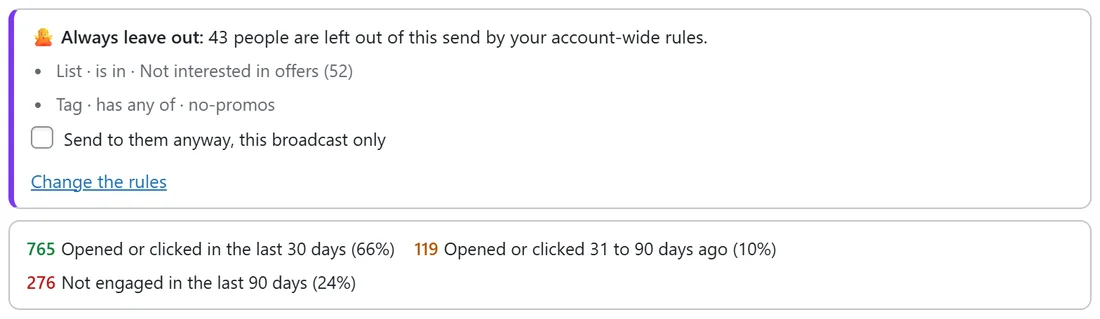
On a broadcast's Audience step, under the recipient count, a note says how many people your account-wide rules left out of this send, with each rule in plain words and a Change the rules link. The recipient count already has them taken off.
When you have no rules yet, the same spot shows a short tip with a Set that up link.
Sending to them anyway, once:
Sometimes one broadcast really should reach everyone, for example an important account notice or a change to your terms. Tick Send to them anyway, this broadcast only. The count updates straight away and the note changes to say Always leave out is off for this broadcast. Every other broadcast keeps obeying the rules.
A real example:
Leafwise Gardening has two rules.
- List, is in, Not interested in offers.
- Tag, has any of, no-promos.
The box shows 52 people are left out of every broadcast right now. When Anna builds the "Black Friday bundle" audience from Newsletter and Free Seed Starting Guide, the note under the count says 43 of those people were in this audience and are left out. In January she sends a notice about new delivery times, ticks Send to them anyway, this broadcast only, and that one email reaches everybody on the list.
A good starting set:
- Your "not interested" lists or tags.
- Nothing else until you have a clear reason. Every rule shrinks every broadcast, so add rules you are sure about.
- Look at the left-out number now and then, to make sure it still makes sense.
Tips:
- Give people a way into these rules: a "no offers, just tips" link in your emails that adds a tag is the kindest option you can offer.
- Use a product group rather than single products, so a product you add next month is covered too.
- When a broadcast looks smaller than expected, the note on the Audience step tells you how many were left out and why.