Setup, then Settings holds the defaults everything else in the Mailer falls back to: how the screens look, who gets reports, how fast broadcasts go out, who is tracked, and how new lists and names behave. It is also home to your licence, text snippets, sender profiles and a few connection keys.
Most settings are in one form. Change what you need and click Save Settings at the bottom of that form. The other sections each have their own save button.
Where to find it:
Click Setup in the blue menu bar, then Settings. The licence panel is at the top. See Getting Started And Activating Your License.
Appearance:

Admin Color Scheme changes how the Mailer's own screens look. It does not change your emails or the rest of WordPress.
- Follow the ResultsAiX Hub (default): uses the scheme set for the whole site in the ResultsAiX Hub.
- WordPress Native: the standard WordPress look.
- Results Amber, Clean White, Ivory Cream, Snow Light, Developer Dark, Midnight Blue, Ocean Blue, Sunset Warm and Rose Pink.
Choose from the list or click a colour square. The screen previews it at once. Click Save Settings to keep it. A choice made here always wins over the Hub. Pick whatever is easiest on your eyes; Developer Dark and Midnight Blue suit working at night.
Default sender:
The from name, from address, reply-to address and postal address now live in Sender Profiles, further down this screen. The profile marked Default is used wherever no other profile is chosen. See Sender Profiles.
Operations:
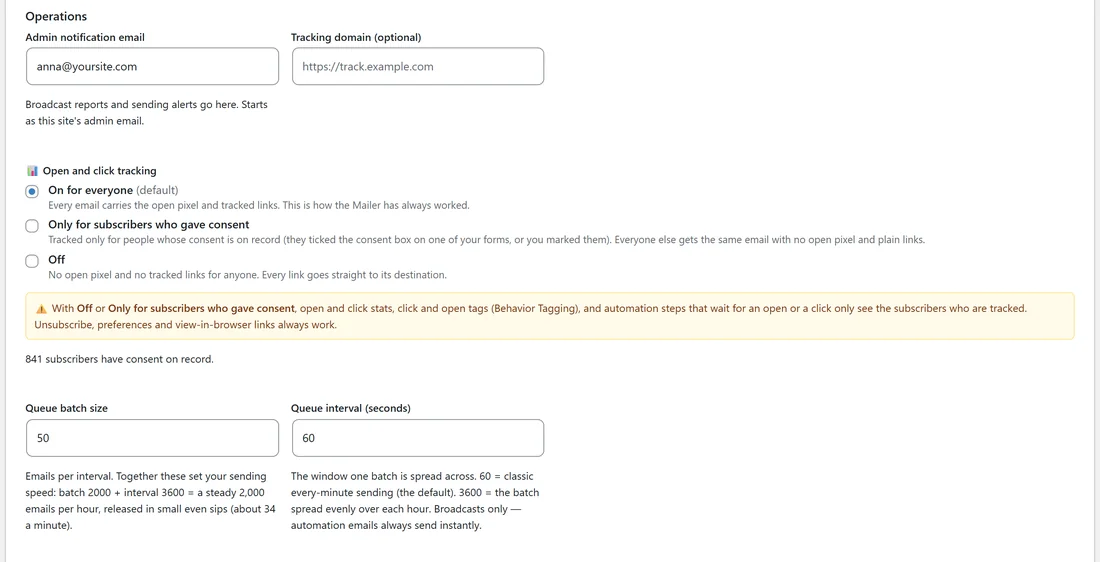
- Admin notification email: broadcast reports and sending alerts go here. It starts as your site's admin email.
- Tracking domain (optional): an address that open and click tracking links, and unsubscribe links, use instead of your site address. It must lead to this same WordPress site, for example a second domain pointed at it. Leave it empty to use your site address, which is right for almost everyone.
- Open and click tracking: On for everyone (default), Only for subscribers who gave consent, or Off. See Tracking Opens, Clicks And Unsubscribes.
Sending pace:
- Queue batch size: how many broadcast emails go out in each interval. The default is 50.
- Queue interval (seconds): the time one batch is spread across. 60 is classic every-minute sending and the default. 3600 spreads the batch evenly over the hour. For example, a batch of 2000 with an interval of 3600 sends a steady 2,000 an hour, about 34 a minute. Automation emails always send straight away.
- Never send more than this many broadcast emails an hour: one ceiling for all broadcasts together, including waves and Send the rest now. 900 means about 15 a minute and never more than 900 in any hour. Leave it empty for no ceiling. Automation and welcome emails are never held back.
A good start is the default 50 every 60 seconds. If your sending service or host has an hourly limit, set the ceiling just under it.
More sending options:
- Preference centre: show per-list choices when a subscriber is on this many lists or fewer. The default is 5. Below that number, the Manage your preferences page lets people pick lists one by one. Above it they only see unsubscribe from all.
- Sending window (optional): only send broadcasts between two times, in your site timezone. Leave either box empty to send around the clock.
- Delivery guard: auto-pause a broadcast when too many sends fail. On by default: if more than 5% of the last 200 sends fail, the broadcast pauses itself and you get an email. Resume is one click on the report.
- Email me when a big or dripped broadcast finishes sending: on by default.
- Seed addresses (optional): your own mailboxes at the providers you care about. During a dripped broadcast, a seed copy goes to each of them every 10000 sends, so you can check inbox placement while it sends. Seed copies never count in your reports.
- Unsubscribe link text: the wording you would like for the unsubscribe link. The standard footer link reads Unsubscribe.
The unsubscribe page:
What people see after they unsubscribe. Leave a field blank to use the default.
- Headline: for example You're unsubscribed.
- Message: {{site_name}} is filled in for you. Basic HTML is allowed.
- Button text and Button link: send people anywhere, such as your home page or a short survey.
- Show Powered by ResultsAiX Mailer on the unsubscribe page: a small credit at the foot of the page. Untick to remove it.
Behaviour:
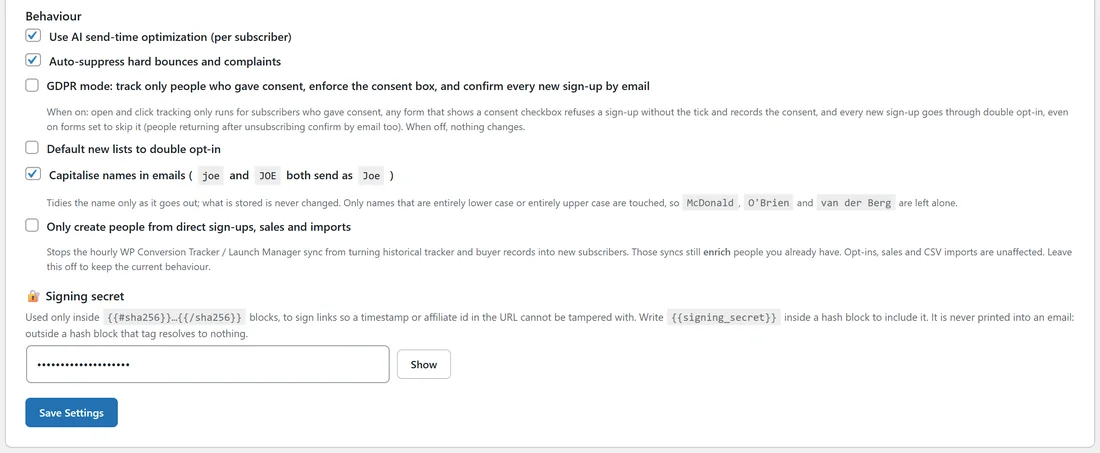
- Use AI send-time optimization (per subscriber): saves your preference. Broadcasts go out at the time you send or schedule them.
- Auto-suppress hard bounces and complaints: leave this ticked. Hard bounces and complaints your sending service reports are added to the suppression list. See Hard And Soft Bounces.
- GDPR mode: tracks only people who gave consent, makes any form that shows a consent box refuse a sign-up without the tick, and sends every new sign-up through double opt-in, even on forms set to skip it. When off, nothing changes.
- Default new lists to double opt-in: new lists start with double opt-in ticked. See Double Opt-In Explained.
- Capitalise names in emails: joe and JOE both go out as Joe. What is stored never changes, and names such as McDonald, O'Brien and van der Berg are left alone. See Capitalising Names As They Send.
- Only create people from direct sign-ups, sales and imports: stops the hourly WP Conversion Tracker and Launch Manager sync from turning old records into new subscribers. See Choosing Who Becomes A Subscriber.
Signing secret:
Used only inside {{#sha256}} blocks, to sign links so a timestamp or affiliate id in the address cannot be changed. It is never printed into an email. Click Show to see it. See Signed Links With SHA-256.
The rest of the screen:
- Text snippets: reusable text with {{snippet.name}}. See Reusable Text Snippets.
- Always leave out of broadcasts: rules for people no broadcast should reach. See Always Leave People Out Of Broadcasts.
- Product groups: name a set of products once. See Product Groups: Name A Set Of Products Once.
- Sender Profiles: from name, from address, reply-to and postal address sets. See Sender Profiles.
- Write access for your other sites and Read access for other sites: keys that let another site you own add members to your lists or look up a buyer.
- Help and your account: Open Portal, Contact Support, Open Diagnostics and Open Training.
- Cross-plugin intelligence: which companion plugins are connected. See The ResultsAiX Ecosystem: More Data, Smarter Emails.
A real example:
Anna sets up Leafwise Gardening's Settings. She picks Developer Dark for late-evening work and clicks Save Settings. Her admin notification email is anna@yoursite.com. Her sending service allows 2,000 emails an hour, so she sets the hourly ceiling to 1800. She sets a sending window of 07:00 to 21:00 so nobody gets a broadcast in the night, adds her own mailbox as a seed address, and ticks Capitalise names in emails because many readers typed their names in lower case.
Tips:
- Change one thing at a time and send yourself a test.
- Keep the Delivery guard on. It protects your reputation if a send goes wrong.
- Leave the tracking domain empty unless you have a reason to change it.