The AI Helper is an assistant that sits on every ResultsAiX Mailer screen. Ask it a question and it answers from your real numbers and the plugin's own training guides. Tell it to build something and it writes it, with a button underneath that puts the result straight into the right screen as a draft.
Where to find it:
Click the ✨ AI Helper button in the bottom corner of any Mailer screen. It only appears once an AI key is connected in AI Setup, then AI Studio. Answers come from your own key.
What it knows:
- How this plugin works: the screens, tabs and buttons, and the plugin's own training guides for support questions.
- How your install is set up: for example your sending service, Safe Mode and add-ons.
- Your real numbers: subscribers, sign-ups, opens, clicks, sales, unsubscribes and bounces over different periods, your most used tags, and how recent broadcasts did.
- Which screen you are on, so "how do I use this?" gets an answer about that screen.
Asking a question:
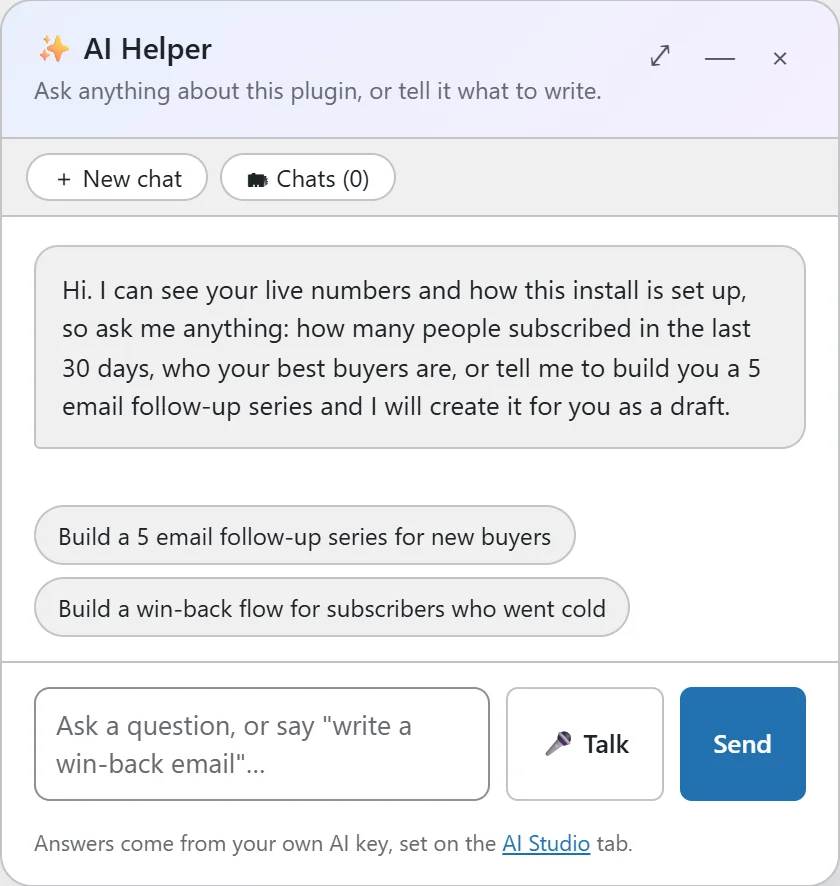
- Click ✨ AI Helper.
- Type a question, or click one of the suggestions for this screen. On Automations, for example, they are "Build a 5 email follow-up series for new buyers" and "Build a win-back flow for subscribers who went cold".
- Click Send. The answer appears in the panel.
Good questions: "How many people subscribed in the last 30 days?", "What is my open rate this month?", "How healthy is my list right now?", "Which sending provider should I pick?".
Telling it to build:
Under an answer, the Helper can offer up to two of these buttons.
- An automation button, when you ask for a series, welcome flow, onboarding, nurture, win-back or launch. It writes every email in full and creates the automation with the waits and the trigger set, and with exclusions built in as if/else steps (for example "if they already bought, end"). It is always created as a draft, so nothing sends until you have read it and set it Active. A request for a "sequence" is built as an automation too.
- A compose button, when you ask for an email. It opens a new broadcast with the draft already in the composer.
- A segment button, when you ask for an audience. It opens the AI Segment Builder with your description filled in.
- A button that jumps to the right screen.
If you have trained your voice, everything it writes sounds like you.
Talk instead of typing:
Click 🎤 Talk and say your question. It uses your browser's own speech recognition, so nothing extra is uploaded. The button only shows in browsers that support it.
Your chats:
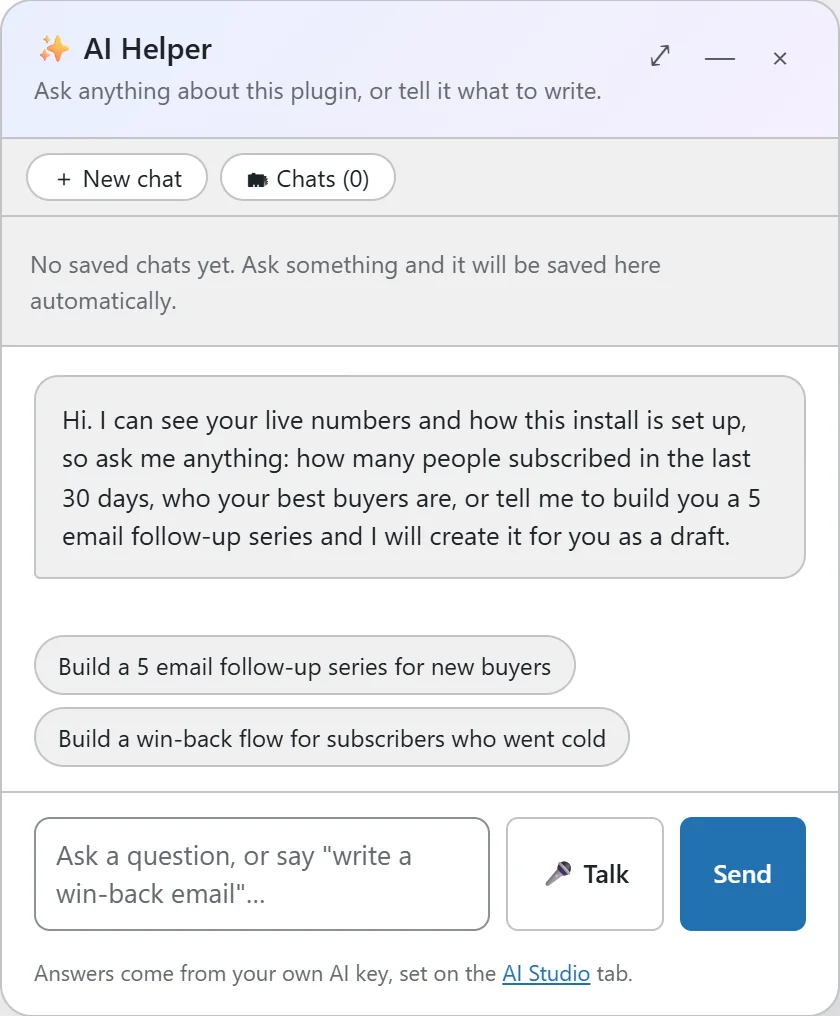
- Chats are saved for your user automatically and named from your first question.
- + New chat starts a fresh conversation.
- 🗂 Chats lists your saved chats (up to 30). Click one to reopen it with the whole conversation, ✏️ to rename it, or 🗑 to remove it.
- Follow-ups work, because the last ten exchanges of the chat go with each question: "make it shorter" or "now do the same for buyers".
The panel controls:
The ⤢ button expands the panel to fill most of the screen, the line button next to it minimizes it to the title bar, and × closes it. It stays the way you left it as you move between Mailer screens. Each user can ask up to 40 questions an hour.
A real example:
On the Automations screen, Anna at Leafwise Gardening asks: "Build a 4 email follow-up for new Raised Bed Masterclass buyers, one a day, and skip anyone tagged customer-vip." The Helper writes the four emails in her voice and offers "Build this 4 email series". She clicks it, and a draft automation opens with the trigger Makes a purchase, an if/else that ends the flow for the tag customer-vip, and the four emails with 1 day waits between them. She reads each email, sends herself a test, and sets it Active.
Tips:
- Train your voice so its emails sound like you. See Train Your AI: Emails In Your Own Voice.
- Check and adjust what it builds on the canvas. See Automation Steps: Emails, Waits, If And Else.
- For segments, see Segments And The AI Segment Builder.