A list is a named group of subscribers, such as Newsletter or Customers. Someone can be on as many lists as you like. Lists are what your forms fill, what your broadcasts are sent to, and what many automations start from.
Lists are groups people are put into. If you want a group that follows rules instead, such as everyone who clicked in the last 30 days, use a segment. See Segments And The AI Segment Builder.
Where to find it:
Audience, then Lists.
The Lists screen:
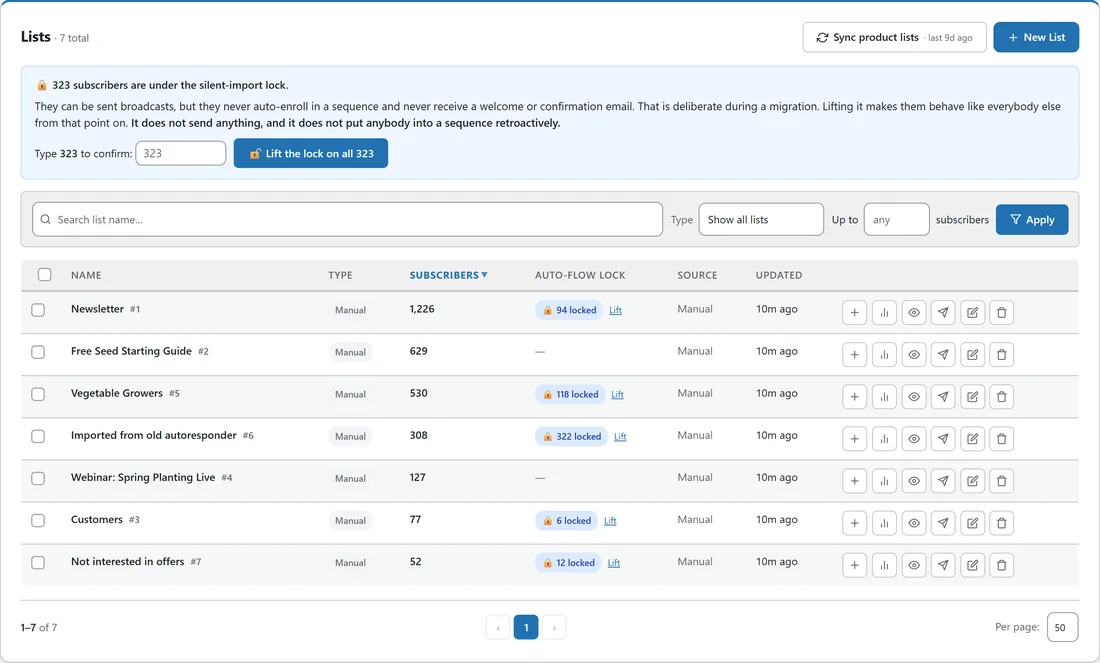
Each row shows the following.
- Name, with the list's number, for example Newsletter #1. Automation pickers find a list by this number too.
- Type: Manual for lists you made, or a label for automatic buyer lists.
- Subscribers: how many people are on it now.
- Auto-flow lock: how many people on it are under the silent import lock, with a Lift link. See The Silent Import Lock.
- Source and Updated: where the list came from and when its membership last changed.
The buttons on each row, from left to right: ➕ Add subscribers, the lead report, view the subscribers on this list, email this list, edit, and delete. Deleting a list never deletes the people on it.
Above the table you can search by list name, filter by Type, show only lists with Up to a number of subscribers, and press Apply.
Creating a list:
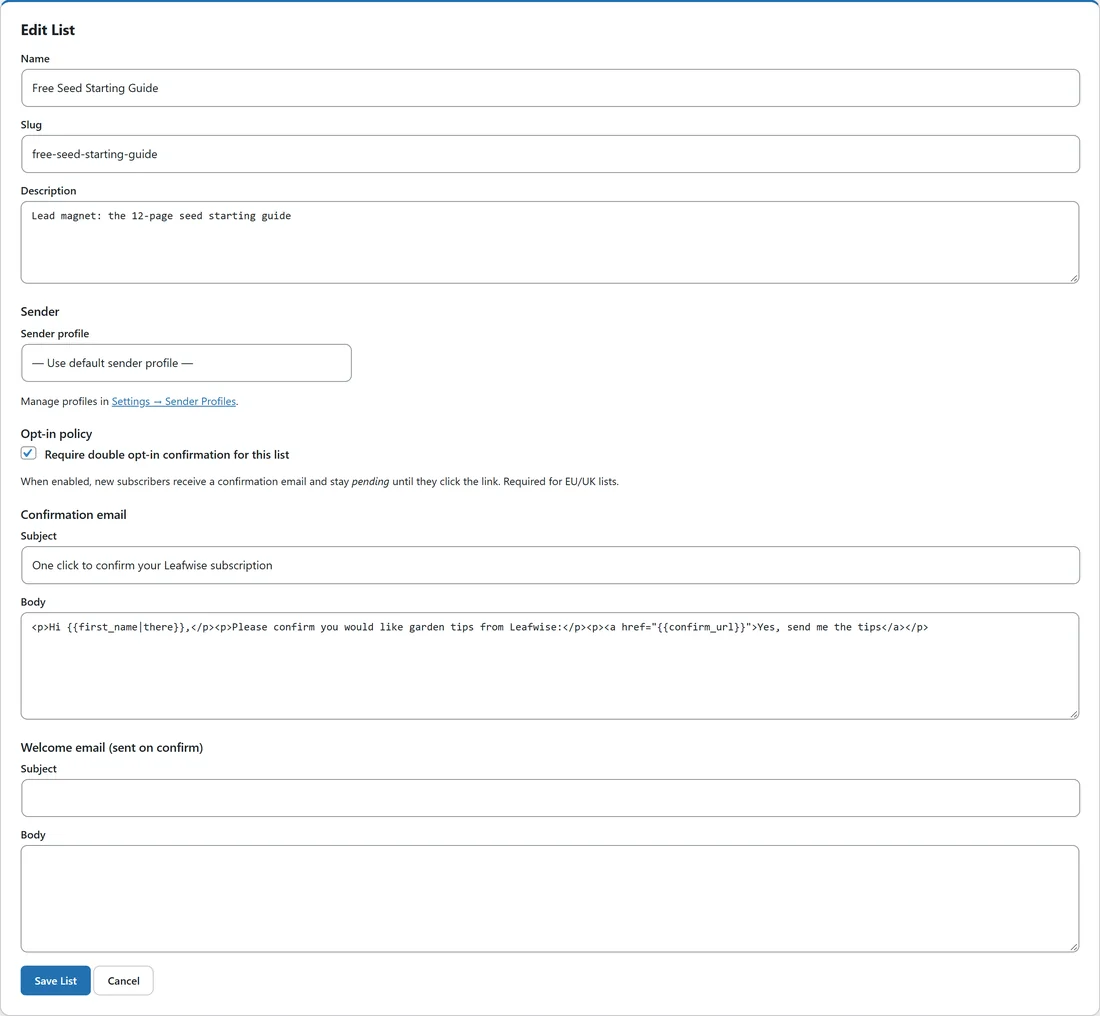
- Press New List.
- Fill in the Name. Slug is optional and is made from the name if you leave it empty. Description is a note for you.
- Under Sender, pick a Sender profile, or leave Use default sender profile. When a broadcast or automation does not set its own sender, emails to this list come from this profile, and so do its confirmation and welcome emails. See Sender Profiles.
- Under Opt-in policy, tick Require double opt-in confirmation for this list if new sign-ups should confirm by email first. A new list starts unticked unless you switched on Default new lists to double opt-in in Setup, then Settings. See Double Opt-In Explained.
- Under Confirmation email, set the Subject and Body for the confirmation email. This is only used on a double opt-in list.
- Under Welcome email (sent on confirm), add a Subject and Body if you want a one-off welcome. On a double opt-in list it goes out when the person confirms. On a single opt-in list it goes out when they join. Leave both empty for no welcome email.
- Press Save List.
How lists fill up:
- Forms on your website. Each form adds people to the lists you pick for it. See Forms And Popups.
- CSV imports, when you choose a list in the Add to a list step. See Importing Subscribers From A CSV.
- The Add subscribers box on this screen.
- Add to list in the bulk bar on the Subscribers screen.
- Automations, with a step that adds someone to a list.
- Connections such as WP Sync, which can pour new subscribers from another app straight into a list.
- Automatic buyer lists: with Launch Manager or WP Conversion Tracker installed, Sync product lists makes one list per product you sell, holding that product's real buyers. A list is only made once there is a real buyer to put in it.
The Add subscribers box:
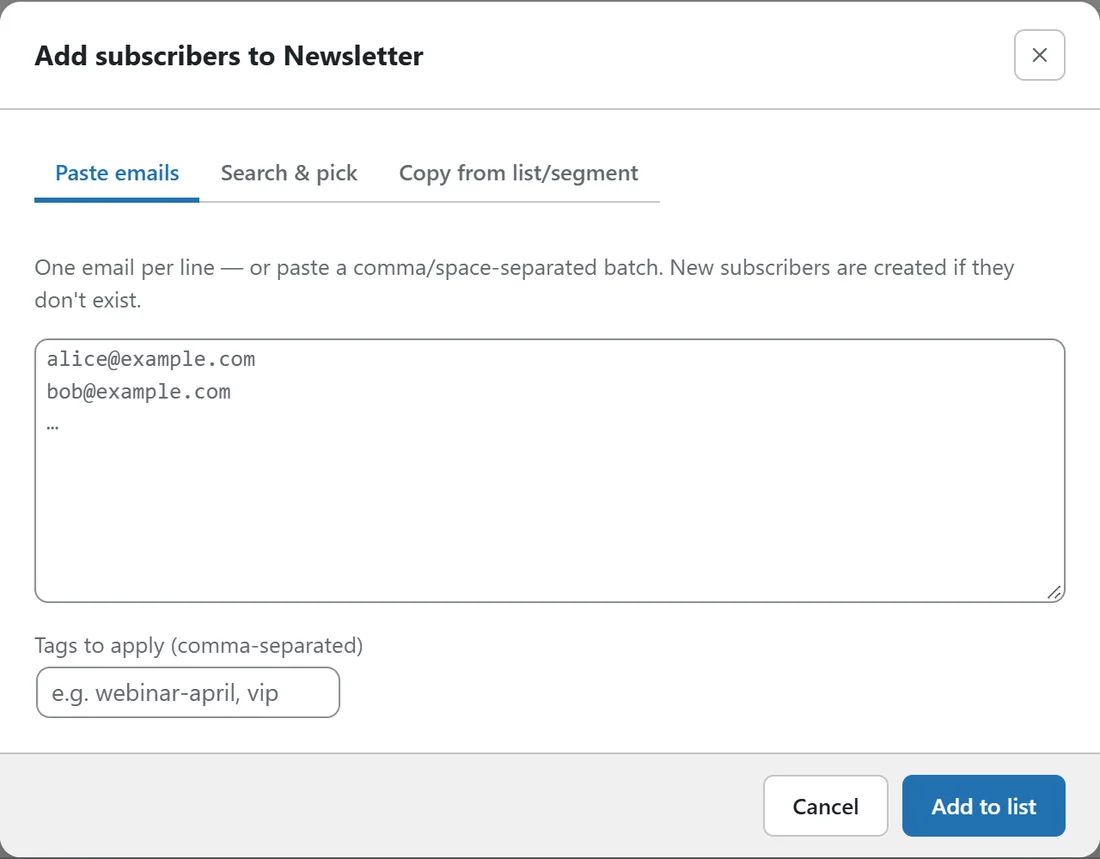
Press ➕ on any list row. The box has three tabs.
- Paste emails: one address per line, or a batch separated by commas or spaces, with optional Tags to apply. New subscribers are created if they do not exist yet.
- Search & pick: your newest subscribers load straight away. Type to narrow them, click people to select them, or press Select all shown.
- Copy from list/segment: copies everyone from another list, or from a saved segment, into this one.
Press Add to list. People added this way are added quietly: nobody is sent a welcome email or started on an automation by it, and anyone newly created here is under the silent import lock.
Working with many lists:
Tick lists in the table and a bar appears. Choose Merge into a list to move everyone from the ticked lists into one list, with Tag everyone with their old list name ticked so you can still tell where each person came from. Or choose Tag everyone (no merge) to give everyone on those lists one tag and leave the lists as they are. The tag is added quietly, so no automation starts.
The lead report:
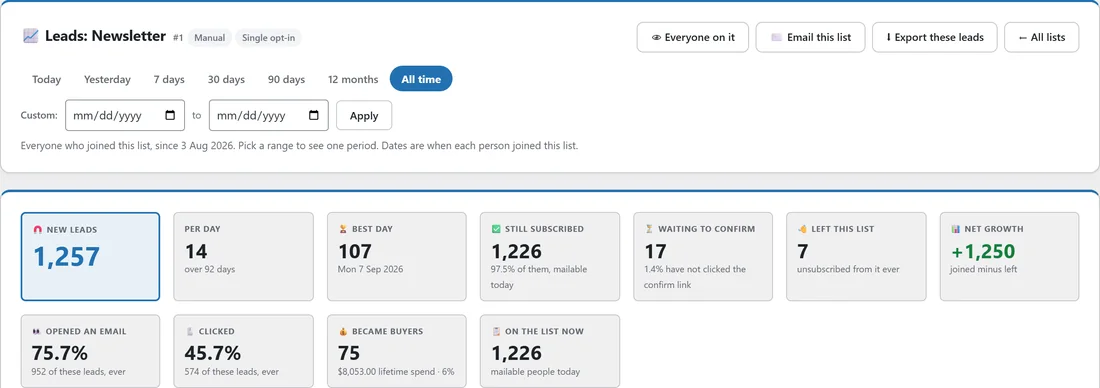
Press the chart button on a list row to open Leads for that list. Pick Today, Yesterday, 7 days, 30 days, 90 days, 12 months, All time or your own dates, and every number below follows that range:
- New leads, Per day and Best day.
- Still subscribed, Waiting to confirm, Left this list and Net growth.
- Opened an email, Clicked and Became buyers, for the people who joined in that range.
- On the list now.
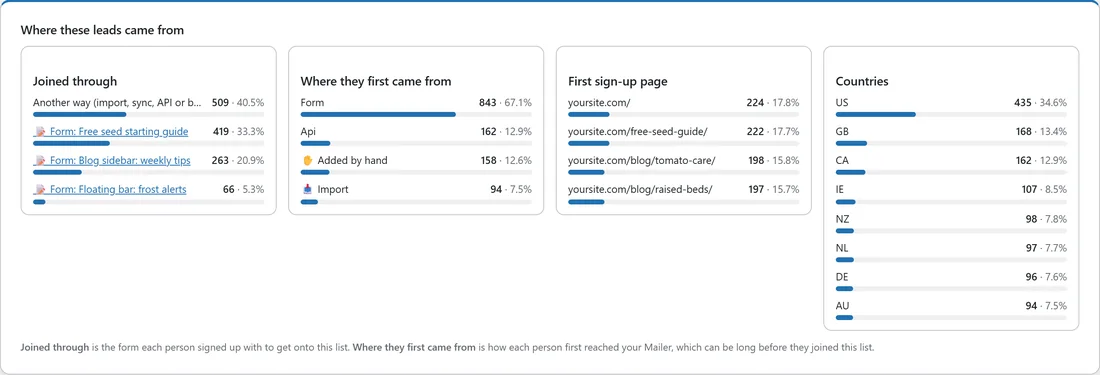
Below the numbers are a chart of new leads over time, which days and times people join, and Where these leads came from: the form they joined through, where they first came from, their first sign-up page and their countries. The people table at the bottom lists everyone who joined in the range, and ⬇ Export these leads downloads them as a CSV.
A real example:
Leafwise Gardening gives away a seed starting guide. Anna made the list Free Seed Starting Guide, ticked Require double opt-in confirmation for this list, wrote her own confirmation subject, One click to confirm your Leafwise subscription, and connected the list to her Free seed starting guide form. In the lead report for her Newsletter list she can see that the free seed starting guide form brings in a third of her new readers.
Tips:
- Keep lists few and meaningful: what people asked for, and what they bought. Use tags and segments for everything else.
- Use the lead report to see which form is working before you change one.
- Removing someone from one list leaves them on your other lists. To stop all email to someone, unsubscribe or archive them.
- To send to several lists while leaving out another, see Building A Custom Audience.