The riskiest day in email marketing is the day you move an existing list into a new tool. Safe Mode makes that day calm. While it is on, no real email leaves your site, whatever part of the Mailer tries to send it.
You can still do everything else: import subscribers, build lists and segments, write broadcasts and set up automations. When it all looks right, you switch Safe Mode off and start sending.
Where to find it:
Click Delivery, then Safety. The Safe Mode card is at the top of the Safety and Migration screen. The amber banner on every Mailer screen also has a Manage button that takes you there.
What Safe Mode does:
- Every real send is stopped at the last step before it would reach your sending service. That covers broadcasts, automation and sequence emails, welcome emails and double opt-in confirmations.
- Broadcasts cannot be queued, and the sending queue stays idle.
- Test sends you send to yourself still go out, so you can check how an email looks.
- Every stopped send is logged, so you can prove nothing went out.
Safe Mode starts on:
A new install starts with Safe Mode on, and the banner gives the reason On by default for new installs. Turn it off on the Safety tab when you are ready to send. The Safety tab also lists any Production-site signals it sees, such as published posts more than 30 days old, more than 100 WordPress users, a site more than a year old, or a large WP Conversion Tracker vault or Launch Manager sales history. These are reminders that you are on a live site and Safe Mode is worth using while you move data.
The banner:

While Safe Mode is on, an amber banner sits at the top of every Mailer screen. It says SAFE MODE is ON, shows how many sends were blocked in the last 24 hours, and gives the reason it was turned on. The broadcast editor also reminds you that only test sends go out while Safe Mode is on.
Turning Safe Mode on or off:

To turn it on:
- Go to Delivery, then Safety.
- Click Enable Safe Mode.
To turn it off:
- Go to Delivery, then Safety.
- Tick I confirm I'm ready to send live emails.
- Click Disable Safe Mode.
The tick box is there so a stray click can never switch your list live. While Safe Mode is on, the card also shows Blocks (last 24h), Blocks (total), and when it Started.
When Safe Mode is off:

The card turns green and says outbound mail is live: broadcasts queue and send, and automations send their emails. The Get Started step Turn Safe Mode off when you are ready gets its tick.
The audit trail:
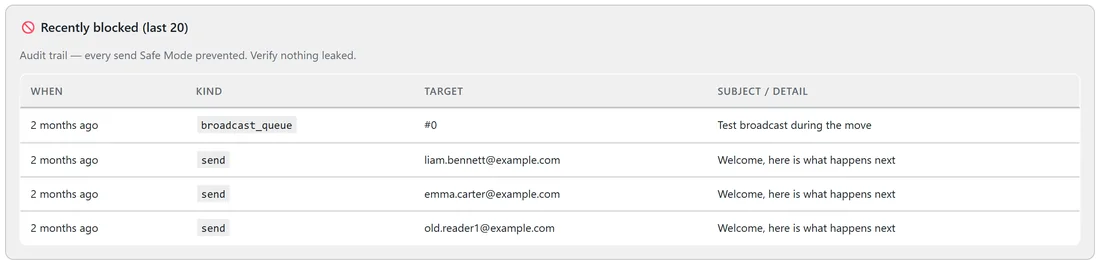
While Safe Mode is on, the Safety tab shows Recently blocked (last 20): when, what kind of send it was, who it was for, and the subject. A send row is an email that was stopped. A broadcast_queue row is a broadcast that was stopped before it could be queued. This is your proof that nothing slipped out during the move.
Imported people stay protected:
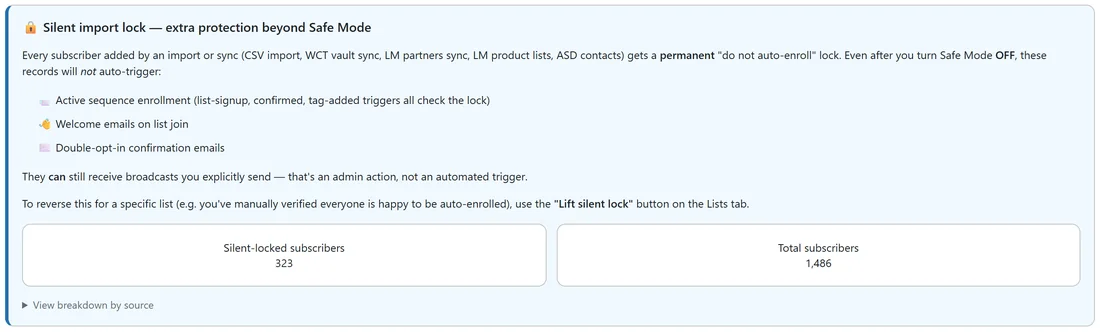
Turning Safe Mode off never starts emailing everyone you imported. Everyone added by an import or a sync carries a separate, permanent Silent import lock. Locked people can receive broadcasts you choose to send, but they never start a sequence or automation by themselves, and never get a welcome or confirmation email. The Silent import lock panel on the Safety tab shows how many people are locked. You can lift the lock for a list on the Lists tab. See The Silent Import Lock.
Moving a list step by step:
- Check the Safe Mode card says ON.
- Import your old unsubscribe file first, on Delivery, then Deliverability. See The Suppression List.
- Import your subscribers on Audience, then Imports. See Importing Subscribers From A CSV.
- Build your lists, segments, forms and automations.
- Send yourself a test of your first broadcast.
- Check Recently blocked to confirm nothing went out.
- Tick the confirm box and click Disable Safe Mode.
- Send your first broadcast.
A real example:
Anna is moving 323 readers from her old autoresponder to Leafwise Gardening's new Mailer. With Safe Mode on, she imports her unsubscribe file, then the readers into the list Imported from old autoresponder. Her Newsletter welcome series is active, but the imported readers are locked, so none of them get a welcome email. Recently blocked shows a welcome email held back for a tester she added by hand. Happy that nothing leaked, she ticks the box, clicks Disable Safe Mode, and sends a hello broadcast to everyone.
Tips:
- Leave Safe Mode on for the whole move, not just the import.
- Send tests freely. They are the one thing Safe Mode lets through.
- If a broadcast never went out, check the banner first. See Diagnostics And Fixing Problems.