A sales follow-up should stop the moment someone buys. Exit rules do that: each automation has its own list of events that take a person out straight away, before the next email can go out. You can also take one person out by hand, and the report shows why everyone left.
Where to find it:
Emails, then Automations, open an automation and scroll to 🚪 Take them out of this automation when…, under the steps.
Adding an exit rule:
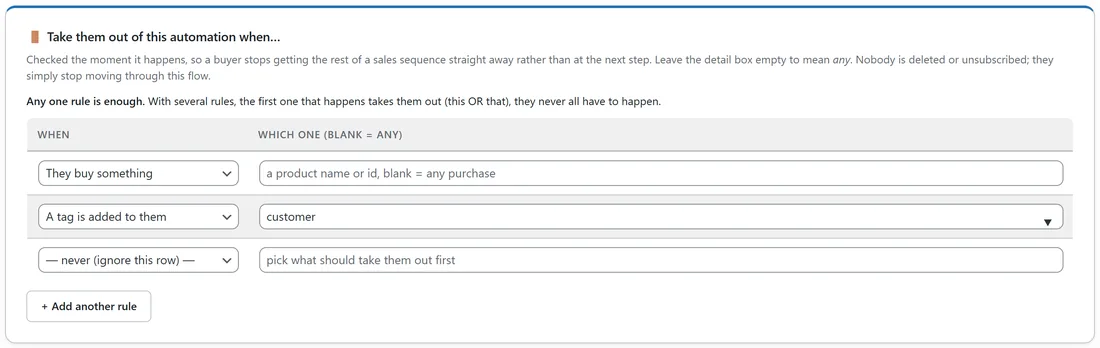
- In the When column, pick one of the four events.
- They buy something
- A tag is added to them
- They join a list
- They click a link
- In Which one (blank = any), type the detail, or leave it empty to mean any. What to type depends on the event.
- For a purchase: a product name or ID. Part of the name is enough.
- For a tag: the tag, for example customer.
- For a list: the list's ID number, for example 3 for Customers.
- For a click: part of the link, for example /tomato-masterclass/.
- Click + Add another rule for more. A row set to "never (ignore this row)" does nothing.
- Press 💾 Save automation.
How the rules behave:
- Any one rule is enough. With several rules, the first one that happens takes the person out.
- The rule is checked the moment the event happens, not when the person reaches the next step. A buyer stops getting the rest of a sales sequence straight away.
- Nobody is deleted, unsubscribed or removed from any list. They simply stop moving through this one automation.
- The report records the reason, for example "Left on purchase" or "Left on tag added: customer".
Why this beats an if/else:
An If / else is only checked when someone arrives at it, so the next email can still go out before the check is reached, and you would repeat the same check in front of every email. An exit rule watches the whole time and needs to be set only once.
Taking one person out by hand:

- Go to Audience, then Subscribers, and open the person.
- Under ⚡ Automations this person is in, find the automation. The row shows where they are now and when their next move is due.
- Click Remove from automation and confirm.
Their journey stops, any email the automation queued for them is not sent, and the row shows "Left early" with "Removed by hand" and your name. What they already received stays in their history, and their tags and lists are not touched.
Other reasons people leave:
- They unsubscribe or land on the suppression list: they leave at their next step with the reason "subscriber inactive or suppressed".
- They join a double opt-in list and never confirm within 30 days: they leave with the reason "never confirmed their subscription".
Seeing why people left:
On the automation report, under the step-by-step table, 🚪 Why people left early lists each reason with how many people and the share. See The Automation Report: Every Email, Every Result.
A real example:
"Tomato page: clicked but did not buy" on Leafwise Gardening sends three nudges to people who clicked the Tomato Growing Masterclass page. It has two exit rules: They buy something (blank, any purchase) and A tag is added to them: customer. When a reader buys the masterclass on day two, they are out at once and never get "What people say after they buy". A reader who bought the Complete Garden Bundle instead is also out, because the purchase rule is set to any product.
Tips:
- To see every automation one person is in, see Seeing Which Automations Someone Is In.
- Exit rules work well with purchase triggers. See Automation Triggers Explained.