A sequence is a list of emails and simple steps that runs by itself for each person who enters it, each step waiting its own delay after the one before. Sequences were the first way to build welcome series and follow-ups in ResultsAiX Mailer.
Automations now do everything a sequence did and more: branching with if/else, fifteen start triggers, exit rules, a visual canvas, a per-email report and 25 prebuilt flows. So new flows are built as Automations, and Sequences no longer has a menu entry. Nothing was deleted: any sequence you already have keeps running on its schedule, and people part way through one carry on.
Where to find it:
There is no menu item for Sequences. To open the screen, go to the Mailer's address in your WordPress admin and end it with tab=sequences, for example yoursite.com/wp-admin/admin.php?page=raim&tab=sequences. For a new flow, use Emails, then Automations instead (see Automations: Your First Flow).
The Sequences list:
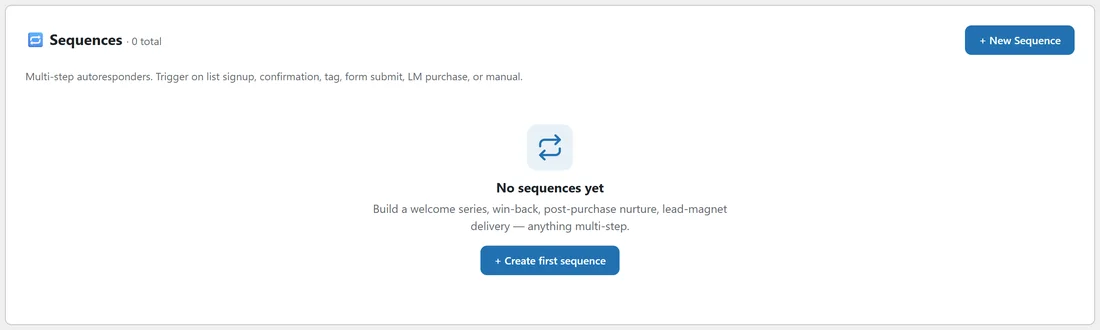
The list shows every sequence with Name, Status, Trigger, Steps, Subscribers and Completed, and an ✏️ Edit button. The + New Sequence button opens an empty editor. On a site that has never used sequences, the list says "No sequences yet".
The six triggers:

In the editor, Trigger decides who enters.
- 📥 Subscribed to a list: someone joins a list. The filter box can narrow it to one list.
- ✅ Confirmed double opt-in: someone clicks the confirmation link.
- 🏷️ Tag added (manual or via form): a tag is added. A Tag filter box appears where you can type one exact tag; leave it blank for any tag.
- 📝 Form submission: someone signs up through a form.
- 🛒 LM product purchase: a Launch Manager sale is recorded.
- 🎯 Manual (test / API enroll only): nobody enters by themselves.
The List / form / product filter (optional) box beside the trigger narrows Subscribed to a list to one list. The same box is used as the filter for Form submission and LM product purchase, where it is compared with the form number or product ID; because the box lists your lists, leave it on Any for those two triggers. For a trigger on one specific form or product, use an automation, where each trigger has its own picker.
Other settings on the trigger panel:
- Allow re-entry: lets someone go through the sequence more than once. Leave it off for a welcome series.
- Send every email at: leave empty to send each step as soon as its delay is up, or set a time so a "1 day" step lands at that hour. Times are your WordPress timezone, shown under the box.
The five step types:
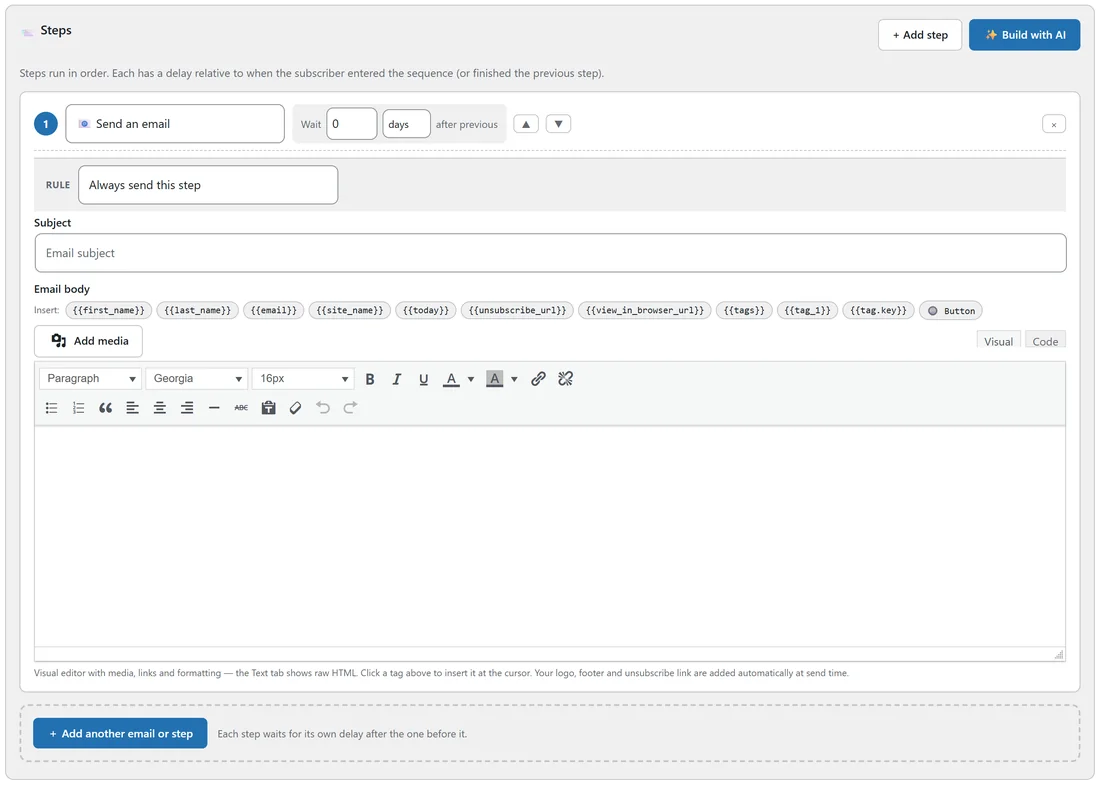
Each step has a type, a Wait box (minutes, hours, days or weeks after the previous step), ▲ and ▼ to move it, and × to remove it.
- 📧 Send an email: a Subject and an Email body with the full editor and the merge code buttons.
- ⏱ Wait, then continue (no email): only the delay runs.
- 🏷️ Add a tag to the subscriber: type the tag.
- ➖ Remove a tag from the subscriber: type the tag.
- 🚪 End the sequence here: the person leaves at this step.
Rules on each step:
Every step has a Rule line. Leave it on Always send this step, or pick one of these.
- Only if they opened the previous email
- Only if they did NOT open the previous email
- Only if they clicked the previous email
- Only if they did NOT click the previous email
- Only if they have this tag (type the tag)
- Only if they do NOT have this tag (type the tag)
- Only if they have bought something
- Only if they have NOT bought anything
Then choose what happens when the rule is not met: skip this step and carry on, or end the sequence for them. The rule is checked when the step comes due.
Basics and status:
At the top, Basics holds the Name, a Description (internal note) and the Status: 📝 Draft (won't send), 🟢 Active (enrolling + sending), ⏸ Paused (no new sends) or 📦 Archived.
Testing and sending to people you already have:
Once a sequence is saved, two more panels appear under the steps.
- 🧪 Test enroll: type your own address and click Enroll for test. You receive step 1 within about a minute.
- 📤 Send this sequence to a list you already have: choose a list and click Enroll everyone on this list. People already in the sequence are skipped, and unsubscribed and suppressed people are never enrolled.
A real example:
Leafwise Gardening has an older "Seed tips" sequence from last spring, triggered by 📥 Subscribed to a list on Free Seed Starting Guide. It still sends its four emails to people who were part way through. When Anna wants to change it, she rebuilds it as an automation: Joins a list: Free Seed Starting Guide, the same four emails with Wait steps between them, and an if/else that skips the last email for people who already bought. When the automation is Active, she sets the old sequence to ⏸ Paused so nobody new enters it twice.
Tips:
- Build every new flow as an automation. See Automations: Your First Flow and Automation Steps: Emails, Waits, If And Else.
- The 25 prebuilt automations cover most classic sequences with every email written. See 📦 The 25 Prebuilt Automations.
- Forms can still enroll people in a sequence from Enroll in sequence (optional). For new forms, start an automation with the trigger Submits a form instead. See Forms And Popups.