Every finished import is recorded, and any of them can be rolled back. Rolling back removes the people that import created, so you can fix the mapping or pick the right file and import again with a clean slate.
It is built to be safe: it only ever removes people who arrived with that import and have had nothing to do with you since.
Where to find it:
Delivery, then Safety, then the box called Import history (last 15). The same imports, without the button, are listed under Recent imports at the bottom of Audience, then Imports.
What the history shows:
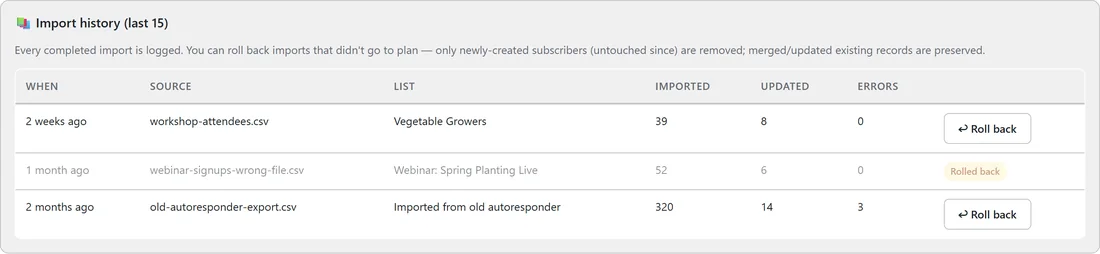
- When: how long ago the import finished.
- Source: the file name.
- List: the list the import filled, if any.
- Imported: how many new people it created.
- Updated: how many existing people it refreshed.
- Errors: rows that could not be read.
- Roll back: the button, or a Rolled back label once it has been done.
Rolling an import back:
- Open Delivery, then Safety.
- Find the import in Import history (last 15).
- Press ↩ Roll back on that row.
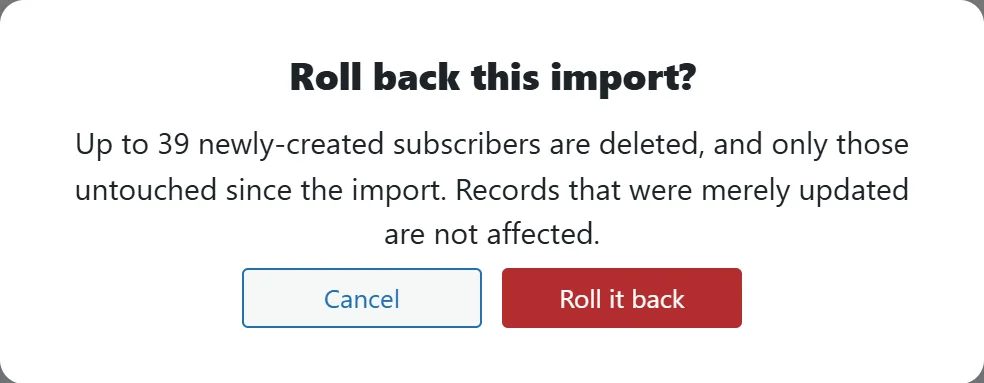
- A box asks Roll back this import? and says how many newly created subscribers can be removed at most.
- Press Roll it back.
- A short message says how many people were deleted and how many were kept because they were active. The page then reloads and the row shows Rolled back.
Who is removed:
Only people who meet every one of these conditions.
- They were created by that import.
- No email has ever been sent to them.
- They have never opened or clicked anything.
- They are not on any list other than the one this import filled.
Who is kept:
- Everyone who already existed before the import. The import only refreshed their details, so rolling back leaves them exactly as they are now.
- Anyone created by the import who has since been sent an email, opened, clicked, or been added to another list. They are part of your real history now.
If an import only updated people and created nobody, there is nothing to roll back, and the screen tells you so.
Each import can be rolled back once. The row stays in the history, shown faded, with the Rolled back label.
When to use it:
- A column went to the wrong field, for example last names landed in a custom field.
- You uploaded the wrong file.
- You picked the wrong list and the people have not been emailed yet.
A real example:
Anna at Leafwise Gardening meant to import her webinar sign-ups into Webinar: Spring Planting Live, but uploaded an older file by accident: webinar-signups-wrong-file.csv, with 52 new people and 6 updated. Nothing had been sent yet, so she opened Delivery, then Safety, pressed ↩ Roll back on that row and confirmed. The 52 new people were removed, the 6 existing subscribers kept their details, and she imported the right file the same afternoon.
Tips:
- Roll back soon. The longer people sit in your audience, the more of them get emailed and are kept.
- Use Tags to apply on every import, for example imported-2026-11. If you ever need to deal with the people one by one, the tag finds them all on the Subscribers screen.
- Rolling back never touches the suppression list, so unsubscribes and bounces stay recorded.
- See Importing Subscribers From A CSV for the import itself.