SMTP2GO is the safe middle ground. Setup is quick, support is helpful, and there is nothing unusual to trip over. If Amazon SES feels like too much work, start here.
What you need before you start:
- An SMTP2GO account (sign up at smtp2go.com).
- Access to the DNS for your sending domain.
- About ten minutes.
Where to find it:
In ResultsAiX Mailer open Delivery, then Sending, click + Add Sender and choose SMTP2GO in the Provider dropdown. Its four step checklist and one API Key box appear.
Step 1. Verify your domain at SMTP2GO:
- In SMTP2GO, open the sender domains area and add your sending domain, for example yoursite.com.
- Add the CNAME records it gives you at your DNS host. They cover DKIM and the return path.
- Wait for the green tick. It is usually minutes, sometimes an hour.
Step 2. Create an API key:
In SMTP2GO, create an API key that is allowed to send email, and copy it. If the key's permission list includes batch sending, allow that too (see below).
Step 3. Fill in the form:
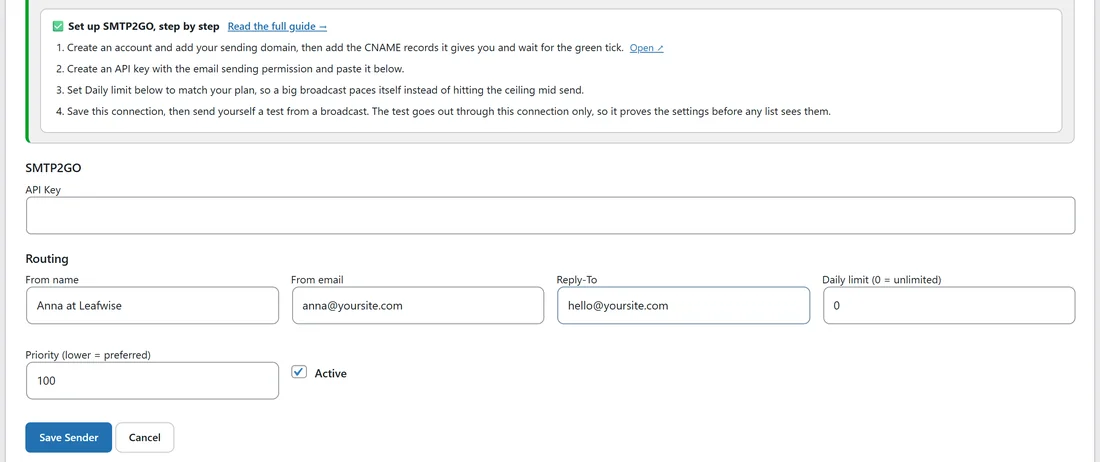
The SMTP2GO part of the form has one box.
- API Key: the key from step 2, shown as dots.
Then fill in the rest of the form:
- Display name: for example SMTP2GO.
- From name and From email: an address on the verified domain, for example Anna at Leafwise and anna@yoursite.com.
- Reply-To: for example hello@yoursite.com.
- Daily limit (0 = unlimited): your plan's allowance for a day, so a big broadcast paces itself instead of meeting the ceiling halfway.
- Priority (lower = preferred): 10 for your main service, or 20 for a backup.
- Active: leave it ticked.
Click Save Sender, then click Test on the new row.
Faster sending in batches:
For SMTP2GO, the Mailer sends queued emails in batches of up to 50 per request instead of one request per email, which makes big sends quicker. If your key is not allowed to use batch sending, the Mailer notices and sends those emails one by one instead, so nothing is lost either way.
When SMTP2GO is the connection next in line, the whole batch goes through it. With rotation switched on, SMTP2GO therefore takes its share in blocks of up to 50 rather than one email at a time.
Step 4. Set up the webhook:
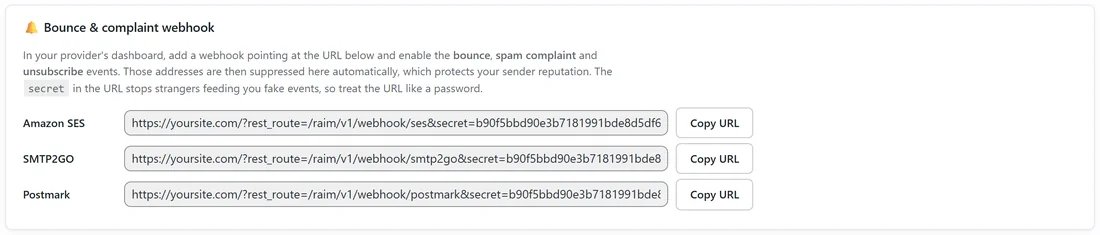
- On the Sending screen, click Copy URL next to SMTP2GO in the Bounce & complaint webhook box.
- In SMTP2GO, open the webhooks settings and add the URL.
- Choose the bounce, spam and unsubscribe events. You can add reject too.
Each bounce is classified: hard bounces are suppressed and soft ones logged. Spam complaints and unsubscribes are suppressed. A reject (SMTP2GO refusing to send to an address on its own list, or from an unverified sender) is written to the Mailer's log for you to look at, without changing the subscriber.
A real example:
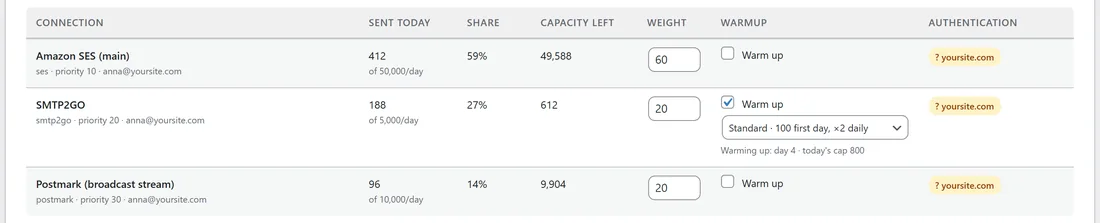
Leafwise Gardening's SMTP2GO connection has From email anna@yoursite.com, Daily limit 5,000 and Priority 20. Anna switched on Warm up with the Standard pace on 30 October, so on day 4 its cap is 800. Today it has sent 188 emails as its 20 share of the rotation, with 612 left before today's cap. The cap doubles each day until it reaches 5,000 on day 7, and from then on the Daily limit takes over.
Tips:
- If you outgrow the plan, move up a plan or add a second connection and turn on rotation. See SMTP Rotation: Spread Sends Across Many Connections.
- Keep the domain records in place if you move DNS provider. See Deliverability: SPF, DKIM And DMARC.
- Use Warm up for the first large send from a brand new account. See Warmup: Drip A Big Send Through A Cold Server.
If something does not look right:
- If the test fails and mentions the sender, verify the From email's domain in SMTP2GO, then test again.
- If the test fails with a key message, create a new key with email sending permission and paste it again.
- If sending stops partway through the day, compare Sent today with Daily limit and with the warmup cap in Send Rotation & Warmup.
- If you see SMTP2GO rejects in the log, remove that address from your list or fix the sender, so every send is accepted.