Out of the box, the AI writes in a good neutral style. Train it on your own emails and it writes like you: your greeting, your sign-off, your rhythm and the phrases you really use. You do it once, and every AI feature that writes for you picks it up.
Where to find it:
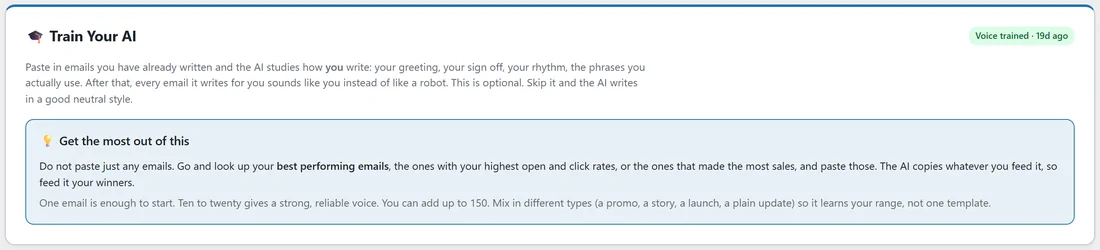
AI Setup, then Train Your AI. The screen has four parts: 🎓 Train Your AI with a short guide, 📥 Add your emails, 📚 Your training emails, and 🧠 Your voice profile. When a voice is trained, a green "Voice trained" badge at the top says how long ago.
Choosing the right emails:
Do not paste just any emails. Look up your best performing ones: the highest open and click rates, or the ones that made the most sales. The AI copies whatever you give it, so give it your winners. Mix the types (a promo, a story, a launch, a plain update) so it learns your range, not one template. One email is enough to start; ten to twenty gives a strong, reliable voice; you can keep up to 150.
Adding your emails:
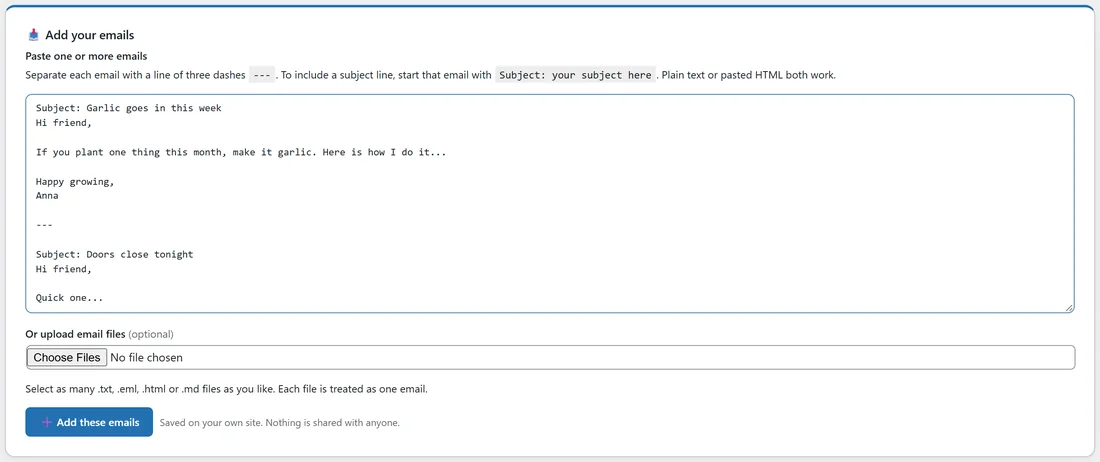
- Under Paste one or more emails, paste your emails. Put a line of three dashes (---) between emails.
- To include a subject, start that email with "Subject: your subject here". Plain text and pasted HTML both work; HTML is turned into plain text.
- Or use Or upload email files to pick .txt, .eml, .html or .md files. Each file is one email; an .eml file's subject is read from its headers, and other files use the file name as the subject.
- Click ➕ Add these emails. They are saved on your own site and shared with nobody.
Each saved email appears in 📚 Your training emails with its Subject, Opening line and Length in words. Remove takes one out; 🗑 Clear everything removes every training email and the learned voice after you confirm.
Learning your voice:
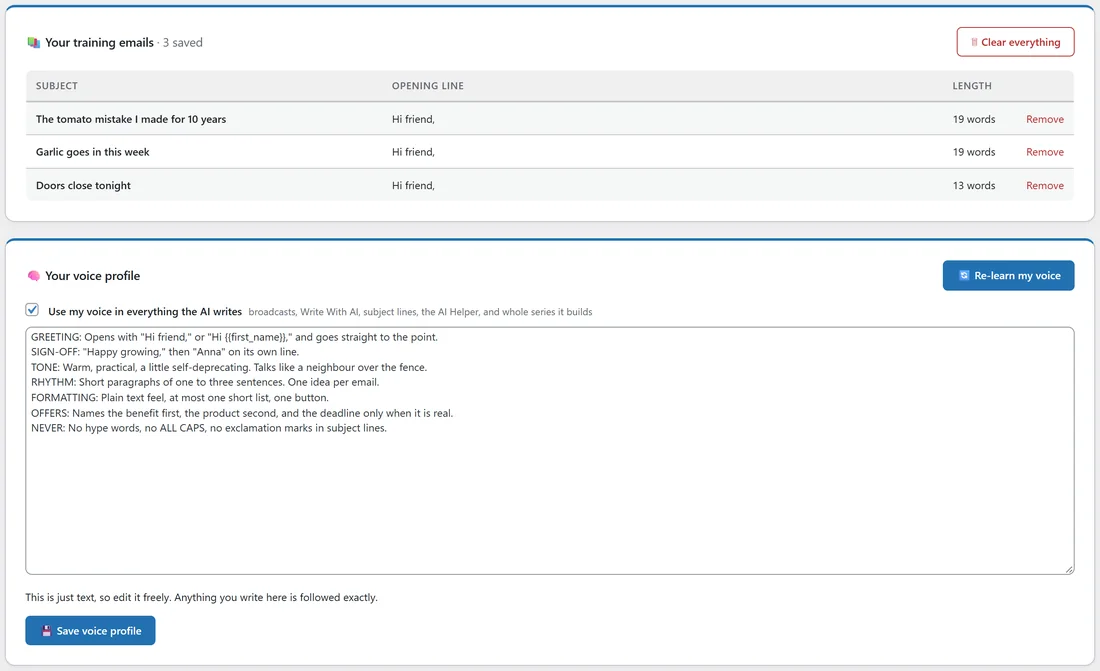
- Under 🧠 Your voice profile, click ✨ Learn my voice (it says 🔄 Re-learn my voice once a voice exists). It needs an AI key connected in AI Studio.
- The AI reads your emails once and writes a style guide, in this order: your greeting, your sign-off, tone and personality, sentence and paragraph rhythm, formatting habits, phrases you reuse, how you make an offer, and the things you never do.
- The style guide appears in the box and is stored straight away. A green "Voice learned from" message says how many emails were read.
The analysis reads whole emails, in order, up to about 60,000 characters in one go, so with a very large set the first emails count most. Each saved email is kept up to 8,000 characters.
Editing the profile:
The profile is plain text, and anything you write there is followed exactly. Add rules such as "always sign off as Anna" or "never use ALL CAPS in subject lines", then click 💾 Save voice profile.
Switching it on or off:
Use my voice in everything the AI writes is ticked once a voice is learned. Untick it and click 💾 Save voice profile to go back to the neutral style without deleting anything.
Where your voice is used:
- AI subject lines in the broadcast composer.
- Write With AI and rewrites, including ✨ Edit with AI on automation emails.
- The AI Helper, including the emails in automations it builds.
- Build me a form, for headlines and button wording.
- The 25 prebuilt automations when the AI writes every email from your page, and ✨ Adapt all emails to my voice.
Only the style guide is sent with each request, not your raw emails, so training on 100 emails costs no more per email than training on one.
A real example:
Anna at Leafwise Gardening pastes three of her best newsletters, including "Garlic goes in this week" and "Doors close tonight". She clicks ✨ Learn my voice. The profile says she opens with "Hi friend," or "Hi {{first_name}},", signs off "Happy growing," then "Anna", writes short paragraphs with one idea per email, names the benefit before the product, and never uses hype words or exclamation marks in subject lines. She adds "Always mention the season when it matters" and saves. The next subject lines the AI suggests sound like her.
Tips:
- Re-learn your voice after adding new winners every few months.
- Connect your key first. See Connecting Claude Or OpenAI.
- See how the voice shows up in subject lines in AI Subject Lines, Rewriting And Inbox Score.