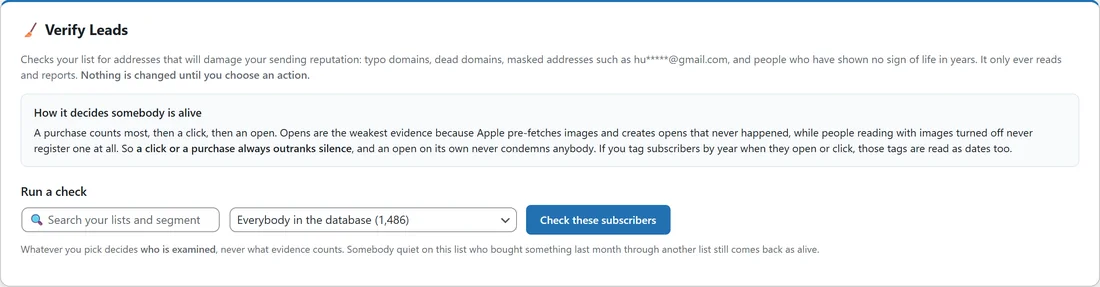
Mailing addresses that bounce or never open hurts how inbox providers treat every email you send. Verify Leads finds those addresses before you send. It sorts the people you pick into clear groups, such as alive, cold, typo domain and dead domain, and tells you why each person landed where they did.
It only ever reads and reports. Nothing changes until you choose an action on a group.
Where to find it:
Audience, then Verify Leads. You can also press 🧪 Check emails on any saved segment, or 🧪 Check these emails under the audience builder. Both open Verify Leads in a new tab, already pointed at that group. Verify Leads works on saved segments, so an audience that is not saved yet is first saved as a segment, after you give it a name.
How it decides somebody is alive:
A purchase counts most, then a click, then an open. Opens are the weakest evidence, because some mail apps load images on their own and create opens that never happened, while people who read with images turned off never register one. So a click or a purchase always outranks silence, and an open on its own never condemns anybody.
The evidence comes from everything the Mailer knows about a person, not just the list you picked. Somebody quiet on your Newsletter who bought something last month through another list still comes back as alive.
If you tag people by year when they open or click, those tags count as dates too. A tag like o26 is read as opened in 2026 and c25 as clicked in 2025. Any such tags appear at the bottom of the screen under Your engagement tags, with how each one was read.
Running a check:
- Under Run a check, pick who to examine: Everybody in the database, or any list or segment. The search box beside it narrows a long list of choices.
- Press Check these subscribers.
- Wait for the progress line to finish. The result appears under Last result.
The groups:
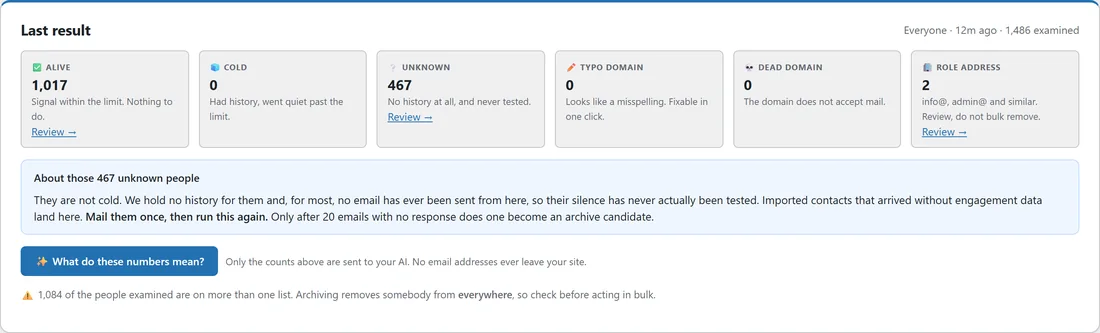
- ✅ Alive: a sign of life within your limit. Nothing to do.
- 🧊 Cold: they had history but went quiet past your limit.
- ❔ Unknown: no history at all, and never tested. Imported people with no engagement data land here.
- ✏️ Typo domain: looks like a misspelling, for example gmial instead of gmail. Fixable in one click.
- 💀 Dead domain: the domain does not accept mail.
- 💀 Masked address: starred out, like hu*****@example.com, so there is no mailbox to deliver to.
- 🗑️ Disposable: a throwaway address.
- 🏢 Role address: info@, admin@ and similar. Review these rather than removing them in bulk.
- ❌ Invalid: not a usable address.
Each tile shows the count and a Review link. The last four tiles only show when the count is above zero.
About the unknown group:
Unknown is not the same as cold. Most unknown people have simply never been sent anything from here, so their silence has never been tested. The screen recommends mailing them once and checking again. Only after a set number of emails with no response (20 by default) does an unknown person become someone to archive.
Reviewing and acting on a group:
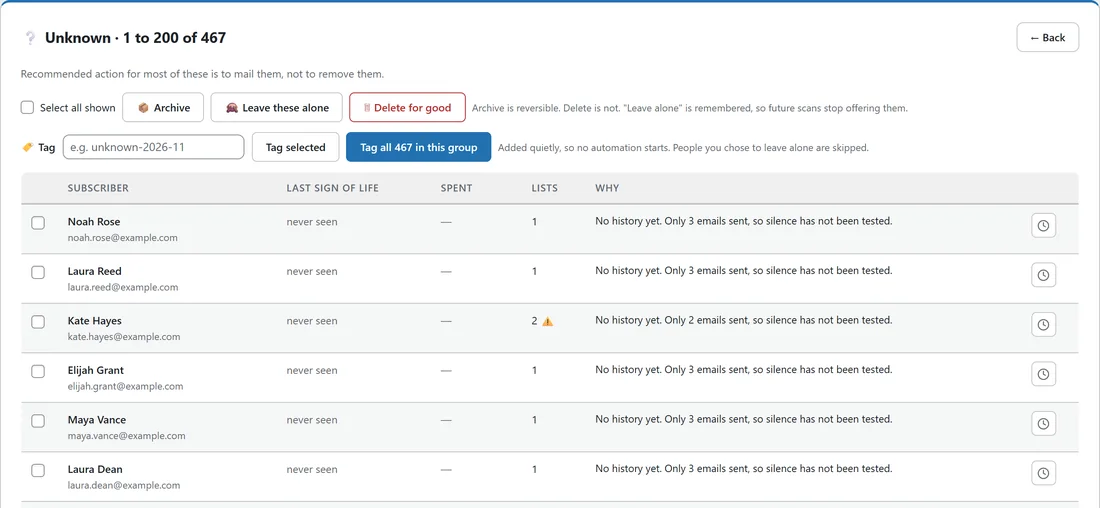
- Press Review under a tile. The group opens at the top of the screen, 200 people per page, with each person's last sign of life, what they have spent, how many lists they are on, and why they are in this group.
- Tick people, or tick Select all shown.
- Choose an action.
- ✏️ Fix the spelling (typo group only): changes the domain to the suggestion shown in the Suggestion column.
- 📦 Archive: keeps everything about them but stops them being emailed or counted. Reversible.
- Remove from this list only: shown when you checked a single list. They stay in your audience and on any other list.
- 🙈 Leave these alone: remembered, so future checks count them but stop offering them for action. Show them so I can undo brings them back.
- 🗑 Delete for good: permanent.
To tag a group instead, type a tag in the Tag box and press Tag selected, or Tag all N in this group to tag the whole group across every page. Tags are added quietly, so no automation starts, and people you chose to leave alone are skipped.
A warning sign next to the Lists number means that person is on more than one list. Archiving takes somebody out of everywhere, so check before acting in bulk.
Archived people:
When anyone is archived, a View N archived button appears at the top. It lists them with when and why they were archived and their last sign of life, and ↩ Bring back makes them mailable again. Archived people also come back on their own if they click, buy or open anything.
Asking the AI:
With an AI key connected, ✨ What do these numbers mean? explains your result in plain words, and ✉️ Draft a win-back email appears when some of your cold people once clicked or bought. Only the counts are sent to your AI, never any email addresses.
Settings:
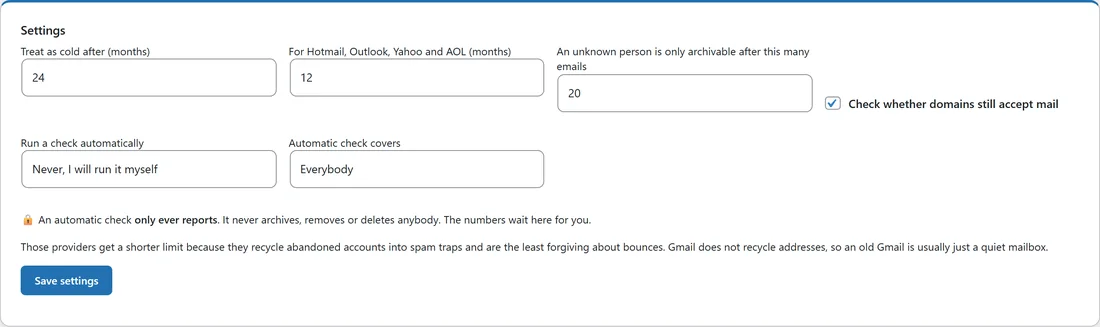
- Treat as cold after (months): how long without a sign of life before someone counts as cold. 24 is the default and a good starting point.
- For Hotmail, Outlook, Yahoo and AOL (months): a shorter limit for these providers, 12 by default, because they turn long-abandoned accounts into spam traps. Gmail does not, so an old Gmail address is usually just a quiet mailbox.
- An unknown person is only archivable after this many emails: 20 by default.
- Check whether domains still accept mail: looks each domain up to find dead ones. Leave it on.
- Run a check automatically: Never, Every week or Every month.
- Automatic check covers: Everybody or one list.
An automatic check only ever reports. It never archives, removes or deletes anybody. Press Save settings after any change.
Scan history:
Once you have run more than one check, 📜 Scan history lists your last 24 checks with the count in each group. A green or red number compares a check with the previous check of the same people, so you can see a list getting healthier over time. Click any number to review that group from that check.
A real example:
Before her first big send to the people she moved over, Anna at Leafwise Gardening checked Everybody in the database. 1,486 people were examined: 1,017 alive, 467 unknown and 2 role addresses. She reviewed the role addresses and pressed 🙈 Leave these alone for both, because they are real shop contacts. She left the 467 unknown people in place, sent them her normal newsletter, and planned to check again after a few more sends.
Tips:
- Check a list right after you import it. See Importing Subscribers From A CSV.
- Fix typo domains first. Those are real people who simply mistyped their address.
- Archive cold people rather than deleting them. If they ever come back to life, so do they.
- For quiet people who once bought from you, send one win-back email before you archive anyone.
- For bounces after a send, see Hard And Soft Bounces.