Where a list is a group people are put into, a segment is a group defined by rules. Who is in a segment changes as people open, click, buy and join, so a segment like Engaged in the last 30 days always means what it says.
You can build a segment in two ways: describe it in plain English and let the AI write the rules, or tick lists and add filters yourself. Both end up as the same rules, and you can always open them and adjust them by hand.
Where to find it:
Audience, then Segments. The page has three parts: the AI Segment Builder, your Saved segments, and Create a new segment.
The AI Segment Builder:

This needs an AI key. See Connecting Claude Or OpenAI. Without one, the screen shows a short line with a link to connect a key, and the point and click builder still works.
- Type who you want, for example Vegetable Growers who clicked a link in the last 30 days and have never bought the Raised Bed Masterclass. You can also press Talk and say it, or click one of the example chips under the box.
- Press Translate to rules.
- The AI returns a card with a suggested name, a confidence figure, how many recipients match right now, a sentence explaining exactly who the rules select, and a sample of matching addresses. View rules JSON shows the rules themselves.
- If it is close but not right, press Refine and describe the change, for example only the US, or also leave out anyone who bought the Tomato Growing Masterclass.
- Change the name in the box if you like and press Save segment. Discard throws the result away.
The AI works from your real data: your lists, tags, countries, sources, custom fields and products. Read the explanation sentence before saving. If part of what you asked cannot be expressed with the filters available, the AI picks the closest rules and adds a note marked ⚠ to the explanation saying what it could not do.
Building a segment by hand:
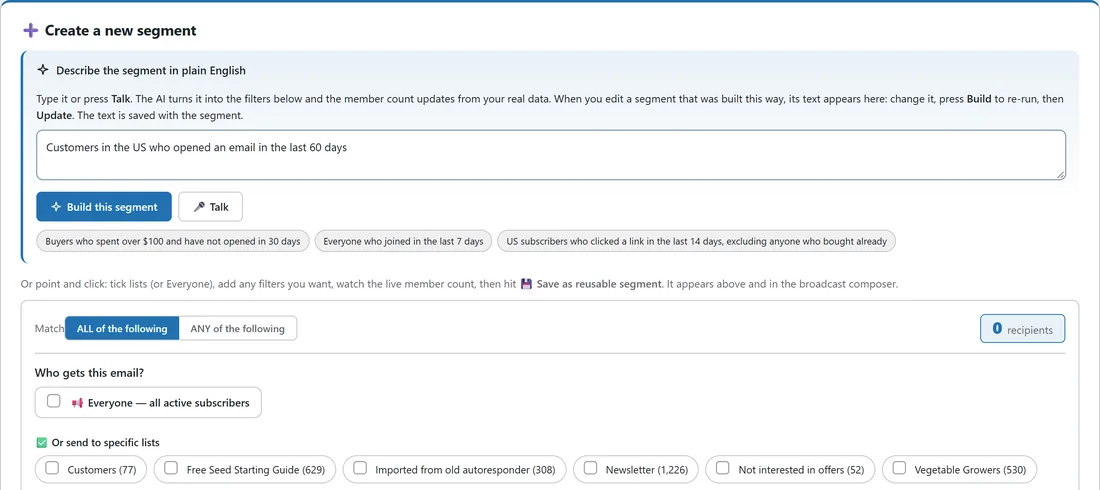
Under Create a new segment, work through these steps.
- If you have an AI key, you can describe the segment in the box at the top and press Build this segment. The filters below fill in for you, and the member count updates.
- Or point and click: tick Everyone, or tick the lists to include under Or send to specific lists. Pick saved segments to include or leave out, and lists to leave out.
- Open Advanced filters to add rules on tags, country, engagement, opens, clicks, purchases, scores, custom fields and more.
- Watch the recipients count in the top right corner. It updates as you change anything.
- Press 💾 Save as reusable segment and give it a name.
Every filter is explained in Building A Custom Audience, because the broadcast composer uses exactly the same builder.
Saved segments:
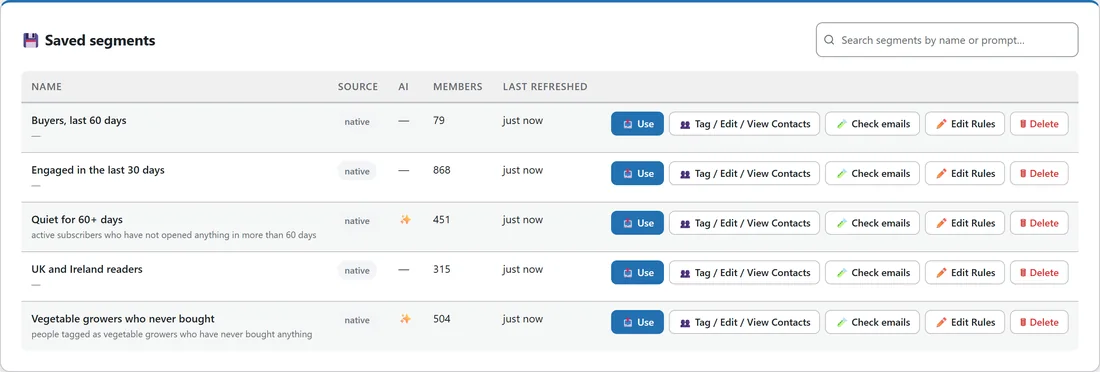
The table lists every saved segment with its Source, a ✨ in the AI column if the AI built it, the number of Members and when it was Last refreshed. The search box finds a segment by its name or by the words used to build it. Each row has:
- 📤 Use: starts a new broadcast to this segment.
- 👥 Tag / Edit / View Contacts: opens the Subscribers screen filtered to this segment, where you can view, edit or tag everyone in it.
- 🧪 Check emails: opens Verify Leads in a new tab, already pointed at this segment.
- ✏️ Edit Rules: loads the segment into the builder below. Change anything, then save, and the segment is updated in place.
- 🗑 Delete: removes the saved segment. Your subscribers are not touched.
Where segments are used:
- In the broadcast composer, under Or send to saved segments and But never send to these segments.
- In the Segment filter of the audience builder.
- In the Add subscribers box on the Lists screen, to copy a segment into a list.
- On the Scoring screen, to give a whole segment points.
- In Verify Leads and Tidy Names, to check just that group.
With WP Conversion Tracker installed, the page also shows its Audience Vault buyer groups, such as Champions and At Risk, each with a View and an Email button.
A real example:
Anna at Leafwise Gardening typed Vegetable Growers who clicked a link in the last 30 days and have never bought the Raised Bed Masterclass and pressed Translate to rules. The card showed the rules, the number of people who matched, and one sentence saying exactly who they select. She read the sentence, saved it as Raised bed prospects and pressed 📤 Use to write a short email about her raised bed course.
Tips:
- Save segments you will use again, such as Engaged in the last 30 days. They stay up to date on their own.
- Use segments for leaving people out too, for example a segment of recent buyers under But never send to these segments.
- From the Subscribers screen, 💾 Save as segment turns whatever you filtered into a segment in one click. See The Subscribers Screen.