Every email the Mailer sends can tell you who opened it, who clicked, which links they chose and who unsubscribed. Those results feed your reports, your segments, your tags and your automations.
This guide explains how each one is measured, what is recorded, and how to choose who is tracked.
Open tracking:
A tiny invisible image is added to the end of each email. When the reader's mail app loads it, the open is recorded. This is the standard method everywhere.
Two things keep the numbers honest:
- Inbox scanners and spam filters often load images the moment a message arrives. An open in the first 15 seconds after sending is never counted, so those machines do not inflate your rate.
- Some mail apps block images, so an open is never seen. If that person clicks a link, the click also counts the open, so a click can never outnumber opens.
Treat open rates as a useful trend rather than an exact count.
Click tracking:
Each link in your email first passes through your own site, which records the click and then sends the reader straight on to the real page. Clicks are the stronger signal, because a click needs a real person to act.
The Mailer also filters out machine clicks: a click within 3 seconds of sending, a click from a known link scanner, or two different links clicked within 2 seconds. The reader still lands on the page; the click just is not counted.
Links that are never tracked:
Your unsubscribe, preferences, view in browser, confirm and resubscribe links are left alone. They always go straight to their page, and they never count as engagement.
Unsubscribes:
Clicking the unsubscribe link opens a page with one button, Yes, unsubscribe me. Only pressing that button unsubscribes the person. That way an inbox scanner following the link never removes a real reader, and you can click your own unsubscribe link to test it. Mail apps that offer their own one-click unsubscribe button work directly. Each unsubscribe is counted once per email, even if the person clicks twice.
What is recorded:
- For each email sent: whether it was opened and clicked, when, and how many times.
- For each open: the device, mail app and country, which feed the Devices and Countries tabs of a report.
- For each click: the link and when.
- For each subscriber: lifetime opens and clicks, and when they last opened and clicked.
The engagement score:
Every subscriber has an engagement score from 0 to 100, worked out again once a day. It starts at 50, adds 20 if they opened in the last 7 days, adds 25 if they clicked in the last 30 days, and takes off 30 if they have not been seen for 90 days. Each real click also adds 2 straight away. You can filter and build segments on it with the Engagement score filter.
Choosing who is tracked:
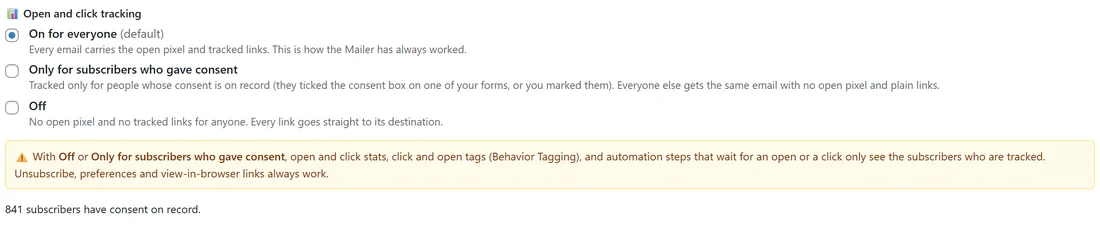
Go to Setup, then Settings, and find Open and click tracking under Operations.
- On for everyone (default): every email carries the open image and tracked links.
- Only for subscribers who gave consent: tracked only for people whose consent is on record, because they ticked the consent box on one of your forms or you marked them. Everyone else gets the same email with no open image and plain links.
- Off: no open image and no tracked links for anyone.
With Off or consent only, open and click stats, open and click tags and automation steps that wait for an open or a click only see the people who are tracked. Unsubscribe, preferences and view in browser links always work. If GDPR mode is on under Behaviour, On for everyone works as consent only.
Top clicked links:
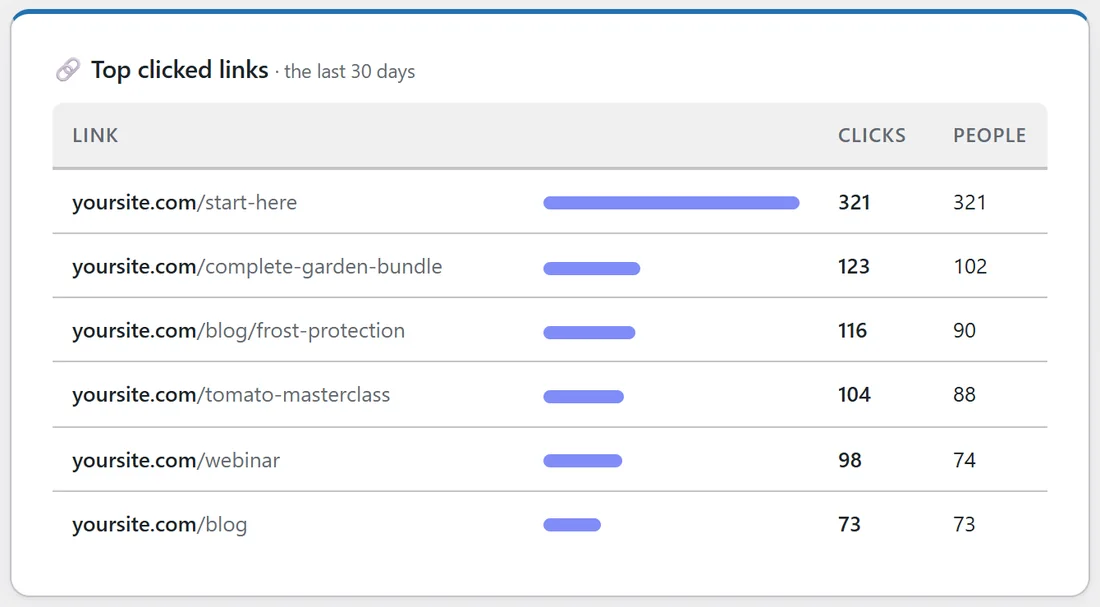
On Reports, the Top clicked links table lists every link your readers clicked in the date range, with Clicks and People. It is the quickest way to see which topics and offers your list cares about.
Where else you see it:
- The Dashboard tiles and charts. See The Dashboard At A Glance.
- Each broadcast and automation report, with Who opened and Who clicked tabs.
- The engagement charts on Reports, which count broadcasts and automations together and say how many opens and clicks came from automations.
A real example:
Anna's Tomato masterclass broadcast goes to 575 readers of Leafwise Gardening. A mail scanner loads the open image two seconds after delivery; it is ignored. A reader with images turned off clicks the tomato-masterclass link; the Mailer counts both the click and the open. Over 30 days, Top clicked links shows yoursite.com/start-here at the top and yoursite.com/complete-garden-bundle second, so Anna plans her next email around the bundle.
Tips:
- Judge an email by clicks first, opens second.
- Tag people when they click a link to learn what they want. See Behavior Tagging: Tag People By What They Do.
- Use the Engagement score filter to find your most engaged readers, or the quiet ones for a win-back. See Segments And The AI Segment Builder.