Mailgun is a developer favourite with solid delivery and very detailed logs. Its connection form has three boxes, and the one that matters most is Region: Mailgun runs separate services in the US and the EU, and the region on the form must match the one your domain lives in.
What you need before you start:
- A Mailgun account (sign up at mailgun.com).
- Access to the DNS for your sending domain.
- About fifteen minutes.
Where to find it:
In ResultsAiX Mailer open Delivery, then Sending, click + Add Sender and choose Mailgun in the Provider dropdown. Its checklist and three boxes appear.
Step 1. Add your sending domain at Mailgun:
- In your Mailgun dashboard, add a sending domain. Mailgun suggests a subdomain such as mail.yoursite.com, which keeps your newsletter reputation separate from your everyday email.
- While adding it, note whether the domain is created in the US or the EU region.
- Add the DNS records Mailgun lists (SPF, DKIM and tracking) at your DNS host.
- Wait until Mailgun shows the domain as verified.
Step 2. Copy an API key:
In Mailgun, open the API keys area and create or copy a key. A sending key for that domain is enough, because the Mailer only sends messages.
Step 3. Fill in the form:
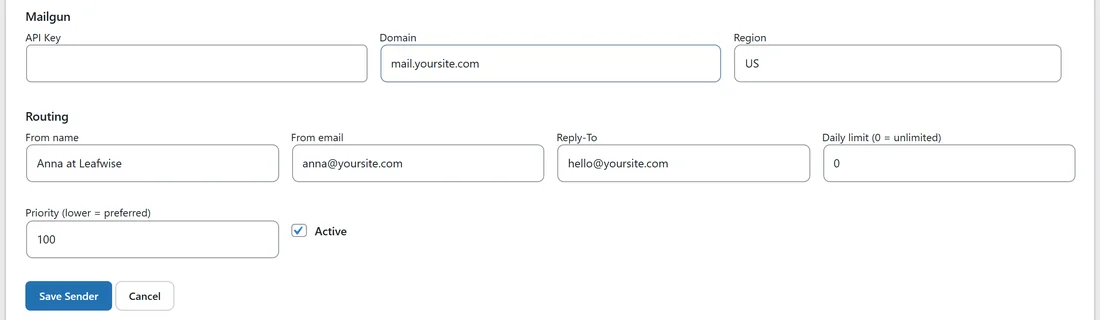
The Mailgun part of the form has three boxes.
- API Key: the key from step 2, shown as dots.
- Domain: the sending domain exactly as Mailgun shows it. If you set up mail.yoursite.com, type mail.yoursite.com, not yoursite.com.
- Region: US or EU. It starts on US. Choose EU if your domain was created in Mailgun's EU region.
Then fill in the rest of the form:
- Display name: for example Mailgun.
- From name and From email: an address on the sending domain, for example Anna at Leafwise and anna@mail.yoursite.com, or anna@yoursite.com if you verified the main domain.
- Reply-To: for example hello@yoursite.com.
- Daily limit (0 = unlimited): your plan's daily allowance, so a big broadcast paces itself.
- Priority (lower = preferred): 10 for your main service, or 20 for a backup.
- Active: leave it ticked.
Click Save Sender, then click Test on the new row.
Step 4. Set up webhooks:
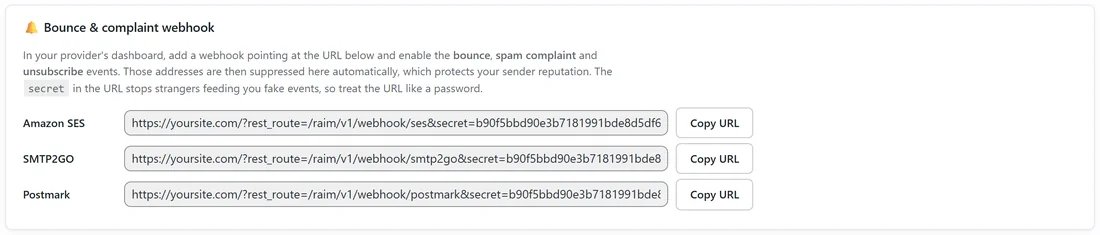
- On the Sending screen, click Copy URL next to Mailgun in the Bounce & complaint webhook box.
- In Mailgun, open the webhooks settings for your sending domain.
- Add the URL for the permanent failure, temporary failure, spam complaint and unsubscribe events.
Mailgun marks each failure as permanent or temporary, and the Mailer uses that: permanent failures are suppressed, temporary ones are logged and only suppressed if they keep happening.
How Mailgun and the Mailer work together:
- Emails go to Mailgun's US API or EU API depending on the Region box.
- The Mailer switches off Mailgun's own tracking on every email, because it tracks opens and clicks itself.
- When an email bounces, Mailgun's log shows exactly what the receiving server said, which is handy next to the Mailer's own bounce record.
A real example:
Leafwise Gardening sets up mail.yoursite.com in Mailgun's EU region, because most readers are in Europe. In the Mailer, Anna chooses Mailgun, pastes the key, types mail.yoursite.com in Domain, and changes Region to EU. From email is anna@mail.yoursite.com, Daily limit 10,000, Priority 20. The test passes, and Last test shows OK.
Tips:
- Write the region next to the domain name in your notes the day you create it.
- Use a subdomain for list email. Your everyday mail keeps its own reputation.
- Switch on Warm up for a brand new Mailgun domain. See Warmup: Drip A Big Send Through A Cold Server.
- Check the records on the Deliverability tab. See Deliverability: SPF, DKIM And DMARC.
If something does not look right:
- If the test fails although the key looks right, check the Region box first. A US domain needs US and an EU domain needs EU.
- If the test fails with a domain message, make sure the Domain box matches the sending domain exactly and that Mailgun shows it as verified.
- If the test fails and mentions the sender, use a From email on the same domain you typed in the Domain box.
- If sending stops for the day, compare Sent today with Daily limit and with your Mailgun plan.