Elastic Email is a popular choice when budget is the deciding factor for a large list. Like many budget services, it sends from shared pools, so your own domain authentication does a lot of the work: a properly signed email from your own verified domain is judged on your reputation.
What you need before you start:
- An Elastic Email account, created on the Elastic Email website.
- Access to the DNS for your sending domain.
- About fifteen minutes.
Where to find it:
In ResultsAiX Mailer open Delivery, then Sending, click + Add Sender and choose ElasticEmail in the Provider dropdown. The checklist "Set up Elastic Email, step by step" appears with one API Key box.
Step 1. Verify your domain at Elastic Email:
- In your Elastic Email dashboard, add your sending domain, for example yoursite.com.
- It lists SPF, DKIM and tracking records. Add all of them at your DNS host.
- Wait for the domain to show as verified.
Step 2. Create an API key:
In Elastic Email, create an API key with permission to send email, and copy it.
Step 3. Fill in the form:
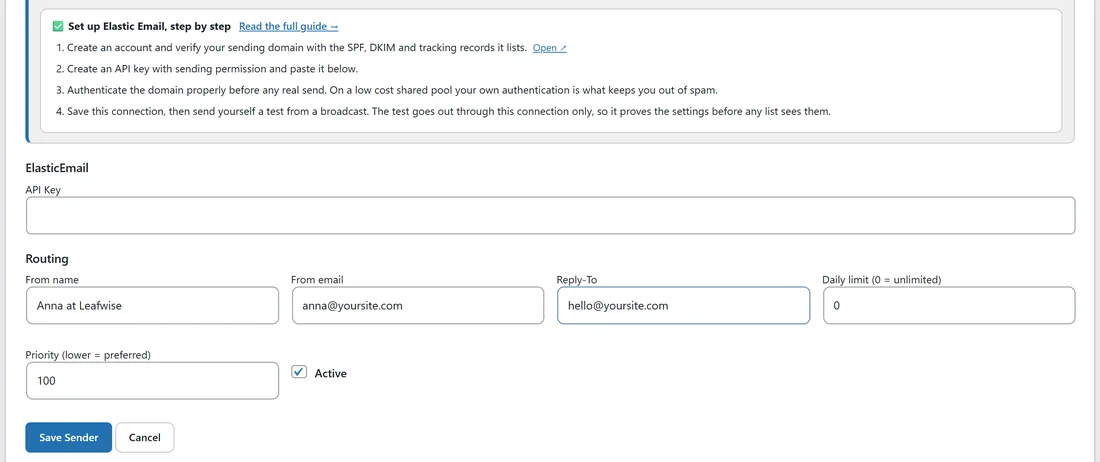
The ElasticEmail part of the form has one box.
- API Key: the key from step 2, shown as dots.
Then fill in the rest of the form:
- Display name: for example Elastic Email.
- From name and From email: an address on the verified domain, for example Anna at Leafwise and anna@yoursite.com.
- Reply-To: for example hello@yoursite.com.
- Daily limit (0 = unlimited): your plan's allowance for a day.
- Priority (lower = preferred): 10 for your main service, or 20 for a backup.
- Active: leave it ticked.
Click Save Sender, then click Test on the new row.
Before the first real send:
- Finish every DNS record Elastic Email lists, not only DKIM.
- Clean the list with Verify Leads, so old dead addresses do not bounce in bulk.
- Switch on Warm up for this connection in Send Rotation & Warmup.
- Send a test broadcast to a Gmail, an Outlook and a Yahoo address you own, and check which folder each one lands in.
Step 4. Set up the webhook:
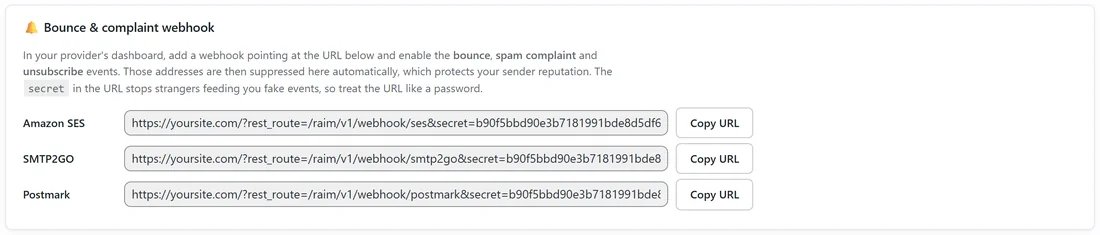
- On the Sending screen, click Copy URL next to ElasticEmail in the Bounce & complaint webhook box.
- In Elastic Email, open the webhook (notification) settings and add the URL.
- Choose bounce, abuse report (complaint) and unsubscribe notifications.
Hard bounces are suppressed, other bounces are logged and only suppressed if they repeat, and complaints and unsubscribes are suppressed straight away.
How Elastic Email and the Mailer work together:
The Mailer switches off Elastic Email's own open and click tracking on every email, because it tracks opens and clicks itself.
A real example:
Leafwise Gardening keeps a large list of past seed swap visitors on Elastic Email. Anna verifies yoursite.com with all the listed records, adds a connection called Elastic Email with From email anna@yoursite.com, Daily limit 10,000 and Priority 50, and switches on Warm up with the Conservative pace. Her first send to that list starts with 50 emails on day one, and the cap grows by half each day while the rest waits politely in the queue.
Tips:
- Authenticate fully before anything else. See Deliverability: SPF, DKIM And DMARC.
- Keep an eye on opens and bounces for the first few sends in Reports.
- If you also use another provider, rotation can share the load. See SMTP Rotation: Spread Sends Across Many Connections.
If something does not look right:
- If the test fails with a key message, create a key with sending permission and paste it again.
- If the test passes but mail lands in spam, check that every record Elastic Email listed is in place, then check the domain on the Deliverability tab.
- If the account is limited early on, slow down with Warm up and clean the list with Verify Leads before the next send.