Before an automation goes live, read every email the way your subscribers will. The ✉️ Send test button on each email step sends that one email to the address you choose, through the same path a real send uses, so what arrives is what a subscriber gets, unsubscribe footer included.
Where to find it:
Emails, then Automations, open an automation and click an email step. ✉️ Send test is in the toolbar at the top of the step, next to 👁 Preview.
Sending a test:
- Write the Subject and the email (or load one with 📚 Use a saved email).
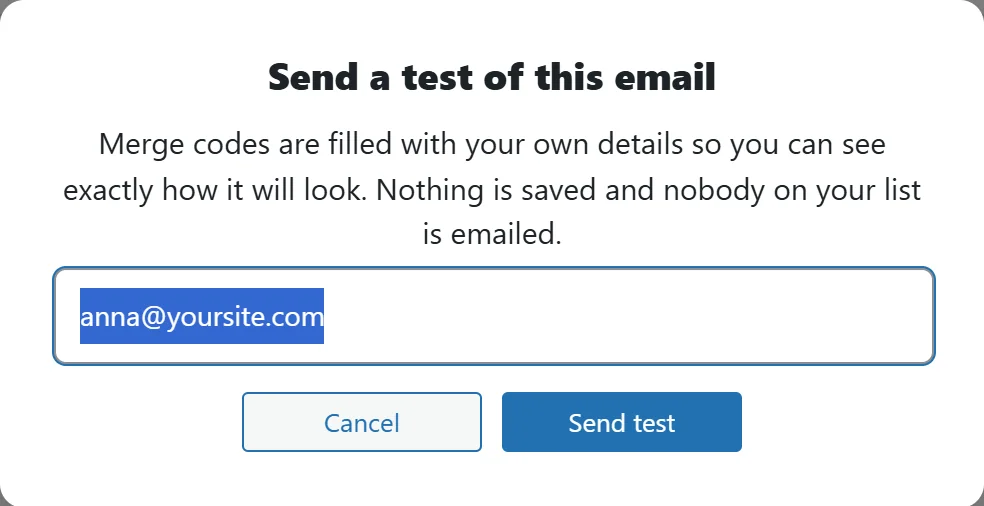
- Click ✉️ Send test. The dialog "Send a test of this email" opens with your admin email filled in.
- Change the address if you like, for example to your phone's mail app.
- Click Send test. A message confirms "Test sent to" and the address.
- Open the email in your inbox and read it on desktop and on your phone.
What the test uses:
- The subject, preview text and body exactly as they are in the editor right now, even if you have not saved.
- The sender chosen in Send every email from at the top of the automation, so the From name and address match the real sends.
- Your own details for merge codes, so {{first_name}} reads like a real greeting.
- Your branding and the unsubscribe footer, added the same way as on a real send.
What it never does:
- It never saves anything. Testing an email you are still writing does not change the live automation and does not create a draft broadcast.
- It never emails anyone on your list. Only the address in the dialog receives it.
If something does not look right:
- If you see "Give this email a subject line first", type a subject and click ✉️ Send test again.
- If you see "Write the email first", add the email content first.
- If no test arrives, check Delivery, then Sending, and send a test there to confirm your sending service works. See Diagnostics And Fixing Problems.
A real example:
Anna at Leafwise Gardening finishes "Welcome, here is what happens next" in the Newsletter welcome series. She clicks ✉️ Send test, keeps anna@yoursite.com, and clicks Send test. The email arrives from Anna (newsletter), greets her by name, and has the unsubscribe footer at the bottom. She notices the second paragraph is long on her phone, splits it, and sends one more test before saving.
Tips:
- Test after every Edit with AI rewrite. See The Email Library: Write Once, Reuse Anywhere.
- Check how emails look on small screens. See How Your Emails Look On Phones.
- Merge codes and fallbacks are explained in Merge Codes And Tag Codes.