When someone replies to an email or asks why they received something, the first question is usually: which automations are they in, and where? Each subscriber's profile answers that in one table, with no need to tag people at every step just to track them.
Where to find it:
Audience, then Subscribers, then the pencil button on a person. Scroll below the form to Automations this person is in. The table only appears for people who have been in at least one automation.
What each column shows:
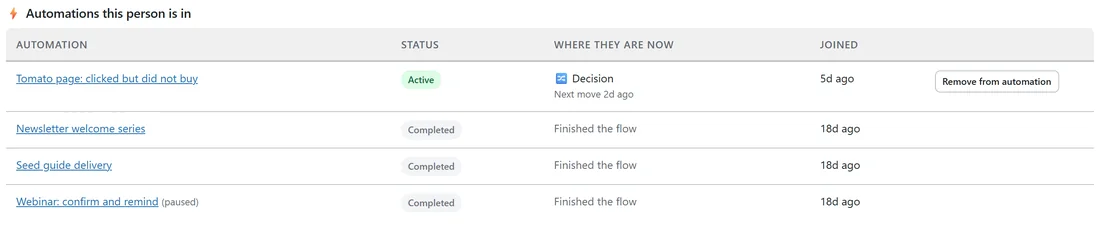
- Automation: the name, which links straight to that automation. A paused or draft automation shows its state in brackets.
- Status: Active while they are moving through it, Completed once they reached the end, or Exited if they left early.
- Where they are now: for active people, the step they are on, such as ✉️ Email, ⏳ Waiting, 🔀 Decision, 🏷️ Add tag or 📋 Add to list, with the step's label, plus when their next move is due. Finished people show Finished the flow. People who left early show Left early with the reason, for example an exit rule that took them out after a purchase.
- Joined: when they entered the automation.
Taking someone out:
Active rows have a Remove from automation button.
- Press Remove from automation.
- Read the box: their journey stops there, and any email the automation has queued for them is not sent. What they already received stays in their history, and their tags and lists are not touched.
- Press Remove from automation to confirm.
A green note at the top of the profile confirms it. See Taking People Out Of An Automation for other ways to do this, including exit rules.
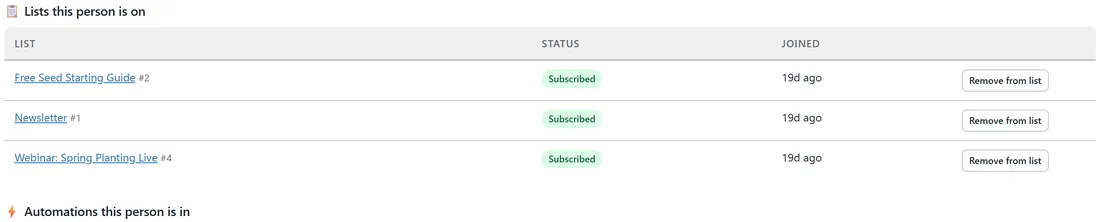
Just above, Lists this person is on shows every list with a Remove from list button.
A real example:
Ava, one of Leafwise Gardening's readers, emailed Anna to ask why she keeps hearing about tomatoes. Anna opened Ava's profile. Automations this person is in showed Tomato page: clicked but did not buy as Active, sitting on a 🔀 Decision step, and three automations she had finished: Newsletter welcome series, Seed guide delivery and Webinar: confirm and remind. Anna replied with what Ava could expect next and offered to take her out of that automation, which is one click.
Tips:
- Use the automation's own report to see everyone on a step at once. See The Automation Report: Every Email, Every Result.
- This table only shows. Nothing changes unless you press Remove from automation.
- To start someone in an automation by hand, tick them on the Subscribers screen and use Enroll in automation. See The Subscribers Screen.