Automations save in two ways, so you never lose work and never send a half-finished change to people part way through a flow. While you edit, your changes are saved automatically. On an automation that is live, those changes wait as a draft, and they only go live when you press 💾 Save automation.
Where to find it:
Emails, then Automations, open an automation. 💾 Save automation is at the bottom of the editor and stays in view while you scroll. Next to it, a short line shows when the last autosave happened, for example "Draft saved 14:32".
How autosave works:
- Autosave runs about three seconds after you stop changing something, and every 20 seconds while there are changes.
- A new automation is saved from your first change, always as a 📝 Draft, so nothing can start running by itself. The page keeps editing that same automation, so pressing Save automation later never makes a second copy.
- A Draft that nobody is in is saved in full: name, triggers, steps and settings. The line says "Saved as a draft" with the time.
- A live automation (Active or Paused, or any automation with people inside) keeps the steps you change in a separate draft. Everyone inside carries on following the published version. The line says "Draft saved" with the time.
Publishing your changes:
Press 💾 Save automation. Whatever is on screen becomes the live automation: steps, triggers, settings and exit rules. The draft is cleared, and a notice confirms "Automation saved." It says whether the automation is live or not yet. On a live automation, changes to the name, triggers, settings and exit rules are only stored when you press 💾 Save automation, so press it before you leave the page.
Coming back to unsaved changes:
If you leave a live automation with draft changes and open it again, the canvas shows your draft, with a notice at the top: "📝 You are looking at unsaved changes." From there:
- Press 💾 Save automation to publish the draft.
- Or click Discard draft and confirm, to go back to the live version. The notice "Draft discarded. You are back on the live version." confirms it.
Leaving the page:
If something on the screen is not stored yet, your browser asks before you leave, so a click on another menu item never throws work away by accident.
If something does not look right:
- If the line beside the button says an autosave did not go through, press 💾 Save automation to keep your work.
- If a save is ever refused by the database, the editor opens again with everything you built still in place and the database's own message, so you can press 💾 Save automation again or pass the message to support.
A real example:
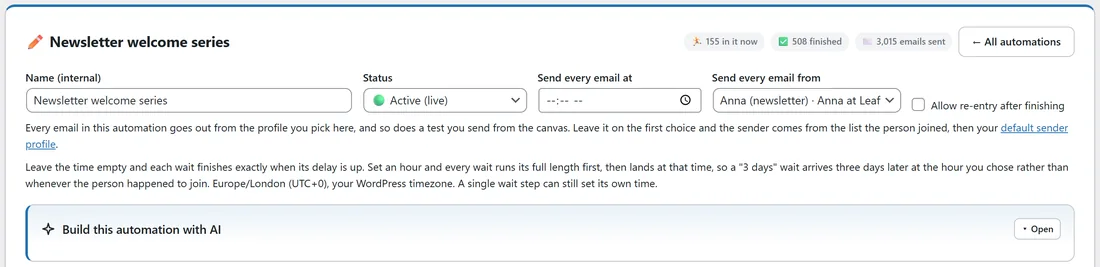
The "Newsletter welcome series" on Leafwise Gardening is Active with 155 people inside. On a Monday, Anna rewrites the third email and adds a new tip email at the end. Autosave keeps her changes as a draft, and the people already in the flow keep getting the published emails. She sends herself a test of both emails, then presses 💾 Save automation. From then on, everyone who reaches those steps gets the new versions.
Tips:
- Test each changed email before you publish. See Send A Test From Inside An Automation.
- To pause a whole flow while you work on it, set Status to ⏸ Paused (holds everyone in place) and save. See Automations: Your First Flow.