
When something is not behaving, two screens tell you why. Diagnostics shows the health of the Mailer itself: its database, its background jobs, your licence, your sending connections and its log. The Safety screen checks your server is ready for big imports and sends.
Both screens only read and report, apart from the buttons under Run diagnostics, which run a job straight away.
Where to find it:
- Diagnostics: click Setup, then Diagnostics.
- Pre-flight checks: click Delivery, then Safety, and scroll to Pre-flight diagnostic.
- The Troubleshooting card on Setup, then Settings, also has an Open Diagnostics button.
The four health cards:
- Database tables: how many of the Mailer's tables exist, for example 36/36.
- Send queue: emails waiting to send, with how many failed underneath.
- Cron health: a tick when the every-minute sending job is scheduled, with its next run.
- License: a tick when your licence is active.
System:
Plugin version, schema version, WordPress, PHP and MySQL versions, when the plugin was activated, the memory limit and the maximum execution time. PHP 7.4 or newer shows OK.
The other sections:
- Database: the table list, hidden until you click Show technical details.
- Cron schedules: the three background jobs, every minute, hourly and daily, with their next run.
- Plugin integrations: whether WP Conversion Tracker, Launch Manager and AI Support Desk are detected.
- AI providers: whether Claude and OpenAI keys are configured, the model, and a Test in AI Studio button.
- API and debug log: recent log lines, hidden until you click Show full log.
The Sending section:
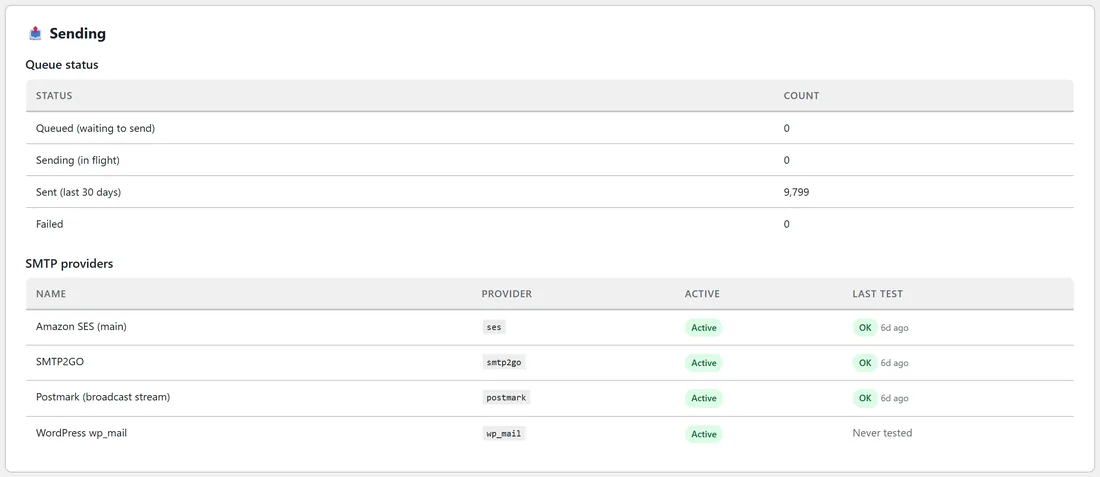
Queue status counts emails Queued (waiting to send), Sending (in flight), Sent (last 30 days) and Failed. If anything failed, Why those sends failed groups the failures by reason, with the sending service and the most recent time. SMTP providers lists each sending connection with whether it is Active and the result of its last test.
Run diagnostics:

These buttons run a job now instead of waiting for its schedule. Each one is safe to run again. Try them in this order.
- Run send queue now: sends the next batch of due emails.
- Run hourly tasks now: refreshes buyer stats and segment counts, resets the daily counters on your sending connections, and checks the queue is moving.
- Run daily tasks now: tidies old log entries and recalculates every subscriber's engagement score.
- Re-schedule cron: puts the background jobs back if they have gone missing.
- Refresh license: checks your key with the licence server now.
- Flush old logs: clears log entries older than 7 days.
- Re-sync DB schema: adds anything missing from the database after an update.
- Recalculate buyer stats + names: works out purchase counts, spend and last purchase dates again, and fills in missing names from your sales records.
The pre-flight check:
On the Safety screen, Pre-flight diagnostic compares your server with what large imports and sends need: PHP memory limit (256M or more), PHP max execution time (30 seconds is enough, 60 is safer on slow hosts), upload_max_filesize and post_max_size (50M or more for big files), MySQL max_allowed_packet (4MB or more), free disk space in uploads (500MB or more), and whether WordPress cron is available. Each row has a tick or a warning sign and a recommendation. Run it before a big import, not during one. Your host can raise any of these limits.
The queue watchdog:
Every hour the Mailer checks that the queue is moving. If emails have been waiting for more than 30 minutes without the queue running, or every sending connection has sat at its daily limit for more than 6 hours, a warning appears and one email a day goes to your admin notification address.
If something does not look right:
- Emails are not going out: check the Safe Mode banner, check Cron health has a tick, check your sending connection's last test on the Sending section, then click Run send queue now.
- A scheduled broadcast did not start on time: check Cron health and the Cron schedules table. On a quiet site, ask your host for a real server cron that calls wp-cron.php every minute.
- Sends show as failed: read Why those sends failed. A reason that mentions suppressed, archived or Safe Mode means the email never reached a sending service; any other reason comes from the service itself.
- An import stopped: open Delivery, then Safety, and look at Active import jobs. A paused job shows the reason, and Resume carries on.
- An AI button gives an error: click Test in AI Studio. The message shown is your AI provider's own.
- After an update a screen looks incomplete: click Re-sync DB schema.
Need help:
If these steps do not sort it out, use the Contact Support button under Help and your account on Setup, then Settings, and say what you were doing. Support can see what they need on their side, so there is no need to paste the technical details from this page.
A real example:
Anna schedules the Seed swap announcement for Leafwise Gardening, but nothing moves at the time she expected. On Diagnostics, Cron health has a tick and Send queue shows the emails waiting. Her site is quiet that early in the morning, so WordPress cron had not run yet. She clicks Run send queue now, the first batch goes, and she asks her host to add a real server cron so it never waits again.
Tips:
- Check Diagnostics after every plugin update.
- Keep the queue moving on a quiet site with a real server cron.
- For timing questions, see Timezones And Scheduling. For sending connections, see Setting Up Sending With SMTP.