Double opt-in means a new subscriber is sent an email asking them to confirm, and they only become active once they click the link in it. Single opt-in means they are active the moment they sign up.
A new list starts on single opt-in. Double opt-in is there when you want it, and you switch it on list by list.
Which should you use?
Double opt-in gives you a smaller but more engaged list, fewer mistyped and fake addresses, and a clear record that each person asked to join. That matters under GDPR and similar rules. Single opt-in gives you a bigger list and lets you deliver a free download straight away, with more bad addresses along the way. Both are fine. It depends on what the list is for.
Where to find it:
Audience, then Lists, then the edit button on a list, under Opt-in policy and Confirmation email.
Switching it on for a list:
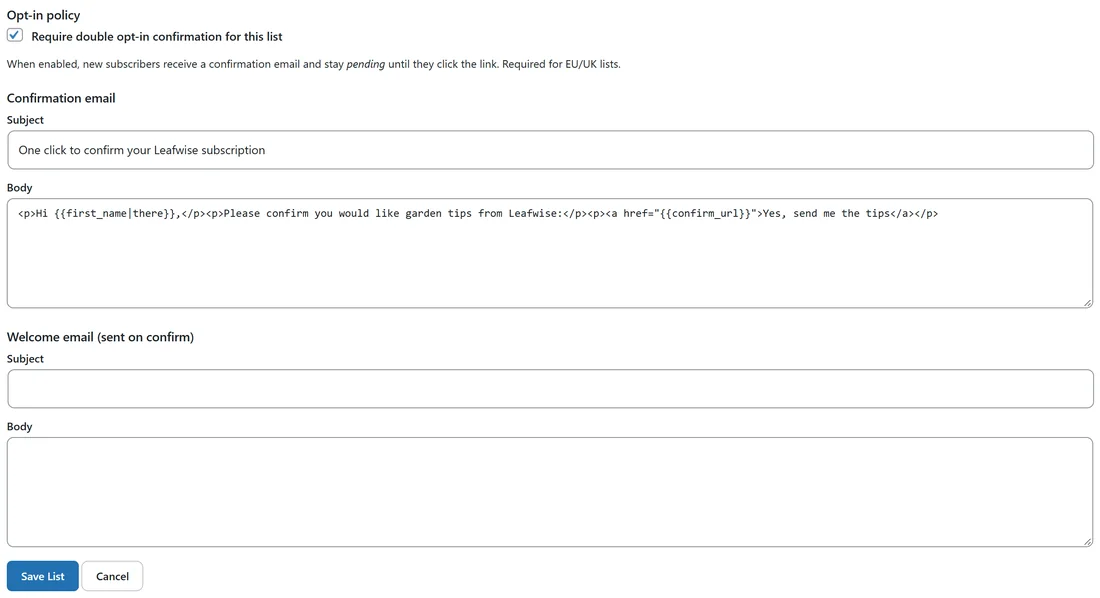
- Open Audience, then Lists, and press the edit button on the list.
- Under Opt-in policy, tick Require double opt-in confirmation for this list.
- Under Confirmation email, write your own Subject and Body if you want to. Merge codes such as {{first_name}} and {{list_name}} work in both.
- Put {{confirm_url}} where the link should go, for example inside a link or a button. If you leave it out, a Confirm subscription button is added for you, so the email can never go out without its link.
- Press Save List.
If you leave the boxes as they are, the subject is Please confirm your subscription and the body is a short line with a Confirm subscription link.
Making it the default:
To have every new list start with double opt-in, open Setup, then Settings, and in the Behaviour section tick Default new lists to double opt-in. Existing lists keep their own setting.
GDPR mode, in the same section, goes further: every new sign-up goes through double opt-in, even on forms set to skip it, and people coming back after unsubscribing confirm by email too.
What happens when someone signs up:
- The confirmation email is sent straight away through your own sending connection, the same one your broadcasts use. It shows in your provider's logs like any other email, and your daily limits, rotation and failover all apply. It comes from the list's sender profile when the list has one. See Sender Profiles.
- Until they click the link their status is pending. Pending people are never sent broadcasts.
- When they click, they become active, the date they confirmed is recorded and shows on their profile as Confirmed, and anything waiting for them starts.
- If the list has a welcome email, it goes out right after they confirm.
If someone who is still pending fills in the form again, they stay pending and are sent the confirmation email again. That is usually somebody who never saw the first one.
How automations treat it:
- Joins a list: on a double opt-in list the person is taken into the automation but held at the very start, and nothing is sent to them. The moment they confirm, the automation begins, so your welcome email arrives right after the confirmation click and not before. If they never confirm, they leave the automation after 30 days with the reason never confirmed their subscription. On a single opt-in list this trigger starts straight away.
- Confirms their subscription: starts an automation when someone clicks the confirmation link. Pick a list so it only starts for confirmations on that list, or leave it on any list.
Use one or the other for a welcome series, not both, or the person will be in two automations. See Automation Triggers Explained.
Overriding it on a form:
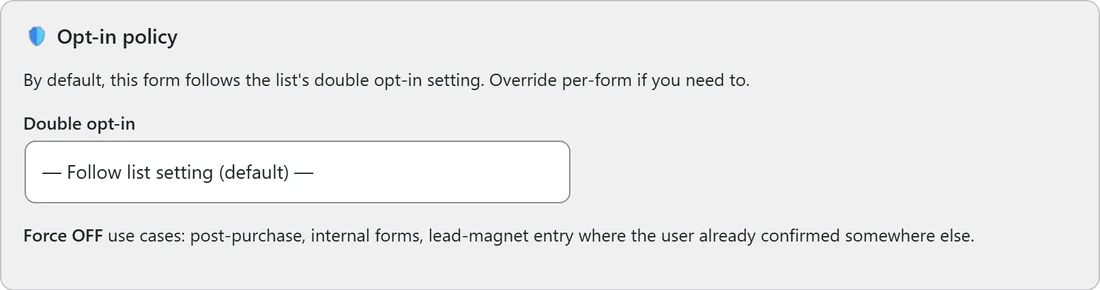
Each form has an Opt-in policy section with a Double opt-in dropdown.
- Follow list setting (default).
- Force ON: always send the confirmation email, even if the list is single opt-in.
- Force OFF: subscribe instantly, even if the list is double opt-in.
The right answer changes with the form. Force OFF suits a form after a purchase, an internal form, or a sign-up where the person already confirmed somewhere else. A general newsletter form is a good place to keep confirmation on. See Forms And Popups.
Imported subscribers:
People brought in by an import, a sync or a bulk add are never sent a confirmation email, because they did not just sign up. They arrive active. This is part of The Silent Import Lock.
Safe Mode:
While Safe Mode is on, confirmation emails are held back like every other email. Switch Safe Mode off before you start taking double opt-in sign-ups. See Safe Mode: Moving A Real List Without Accidents.
If a confirmation does not arrive:
- Send yourself a test broadcast to check your sending connection.
- Check that Safe Mode is off on Delivery, then Safety.
- Look for the address in your sending provider's logs. The email goes out the moment the form is sent.
- Ask the person to fill in the form again. They are sent a fresh copy.
A real example:
Leafwise Gardening runs double opt-in on Free Seed Starting Guide. Anna wrote the subject One click to confirm your Leafwise subscription and the body Hi {{first_name|there}}, please confirm you would like garden tips from Leafwise, with a link Yes, send me the tips pointing at {{confirm_url}}. Her Seed guide delivery automation starts on Joins a list for that list, so the guide arrives seconds after the confirmation click. The list's lead report shows how many people are still Waiting to confirm.
Tips:
- Make the confirmation email short, with one clear link near the top.
- Tell people on the thank-you page to check their inbox for the confirmation email.
- Watch Waiting to confirm in the list's lead report. See Lists And How They Fill Up.