Bring-your-own SMTP is the catch all connection. If you already pay for a mail service, run your own mail server, or have been handed a host, port, username and password, this is the one to use. Your emails then go out through the account you already have.
SMTP is the username and password way of handing email to a server. Many sending services offer SMTP as well as their API, so this option also works with them.
What you need before you start:
- The host name, for example smtp.yoursite.com.
- The port, normally 587, sometimes 465.
- The username and password for that mail account.
- Whether the server expects TLS or SSL.
- The account's hourly or daily sending limit.
Where to find it:
In ResultsAiX Mailer open Delivery, then Sending, click + Add Sender and choose Bring-your-own SMTP in the Provider dropdown. The checklist "Set up Bring-your-own SMTP, step by step" appears with the BYO SMTP boxes.
Fill in the form, step by step:
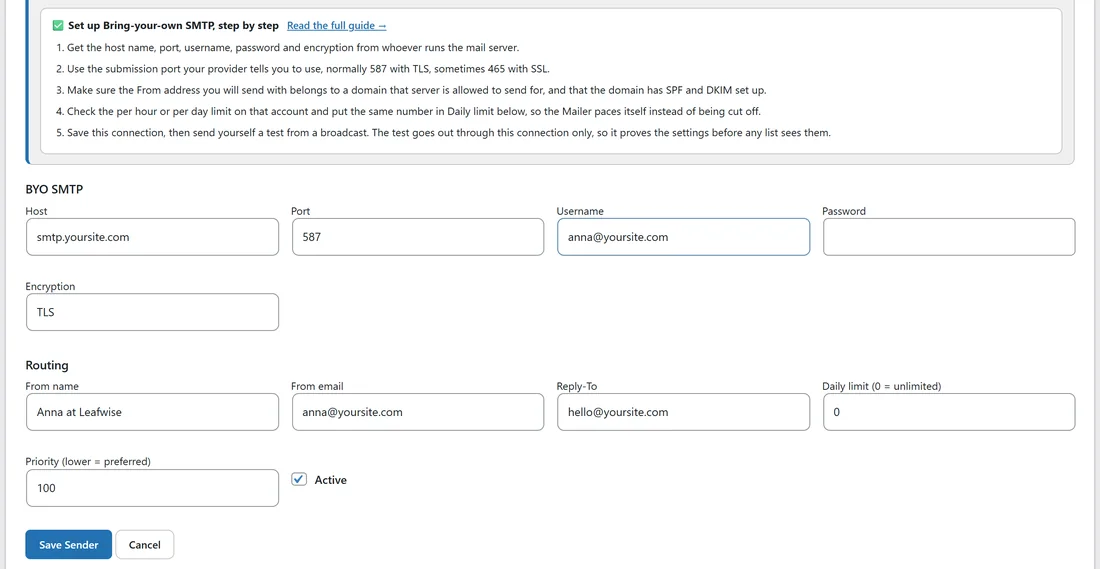
- Type a Display name, such as the provider's name or Our mail server.
- Choose Bring-your-own SMTP in Provider.
- Fill in the BYO SMTP boxes (each one is explained below).
- Fill in From name, From email and Reply-To. Use an address on a domain this server is allowed to send for, for example anna@yoursite.com.
- Set Daily limit to the account's daily limit, and Priority (lower = preferred) to 10 if this is your main connection.
- Click Save Sender, then click Test on the new row.
The BYO SMTP boxes:
- Host: the server name your provider gave you, for example smtp.yoursite.com.
- Port: starts at 587, the usual submission port. Use 465 if your provider says so.
- Username: the login. With many providers this is the full email address, such as anna@yoursite.com, not only the part before the at sign. Leave it empty only if the server accepts mail without a login.
- Password: the password for that login, shown as dots.
- Encryption: TLS (the starting value) upgrades the connection to encrypted after connecting and goes with port 587. SSL is encrypted from the first moment and goes with port 465. None sends without encryption and is only for a server on your own private network.
The Mailer sends every email as UTF-8, so curly quotes, accents and emoji arrive exactly as you wrote them.
The From address decides your delivery:
A mail server can only send convincingly for domains it is authorised for. Before you mail a list, make sure the domain in your From email has:
- an SPF record that includes this server, and
- DKIM signing switched on at the server or provider.
The Deliverability tab checks your domain and shows what is in place. In Send Rotation & Warmup, a Bring-your-own SMTP connection gets a green authentication badge when your sending domain publishes its own DKIM key, the same check the Deliverability tab runs. See Deliverability: SPF, DKIM And DMARC.
Use a sending account, not a personal mailbox:
Personal mailboxes such as Gmail, Outlook or the mailbox that came with your hosting are built for conversations, with small daily caps. Use them for tests only, and for a list connect an account made for sending, such as one of the services on this screen or a mail server you run for that purpose.
Several SMTP accounts and the sender:

If you add more than one SMTP account and share sends between them with rotation, each server may only accept its own address. Send Rotation & Warmup has a setting for this called "Who the email says it is from":
- The email's own From, always: right when every server can send for the same domain.
- Each connection's own From: each email goes out as the From name and From email saved on the connection that carries it. Replies still go to the email's Reply-To.
- Keep the From, change only the hidden sender: readers see the email's From, and only the behind the scenes sender (the envelope sender and a Sender header) uses the connection's address. This one applies to Bring-your-own SMTP connections only. Try a test send before a broadcast, because some servers accept it and some do not.
See SMTP Rotation: Spread Sends Across Many Connections.
Pace it properly:
- Put the account's limit in Daily limit. If your provider gives an hourly limit, multiply by 24 and stay a little under.
- Plain SMTP is slower than an API connection, because every email is a separate conversation with the server. For very large sends, an API service on this screen finishes sooner.
- There is no bounce webhook for SMTP. Bounces come back to your mailbox from the server, so keep an eye on it, and use the API services' webhooks where you can.
A real example:
Leafwise Gardening's web host includes a mail service with an SMTP login. Anna adds a connection called Our mail server: Host smtp.yoursite.com, Port 587, Username anna@yoursite.com, her mailbox password, Encryption TLS. She sets From email anna@yoursite.com, Daily limit 500 and Priority 90, so it only steps in after her API services. The test arrives, and the authentication badge is green because yoursite.com publishes its DKIM key.
Tips:
- Ask your provider for their recommended port and encryption pair, and use exactly that.
- Keep a provider's SMTP account and API account as two separate connections if you want, each with its own limit.
- Check the domain on the Deliverability tab before the first real send.
- For the choice between connection types, see Which Sending Service Should I Pick?
If something does not look right:
- If the test times out or the connection is refused, try 587 with TLS, then 465 with SSL. If neither works, ask your host whether outgoing SMTP is allowed from your web server.
- If the test fails with an authentication message, use the full email address as Username and check the password.
- If the test fails with a message that the From or Sender is not valid, the server only accepts its own address. Set From email to the account's own address, or in Send Rotation & Warmup choose Each connection's own From.
- If mail arrives but lands in spam, check SPF and DKIM for the From domain on the Deliverability tab.