Merge codes are placeholders that fill in for each person as the email goes out. "Hi {{first_name}}" reaches Ella as "Hi Ella" and Oscar as "Hi Oscar".
They work in the subject line, the preview text, the body and inside links, in broadcasts, automation emails and templates alike. Tag codes take it further: one email can hand every reader their own personal link.
Where to find it:

In any email editor, the Insert row above the body has the most used codes as chips. Click a chip to drop it at your cursor. If you last clicked into the Subject line or Preview text, the chip goes there instead. Every other code below can be typed by hand.
The everyday codes:
- {{first_name}} and {{last_name}}: from the subscriber record.
- {{name}}: first and last name together.
- {{email}}: the subscriber's email address.
- {{site_name}} and {{site_url}}: your WordPress site title and address.
- {{today}}: today's date, written out, for example November 2, 2026.
- {{unsubscribe_url}}: the unsubscribe link. It is already in the footer of every email, so you rarely need it.
- {{manage_url}}: the "Manage your preferences" page, where people update their name or choose lists.
- {{view_in_browser_url}}: a hosted copy of the email.
- {{broadcast.name}} and {{broadcast.subject}}: the broadcast's internal name and subject, in broadcasts.
Capital letters inside a code do not matter: {{First_Name}} works the same as {{first_name}}. A code with nothing to fill in prints nothing.
Fallbacks for empty fields:
Add a bar and a word after any code, and that word is used whenever the field is empty:
{{first_name|friend}}
"Hi {{first_name|friend}}," never reads "Hi ,". It works on every code, including tag codes, custom fields and snippets.
Tag codes:
Tags are the labels on a subscriber, such as interest-vegetables or seed-guide.
- {{tags}} prints all of a subscriber's tags, separated by commas.
- {{tag_1}}, {{tag_2}}, {{tag_3}} and so on print one tag at a time, in the order they are stored. For imported people that is the order in your CSV.
Personal links with key=value tags:
Save a tag in the form key=value (or key:value) and it can be called by its key. A subscriber with the tag aff=ell633 gets ell633 wherever you write {{tag.aff}}. The key is not case sensitive; the value keeps its exact case, which matters for affiliate and partner codes.
That lets one broadcast give every partner on your list their own link, like this.
https://yoursite.com/offer/?a={{tag.aff}}
Each reader gets their own address, click tracking still works, and anyone without the tag gets an empty value. Use {{tag.aff|leafwise}} to send them a default instead.
Custom fields:
Every custom field you create, on a form, during an import or through the signup API, is a merge code too. A field called favourite_crop can be written as {{favourite_crop}} or {{custom.favourite_crop}}, including inside links.
A custom field never replaces a built-in code. If you imported a column called email or first_name, {{email}} and {{first_name}} still give the real ones, and {{custom.email}} gives the imported value.
More codes:
- {{cap.first_name}}, {{cap.last_name}} and {{cap.name}} always send the name neatly capitalised, so joe and JOE both become Joe (see Capitalising Names As They Send).
- {{snippet.signoff}} drops in a block of text you wrote once in Settings (see Reusable Text Snippets).
- {{#sha256}} and {{/sha256}} around some text replace it with a SHA-256 fingerprint, for signing values in a link (see Signed Links With SHA-256).
Check them before you send:
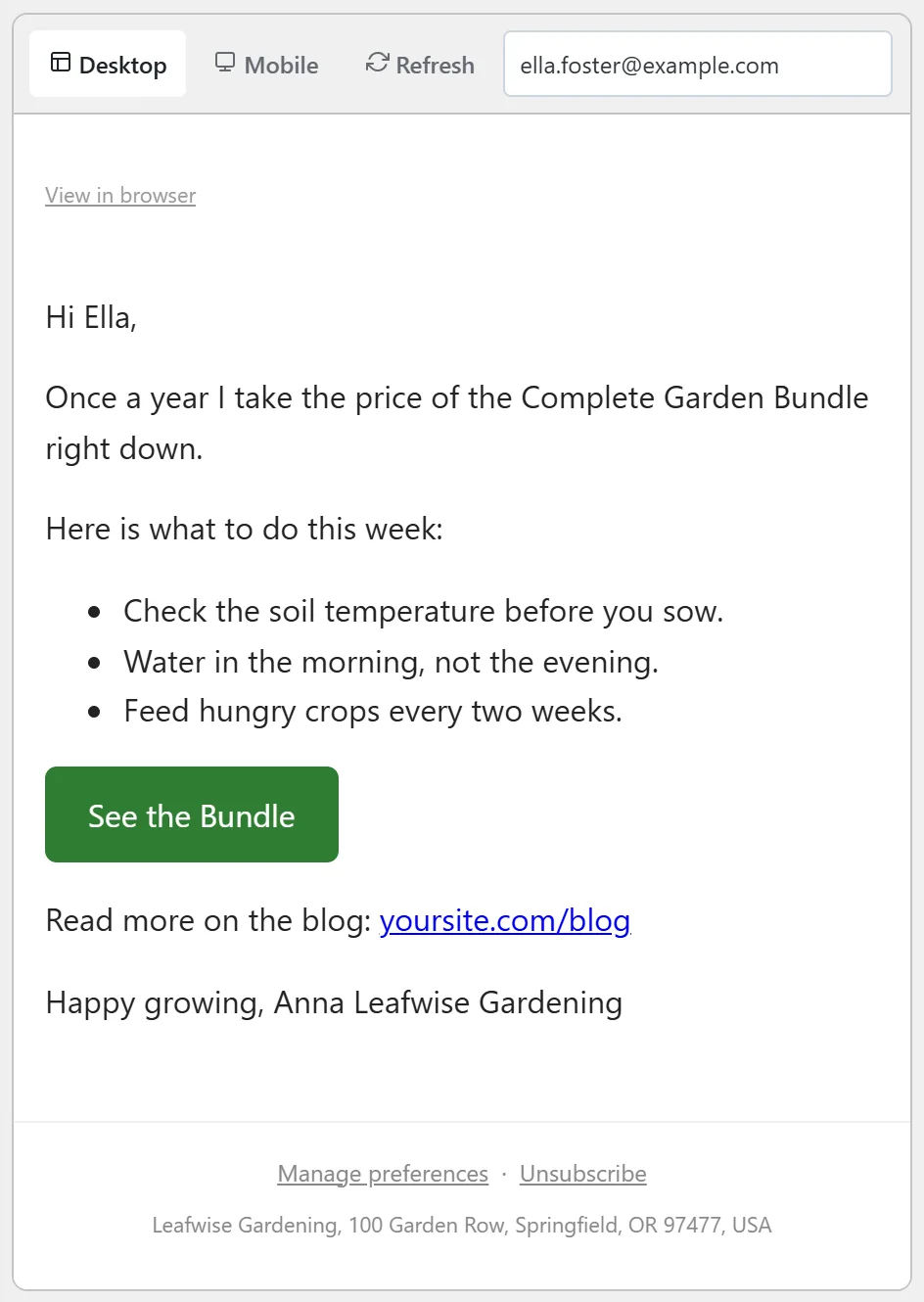
The fastest check is the live preview beside the composer. Type a real subscriber's email into the Preview as box and every code fills with that person's real name, tags and custom fields. Try a person with no first name too, to see your fallback.
A test email (Send a test to yourself) uses a stand-in person built from the Recipient Name you type. It has no tags or custom fields, so tag codes and custom fields show their fallback in a test. Use Preview as for those.
A real example:
Leafwise Gardening imported its seed partners with a tag column such as aff=ell633, and each subscriber has a favourite_crop custom field.
Anna writes this in the email.
Hi {{first_name|there}}, here is your {{favourite_crop|garden}} planting guide for December.
Your partner link: https://yoursite.com/seeds/?a={{tag.aff|leafwise}}
She types ella.foster@example.com into Preview as. The preview reads "Hi Ella, here is your tomatoes planting guide for December", and Ella's link ends in ?a=ell633. For a subscriber with no partner tag, the link ends in ?a=leafwise.
Tips:
- Give every name code a fallback. Lists always contain a few people with no first name.
- Keep tag keys short and lowercase, such as aff or ref, so the codes are easy to type.
- Put the key=value tags in your import file from the start; the codes work the moment the import finishes.
- Use Preview as with two or three real subscribers before every send that uses tag codes.