Most sellers have several products that mean the same thing for email purposes: the same course sold on two platforms, an old version and a new one, three courses that all count as "a course owner". Ticking every one of them each time you build an audience is slow, and it is easy to miss one.
A product group gives that set of products one name. You use the name in audiences and leave-out rules, and when you add a product to the group later, every rule that uses it covers the new product at once.
Where to find it:
Setup, then Settings, then scroll to 📦 Product groups.
Products appear here as soon as a sale is recorded on your site, from ResultsAiX Commerce, Stripe, WarriorPlus, JVZoo or Launch Manager. Each product shows where it was sold in brackets, for example "(Stripe)".
The groups table:
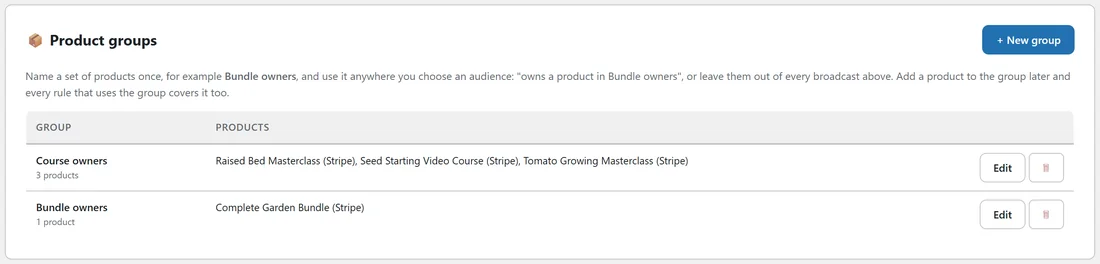
Each row shows the Group name with how many products it holds, and the products in it. Edit opens the group; the bin deletes it after asking.
Creating a group:
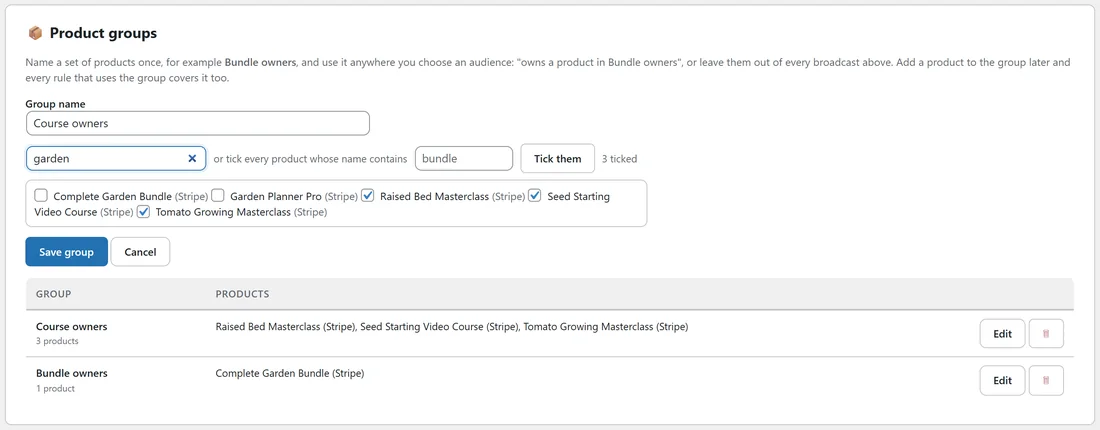
- Press + New group.
- Type a Group name, for example Course owners.
- Tick the products that belong in it.
- Press Save group.
Two helpers make big catalogues quick.
- Search products... narrows the list as you type. Ticked products always stay in view, so you never lose sight of what is in the group.
- "or tick every product whose name contains" ticks every product with that word in its name when you press Tick them, for example "masterclass". Nothing is saved until you press Save group, so check the ticks first.
The count beside the helpers shows how many products are ticked.
Using a group:
In any audience, open Advanced filters, press + Add filter... and choose Product group. Then choose:
- owns a product in: people who bought at least one product in the group.
- owns nothing in: people who bought none of them.
It works in broadcast audiences, saved segments and your Always leave out rules (see Always Leave People Out Of Broadcasts and Building A Custom Audience). The Product group filter appears in the list once you have at least one group.
Adding products later:
Open the group with Edit, tick the new product and press Save group. Every audience, segment and leave-out rule that uses the group covers it from then on, with nothing else to update.
Deleting a group:
Press the bin on its row. You are asked first, because any rule that uses the group will match nobody afterwards. The products and the people who bought them are not touched; only the group goes. After deleting one, check your leave-out rules and saved segments.
A real example:
Leafwise Gardening sells three courses: Raised Bed Masterclass, Seed Starting Video Course and Tomato Growing Masterclass. Anna makes a group called Course owners with all three ticked, and a second group, Bundle owners, with the Complete Garden Bundle.
Her "new course" announcement goes to Newsletter with a remove rule Product group, owns a product in, Course owners, so existing students do not get the launch pitch. In spring she adds a fourth course, opens Course owners, ticks it and saves; the announcement rule covers its buyers straight away.
Tips:
- Name groups for the people, not the products: Course owners, Bundle owners, Planner users.
- Check what a word catches before saving. "Bundle" can tick a small bundle you did not mean to include; untick anything that does not belong.
- One group can sit inside many rules. Build the group once and reuse it everywhere.