Brevo (formerly Sendinblue) connects with an API key. Once connected, your Brevo lists appear in every list dropdown, and each opt-in is added to the list you choose.
Where to find it:
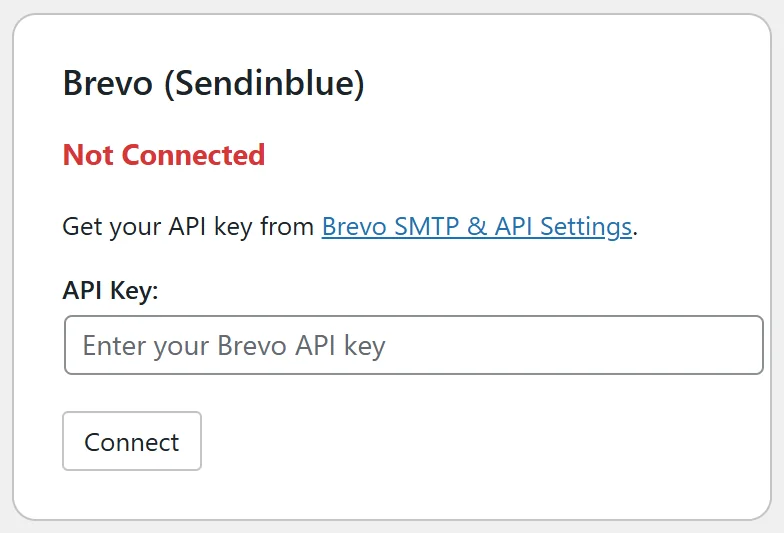
Go to Free List Building → Autoresponders and find the card called Brevo (Sendinblue).
Where to find your API key:
- Log in to Brevo.
- Click your name at the top right and open SMTP & API (the card's link Brevo SMTP & API Settings goes straight there).
- Open the API Keys tab and click Generate a new API key.
- Name it and copy the key.
Step by step:
- Paste the key into API Key.
- Click Connect. The card shows Connected.
- Click Test Connection to check it and see how many lists were found.
- Pick your list in Default List.
- Use Apply to Funnels Without a List or Apply to ALL Funnels if you want to set it on more funnels.
Finding a list ID in Brevo:
Go to Contacts → Lists in Brevo. The ID number is shown next to each list. You rarely need it, because the dropdowns list your lists by name with the ID in brackets.
What happens on each opt-in:
The contact is created in Brevo with their email and the FIRSTNAME attribute, and added to the chosen list. If the contact already exists, Brevo updates it and adds the list.
Per funnel:
On a funnel's edit page choose Brevo (Sendinblue) in Autoresponder Provider and pick the list in the List field.
A real example:
A friend of Sam Rivera runs a cooking blog on Brevo. They connect Brevo on the card, pick the list Recipe Club as the default and click Apply to ALL Funnels. Every opt-in now joins Recipe Club, and Brevo's welcome automation sends the first email.
Tips:
- Create the list in Brevo first, then click Refresh Lists on the card.
- Turn on Collect First Name in Settings so FIRSTNAME is filled.
- If nothing arrives, check Settings → Debug Log for Brevo's reply.