Your licence key switches on the full plugin for your site. Until it is active, the Free List Building menu only shows the licence screen. Activation takes one paste and one click.
Where to find it:
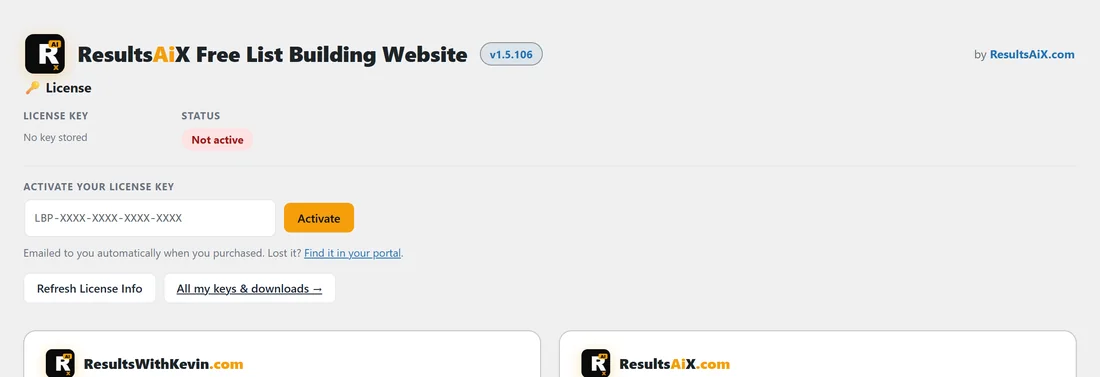
- Before activation: click Free List Building in the WordPress menu. The licence screen opens by itself.
- After activation: open the Settings tab. The License panel is the first thing on the screen.
Step by step:
- Copy your licence key from your purchase email. It looks like LBP-XXXX-XXXX-XXXX-XXXX.
- Paste it into the box under Activate your license key.
- Click Activate.
- The screen reloads and the Status chip reads Active.
What the License panel shows:
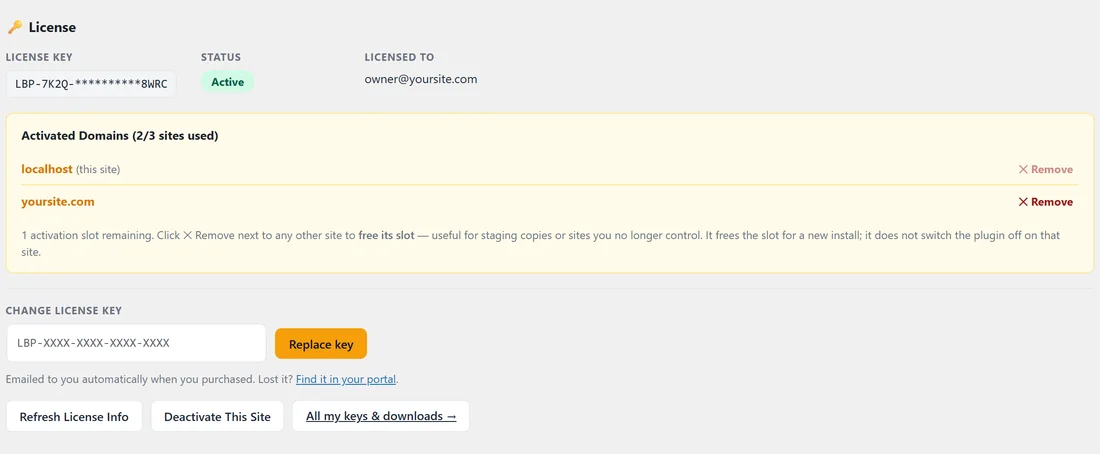
- License Key: your key, masked so only the start and end show. This keeps it safe when a helper or developer uses your WordPress admin.
- Status: Active when everything is in order, Not active before you activate.
- Licensed To: the email address on the licence.
- Activated Domains: every site that uses this key, with how many slots are used, for example 2/3 sites used. The site you are on is marked (this site).
- Change License Key: paste a new key and click Replace key.
- Refresh License Info: reads the latest details from the licence server and also connects your key for plugin updates.
- Deactivate This Site: frees this site's slot so you can use the key elsewhere.
- All my keys & downloads: opens your account portal.
Freeing a slot from another site:
Each key covers a set number of sites. Next to any other site in Activated Domains there is a Remove link. Click it to free that slot, for example for an old staging copy you no longer use. The site you are on cannot be removed from the list; use Deactivate This Site for that.
A real example:
Sam Rivera uses one key on yoursite.com and on a local test copy. The panel shows 2/3 sites used. When Sam deletes the test copy, Sam clicks Remove next to it, and the panel shows one more slot remaining for the next site.
Tips:
- Paste the key exactly as it is in the email, with no spaces before or after.
- If updates ever say the site is not connected, click Refresh License Info once.
- For moving the plugin to a new site, see License Management. If a key will not activate, see "License Won't Activate".