With the GetResponse (API) connection, the plugin adds each new subscriber to your chosen GetResponse list (GetResponse calls it a campaign) and starts them at day 0 of its autoresponder cycle. GetResponse then sends your autoresponder messages. If subscribers arrive but get no emails, the answer is almost always in the GetResponse campaign settings.
Where to check in the plugin:
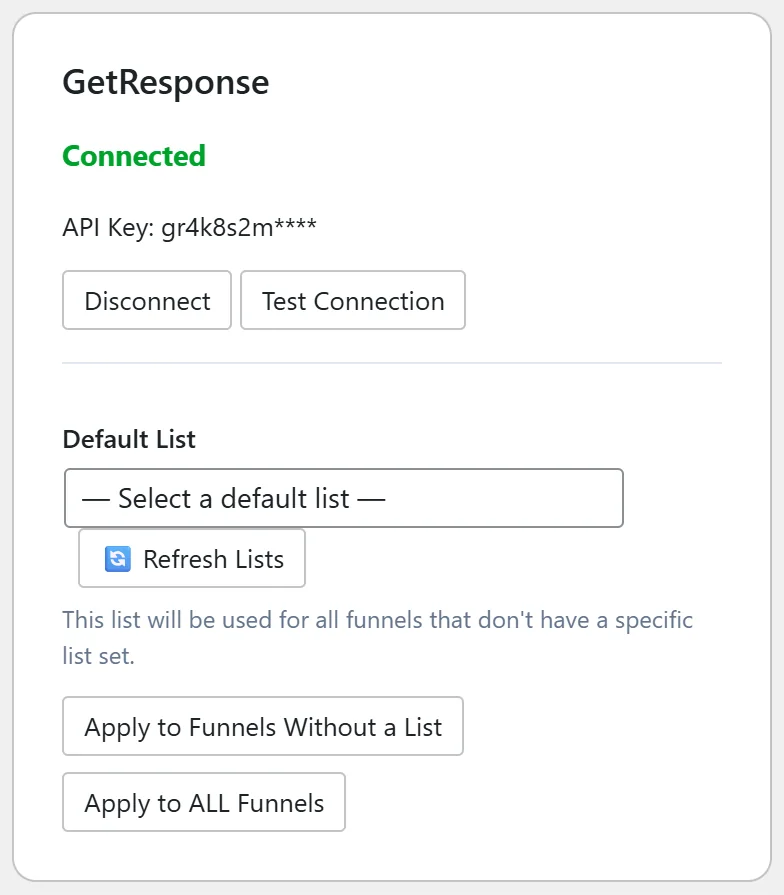
Go to the Autoresponders tab. The GetResponse card should say Connected and show your list in Default List. On a funnel with its own setting, open the funnel's Edit page and look at Autoresponder Provider and the list under it.
Step by step:
- In GetResponse, open the list (campaign) the funnel uses.
- Open its autoresponder messages and check that the first one is set to day 0, so it goes out the day someone joins.
- Check that each message is switched on, not paused or in draft.
- Check that the autoresponder messages belong to the same list the funnel uses. A funnel on a different list starts a different cycle.
- Subscribe with a spare email address of your own on the funnel and wait a few minutes. GetResponse can take a minute or two to show a new contact.
If the contact was already on that list:
GetResponse keeps an existing contact where they are. The plugin treats that as a success and the Debug Log line for it ends with "already subscribed to campaign" and the list ID. Test with an address that is not on the list yet.
If the contact does not appear at all:
Read Settings, Debug Log. A line starting with "GetResponse: Subscribe failed" includes the reply from GetResponse. Then see "Could Not Subscribe" Error.
If you use the GetResponse (Campaign Token) connection:
That method posts the form straight to GetResponse, so what happens next follows that form's settings in GetResponse, including any confirmation email. See "GetResponse Legacy (Campaign Token) Not Working".
A real example:
Your Site's Sales Funnel Blueprint funnel sends subscribers to the GetResponse list yoursite_free_guides. New contacts arrived but got nothing. The first message in that list was set to day 1. Sam moved it to day 0 and new subscribers got the welcome email within minutes.
Tips:
- Put your welcome email on day 0 and deliver the free guide link in it as well, so readers have it in their inbox.
- Keep one list per topic if you want different follow up for different funnels, and pick it on each funnel's Edit page. See Default Autoresponder vs Per-Funnel Overrides.