CTA Page Settings decide what your call-to-action page says and where it sits in each PDF. The same settings are used for every funnel you rebrand. Only the link changes from funnel to funnel.
Where to find it:
Open the PDF Rebrander tab. CTA Page Settings is the first box. Click Save CTA Settings after any change. A message confirms it is saved.
Every setting:
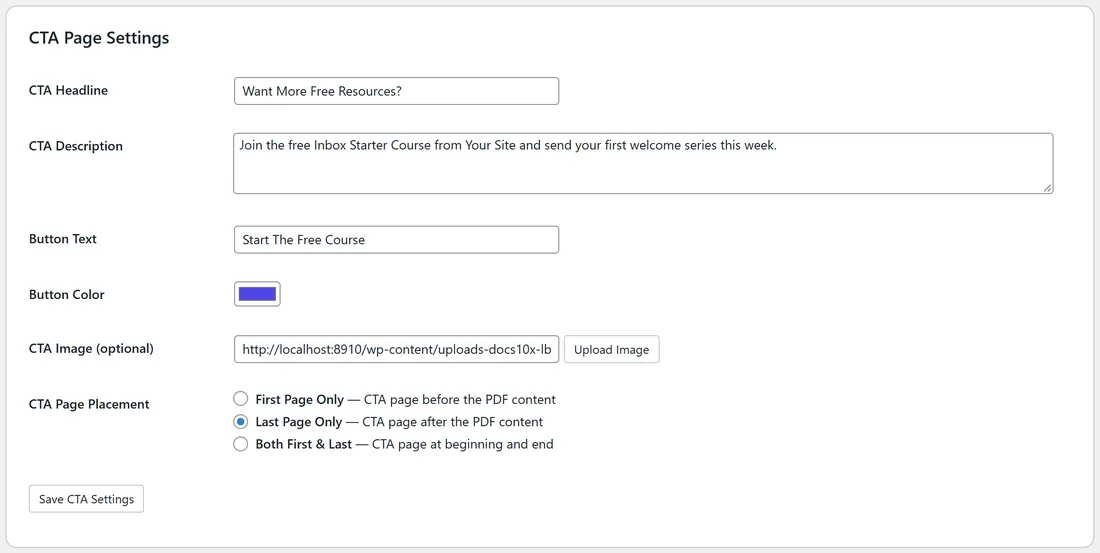
- CTA Headline: the big line on the page. Default: Want More Free Resources? Keep it short and about the reader.
- CTA Description: one or two sentences under the headline. Default: Click the button below to discover our recommended tools and training for online marketers. Say what they get and why it helps.
- Button Text: the words on the button. Default: Get Access Now. It prints in capitals. Two to five words work best, for example Start The Free Course.
- Button Color: the button colour. Default: blue #2563eb. Pick a colour that stands out on white.
- CTA Image (optional): an image shown above the headline, for example a banner or a product picture. Click Upload Image to pick one from your Media Library, or paste an image address. It is drawn 100 mm wide and keeps its shape, so a wide image of about 1200 by 400 pixels looks best. The image is clickable too.
- CTA Page Placement: First Page Only (before the PDF content), Last Page Only (after the PDF content) or Both First & Last. Default: Both First & Last.
The link:
The button, the image and the link line under the button all use the funnel's Recommended Resource link: its Affiliate Link Override from the funnel's Edit page, or else the Default Affiliate Link in Settings. Change those to change where the page sends people.
The page layout:
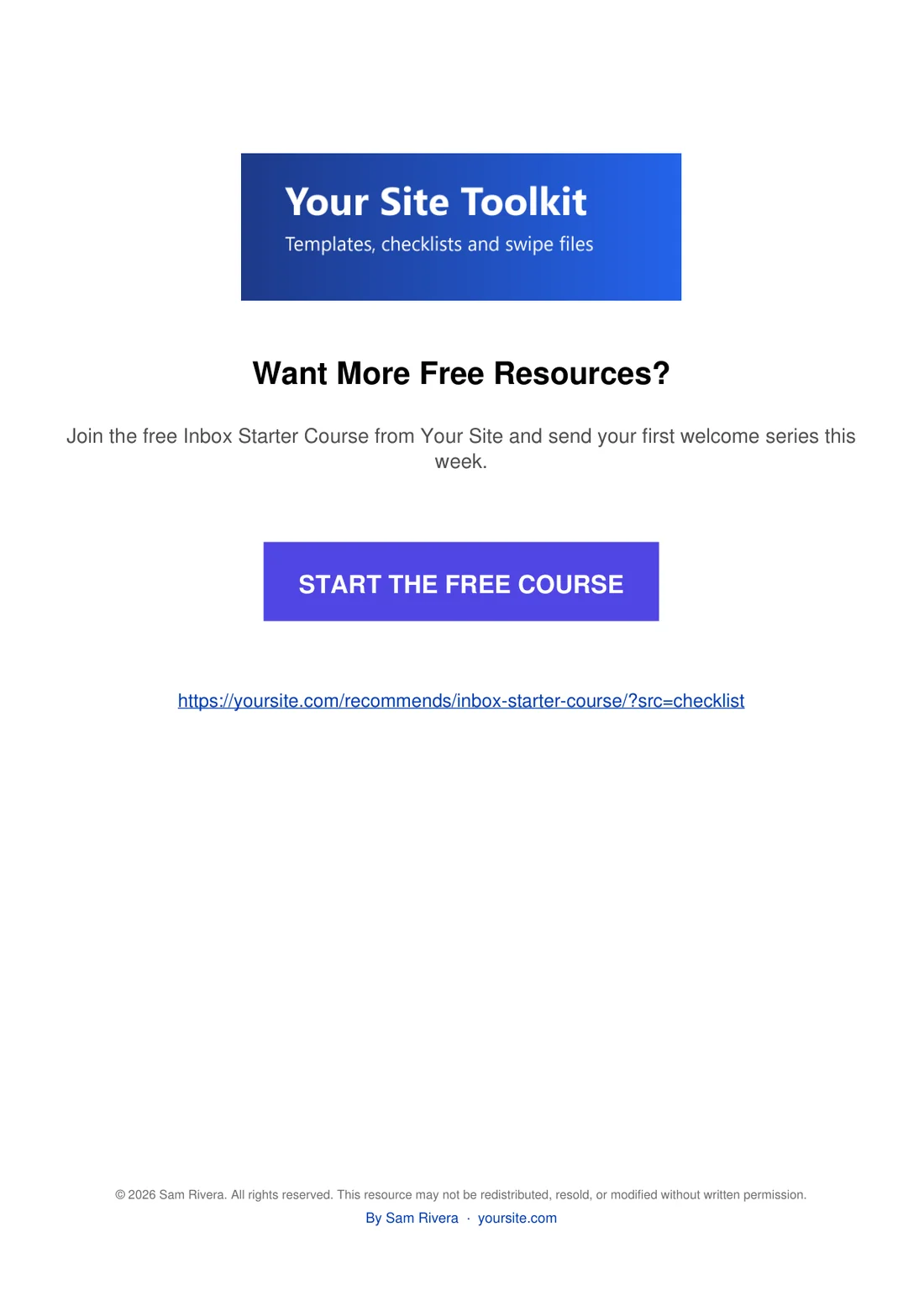
From top to bottom: your image, the headline, the description, the button, the link written out in full, then the optional author and copyright footer (see PDF Author and Copyright Footer).
Choosing a placement:
- Last Page Only: readers see it when they finish, after they have had value from the guide. A good default.
- First Page Only: the first thing they see. Good when your offer is the main point.
- Both First & Last: the most reminders.
A real example:
Sam uses the headline Want More Free Resources?, the description Join the free Inbox Starter Course from Your Site and send your first welcome series this week, the button text Start The Free Course in #4f46e5, a wide Your Site Toolkit image and Last Page Only.
Tips:
- Changes apply the next time you rebrand. Click Start PDF Rebranding again after saving new settings.
- Use a per-funnel Affiliate Link Override when a funnel's topic suits a different offer.
- See How to Rebrand Your PDFs for the full process.