The theme sets the colours of your Showcase page: the header bar, the buttons, the active category and the accents. Choosing one that matches your brand makes the page feel like part of your business.
Where to find it:
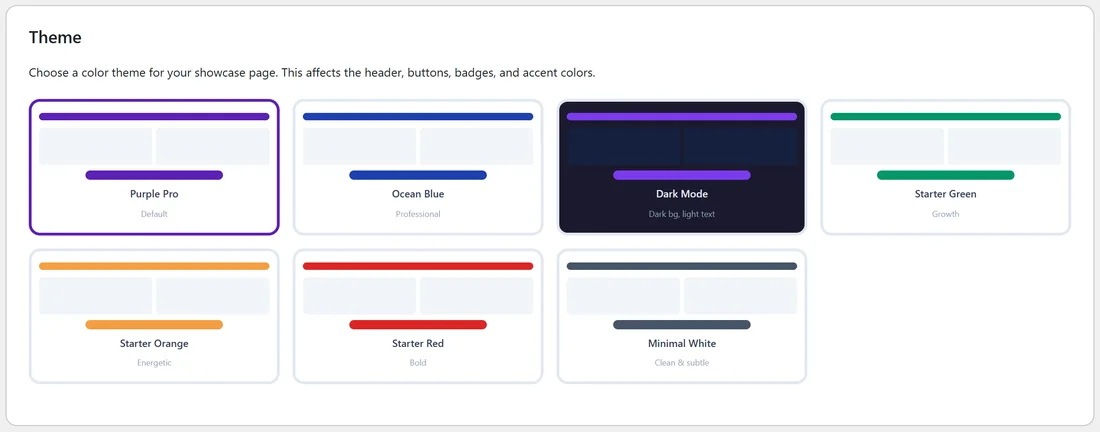
Open the Showcase tab. The Theme box shows the seven themes as small previews. The chosen one has a coloured border.
The 7 themes:
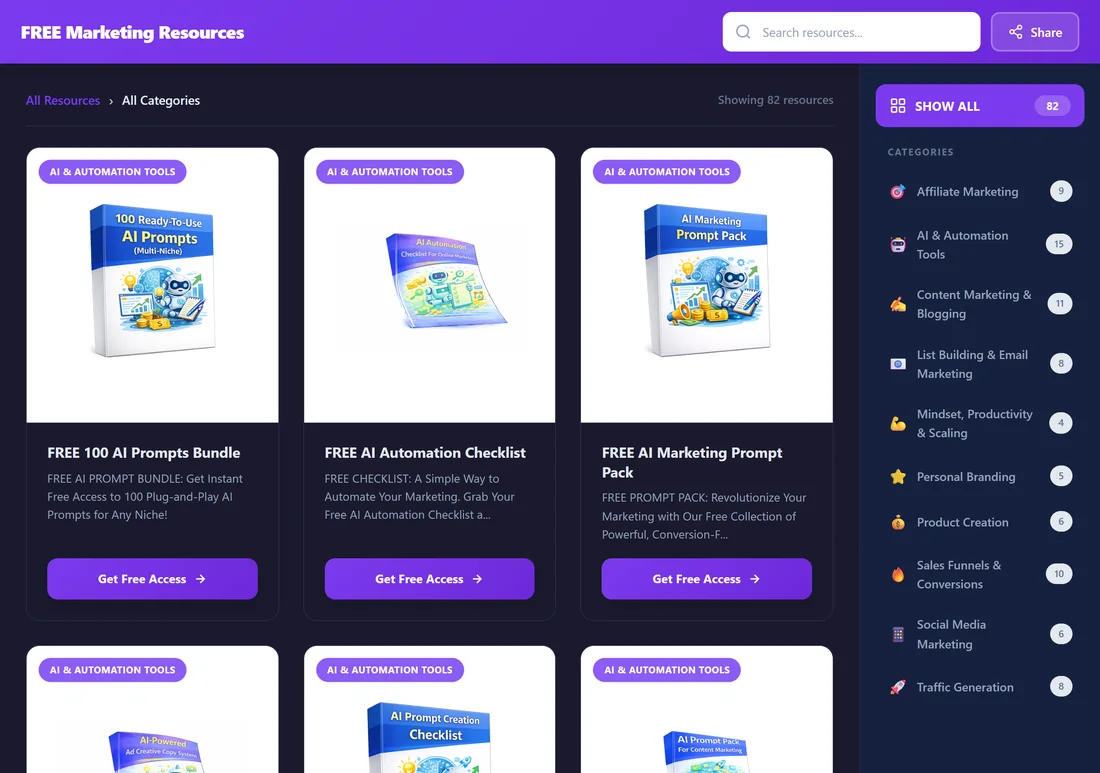
- Purple Pro: rich purple. The default theme.
- Ocean Blue: deep professional blue.
- Dark Mode: a dark page background with light text and purple accents.
- Starter Green: fresh green, a good fit for health and growth topics.
- Starter Orange: warm, energetic orange.
- Starter Red: bold red.
- Minimal White: soft grey tones for a quiet, simple look.
Step by step:
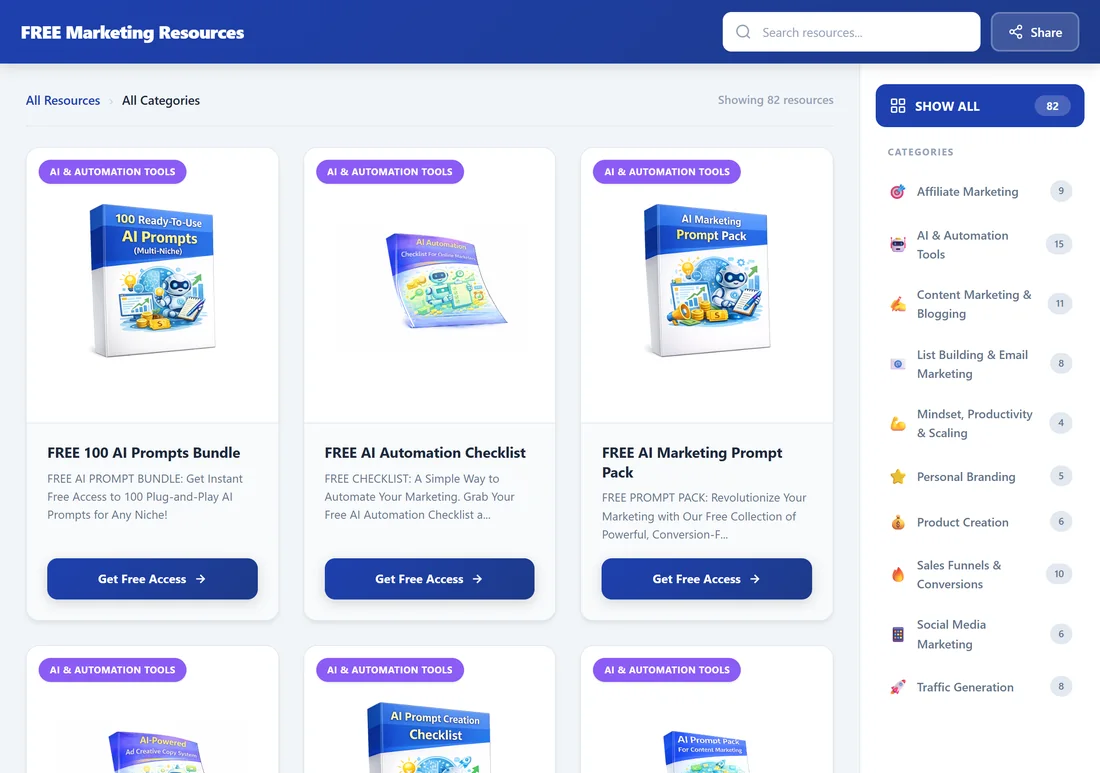
- Open the Showcase tab.
- Click the theme you want in the Theme box.
- Scroll down and click Save Showcase Settings.
- Open the Live URL from the Your Showcase Page box to see the result.
The theme also colours the Showcase legal pages (Privacy Policy, Terms of Service, Disclaimer and Contact), so the whole set matches.
What does not change:
- Category badge colours on the cards stay the same in every theme, so visitors learn them.
- Your funnel pages (squeeze and download pages) keep their own designs. The theme is for the Showcase page only.
A real example:
Your Site uses purple in its logo, so Sam keeps Purple Pro. Sam tried Ocean Blue for a week while running a campaign for a corporate client, then switched back with two clicks.
Tips:
- Dark Mode suits tech and AI audiences that browse at night.
- Minimal White works well inside your theme's header and footer (Use My Theme's Header & Footer on the Showcase tab), because it lets your own colours lead.
- You can change the theme at any time. Your links stay the same.