Rebranding builds a new PDF for each funnel with your call to action page added. The plugin does one funnel at a time and asks for up to 512M of memory while it works, but a host can still refuse the job if its limits are lower. A server error during rebranding almost always means a memory or time limit.
Where to check:
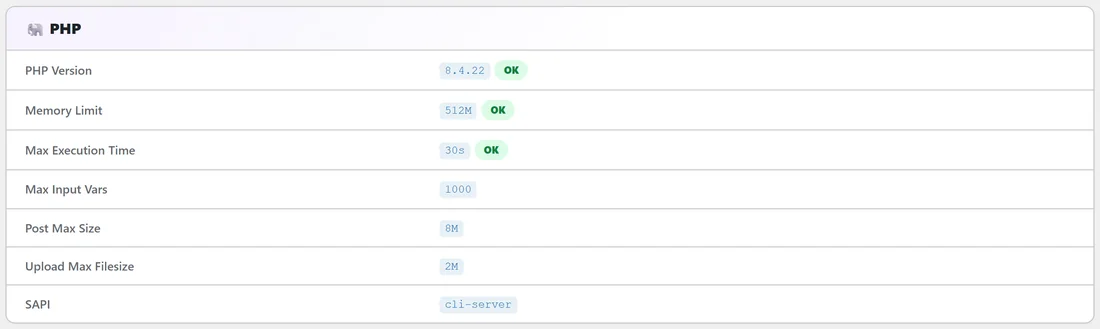
Click the Diagnostics tab and look at the PHP section. Memory Limit shows OK when it is enough; a low value shows "Recommend 128M+ for PDF rebranding". Max Execution Time shows the time limit.
Step by step:
- Ask your host to raise memory_limit to 256M and max_execution_time to 120 seconds or more. You can also add define('WP_MEMORY_LIMIT', '256M'); to wp-config.php if your host allows it.
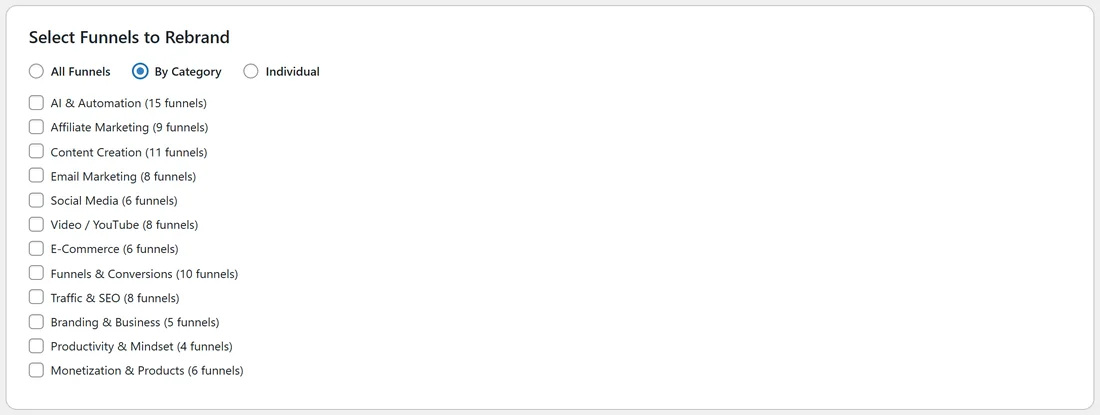
- Go to the PDF Rebrander tab. Under Select Funnels to Rebrand, choose By Category and tick one or two categories instead of All Funnels.
- Click Start PDF Rebranding and wait for the progress to finish.
- Repeat for the next categories.
- If one funnel still fails, choose Individual, tick only that funnel and try it on its own. The message at the end lists any funnel that did not finish with the reason.
If you use a CTA image:
A very large image makes every PDF heavier to build. Use a normal web image, for example 1200 by 400 pixels, saved as JPG or PNG. Upload it to your Media Library and pick it with Upload Image so the plugin reads it from your own server.
If the error message starts with "Fatal:":
Copy the whole message and the Debug Log lines and send them to support. See How to Get Support.
A real example:
Your Site's host had a 64M memory limit and rebranding stopped on the first category. After the host raised it to 256M, Sam rebranded by category, two at a time, and every PDF finished.
Tips:
- Rebranding always starts from the original PDF, so running it again never stacks extra pages.
- You can go back at any time with Reset All PDFs to Original. See Resetting PDFs to Originals.
- See How to Rebrand Your PDFs and Bulk Rebranding for the full steps.