Rebranding never touches the original PDFs. The plugin keeps rebranded copies in their own folder and serves those to visitors. Resetting simply removes the copies, so the original PDFs are served again.
Where to find it:

Open the PDF Rebrander tab. The Reset All PDFs to Original button sits next to Start PDF Rebranding in the last box.
Step by step:
- Open the PDF Rebrander tab.
- Click Reset All PDFs to Original.
- Click OK in the box that asks you to confirm.
- A message tells you how many PDFs were reset, and the page reloads.
What happens:
- Every rebranded copy is removed and every funnel is marked as not rebranded.
- Download pages give the original PDFs straight away.
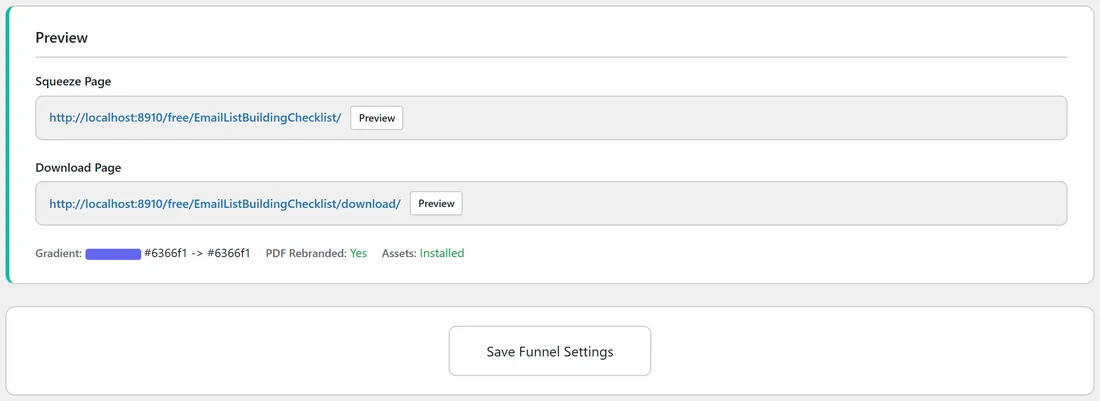
- The Individual list on the PDF Rebrander tab no longer shows (rebranded) next to any funnel, and the Preview section of each funnel's Edit page shows PDF Rebranded: No.
- Your CTA Page Settings and Author & Copyright fields stay as they were, ready for the next run.
Changing just one funnel:
The reset button works on all funnels at once. To change one funnel's PDF, edit the settings or its link and rebrand that funnel again with Individual. The new copy replaces the old one, built fresh from the original.
A real example:
At the end of a promotion Sam wants to remove the old offer from every PDF. Sam clicks Reset All PDFs to Original, confirms, and sees All 96 PDFs reset to original. Next month Sam saves a new CTA headline and rebrands the four most popular funnels again.
Tips:
- You rarely need to reset before a change: rebranding again replaces each copy with a fresh one.
- Reset is handy when you stop promoting an offer and want plain PDFs while you choose the next one.
- See How to Rebrand Your PDFs to start again.