Your funnels send people to links: resource cards, banners, the Recommended Resource box and the button inside rebranded PDFs. WP Conversion Tracker is a separate plugin from the same family that tells you how many people click each link and how many go on to buy or sign up.
What it does:
- Makes tracking links for any address, so each card, banner or email gets its own link.
- Counts clicks on each link and shows conversions and sales with charts in your WordPress dashboard.
- Includes a public feed you can choose to share.
- Needs no code: you paste a tracking link where you would paste your normal link.
Where to find it in this plugin:

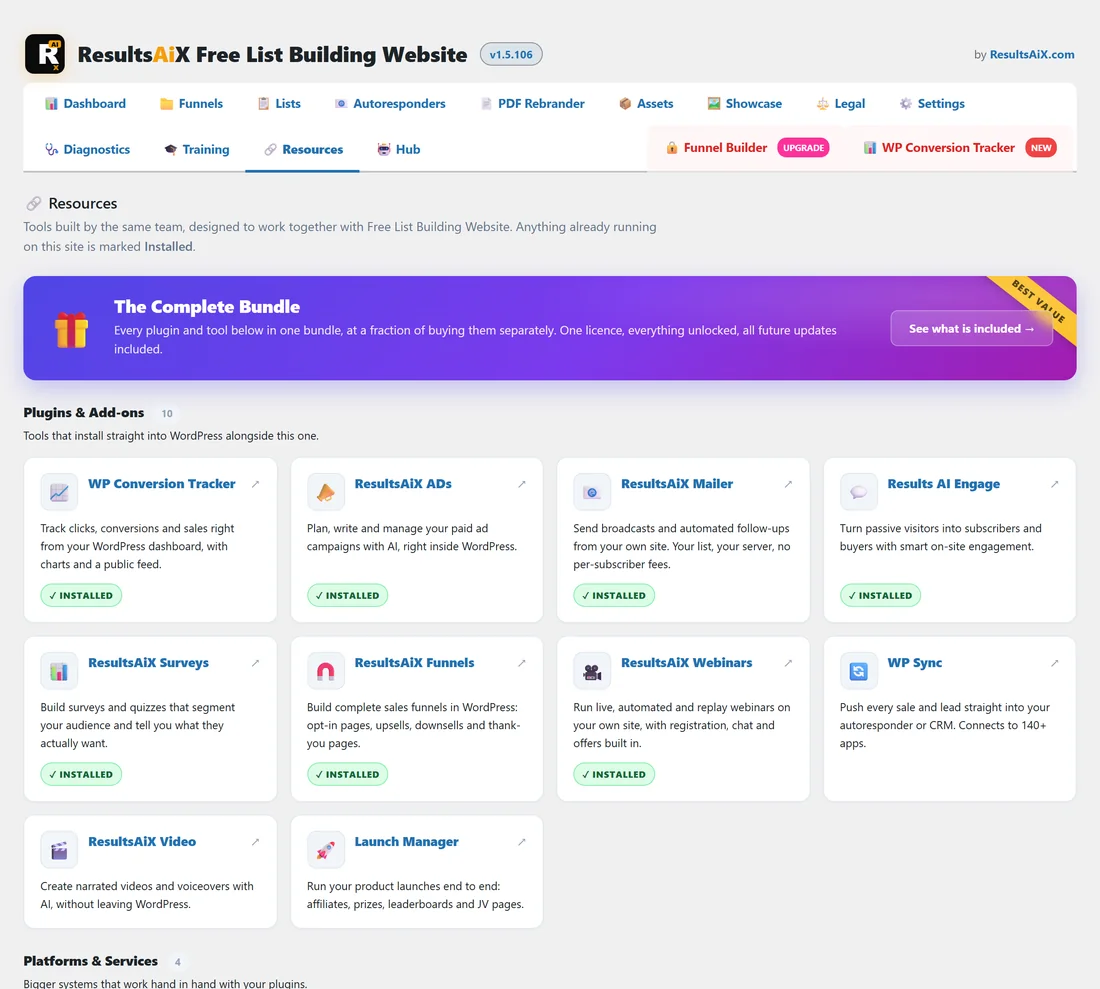
- While WP Conversion Tracker is not installed, the top bar shows a WP Conversion Tracker tab with a NEW badge on the right. Click it to open its page on resultsaix.com in a new tab.
- The Resources tab lists it under Plugins & Add-ons. Once it is active on your site the card shows Installed and the top bar tab goes away.
How to use it with your funnels:
- Install and activate WP Conversion Tracker.
- Make one tracking link for each offer you show on your download pages.
- Paste the tracking links into your Recommended Resources, Download Page Banners, Default Affiliate Link or a funnel's Affiliate Link Override.
- If you use the PDF Rebrander, run it again so the PDFs carry the new link. See How to Rebrand Your PDFs.
- After a week or two, compare the clicks and conversions for each link.
A real example:
Your Site shows the Inbox Starter Course on every download page in two places: a resource card and a banner. Sam made two tracking links, one for the card and one for the banner. After two weeks the card had most of the clicks, so Sam moved the banner slot to the live workshop instead.
Tips:
- Give each placement its own link. One link used everywhere tells you the total, not which spot works.
- Name links so you can read them later, for example checklist card or global banner.
- See Monetization Tips for more ways to use your download pages.