The download page is where a new subscriber lands the moment they opt in. They are interested and they are looking at your page, so it is the best place to point them at your next step: a course, a workshop, a tool you recommend or your own product.
Recommended Resources are styled cards on that page. Each card has a title, an optional description and a button that opens your link in a new tab. You can add up to 5 cards, and they show on the download page of every funnel.
Where to find it:
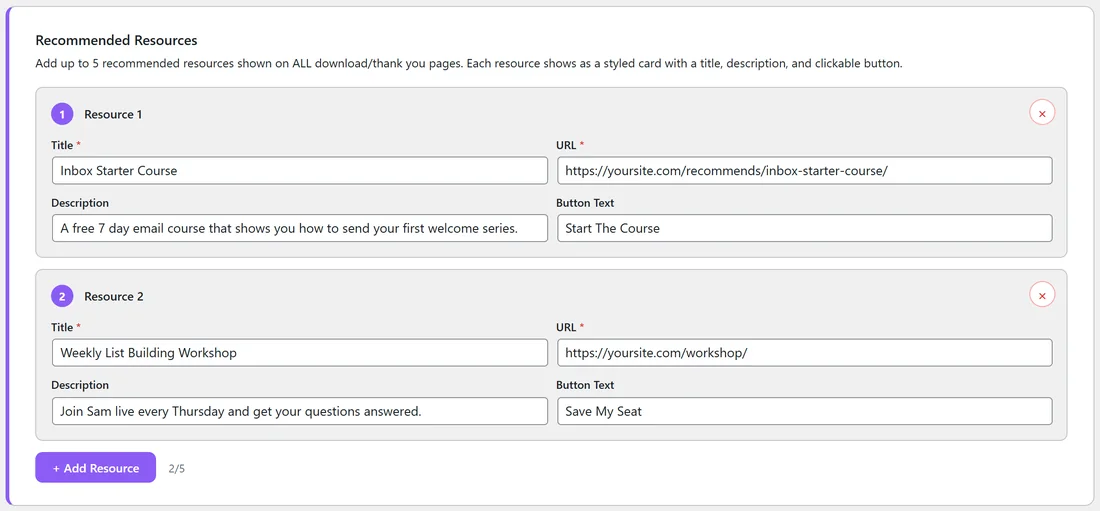
Open Free List Building in the WordPress sidebar, click the Settings tab and scroll down to Download Page Resources & Banners. The first box is Recommended Resources.
Step by step:
- Click + Add Resource. A new row called Resource 1 appears.
- Type the Title, for example Inbox Starter Course.
- Paste the URL the button should open. This can be an affiliate link, your own product page or any page on your site.
- Add a short Description, one sentence on why the reader should click.
- Type the Button Text, for example Start The Course. If you leave it blank the button says Learn More.
- Repeat for up to 5 resources. The counter next to the button shows how many you have, for example 2/5.
- Click Save Settings at the bottom of the page (or the Save Settings button in the bar that follows you down the page).
To take a card away, click the round x in the top right corner of its row, then save.
Every setting:
- Title (required): the bold heading on the card. Keep it to a few words.
- URL (required): where the button goes. It opens in a new tab, so your download page stays open.
- Description: one short line under the title. Plain benefits work best.
- Button Text: the label on the button. Action words such as Start Free or Save My Seat get more clicks than Learn More.
A card needs both a Title and a URL. A row with either one empty is left out when you save.
A real example:
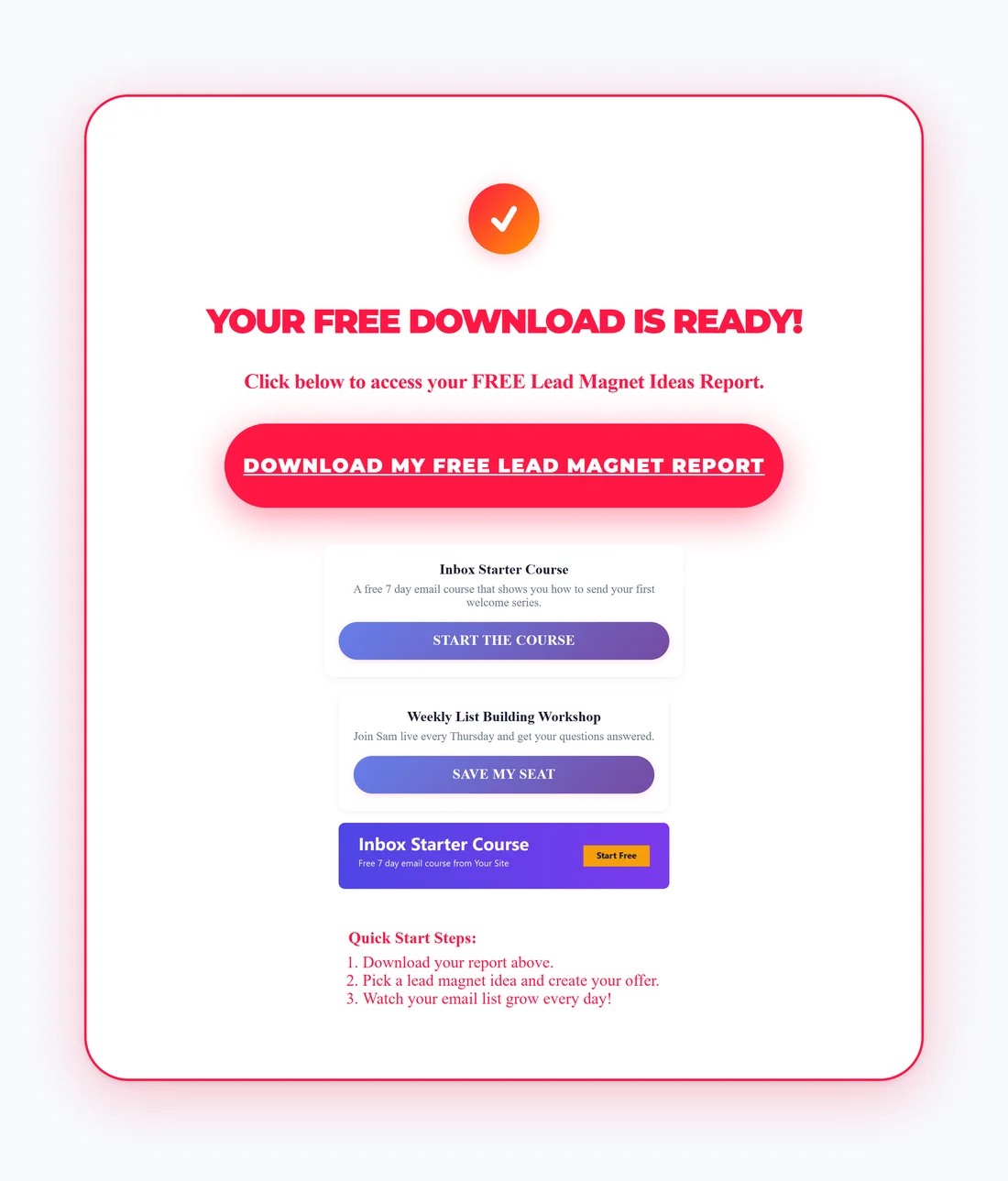
Sam Rivera runs Your Site at yoursite.com. Every free guide on the site leads to the same next step, so Sam added two global resources:
- Inbox Starter Course, with the description "A free 7 day email course that shows you how to send your first welcome series." and the button Start The Course, linking to https://yoursite.com/recommends/inbox-starter-course/
- Weekly List Building Workshop, with "Join Sam live every Thursday and get your questions answered." and the button Save My Seat, linking to https://yoursite.com/workshop/
Every download page on the site now shows both cards under the download button.
How the cards relate to your affiliate link:
Out of the box each download page has one Recommended Resource box that uses your Default Affiliate Link from Settings. As soon as you add resource cards (or banners), your cards take the place of that single box. Your Default Affiliate Link is still used on the call to action page of rebranded PDFs.
Tips:
- Put your strongest offer first. Cards show in the order you add them.
- Two or three cards usually work better than five. A short choice gets more clicks.
- For a niche funnel, give it its own cards. See Global Settings vs. Per-Funnel Overrides.
- Add a banner under the cards for a visual offer. See Download Page Banners.
- To see the result, open any funnel's download page. See How Resources and Banners Appear.