Rebranding takes a few minutes and runs one PDF at a time while you watch. Once it is done, every visitor who downloads a rebranded funnel gets your call-to-action page.
Where to find it:
Open the PDF Rebrander tab. The page has four boxes: CTA Page Settings, Author & Copyright, Select Funnels to Rebrand, and the box with the Start PDF Rebranding and Reset All PDFs to Original buttons.
Before you start:
Set a Default Affiliate Link in Settings, or an Affiliate Link Override on the funnels you rebrand. The call-to-action button needs a link. If no link is set anywhere, the PDF Rebrander tab shows a note pointing you to Settings.
Step by step:
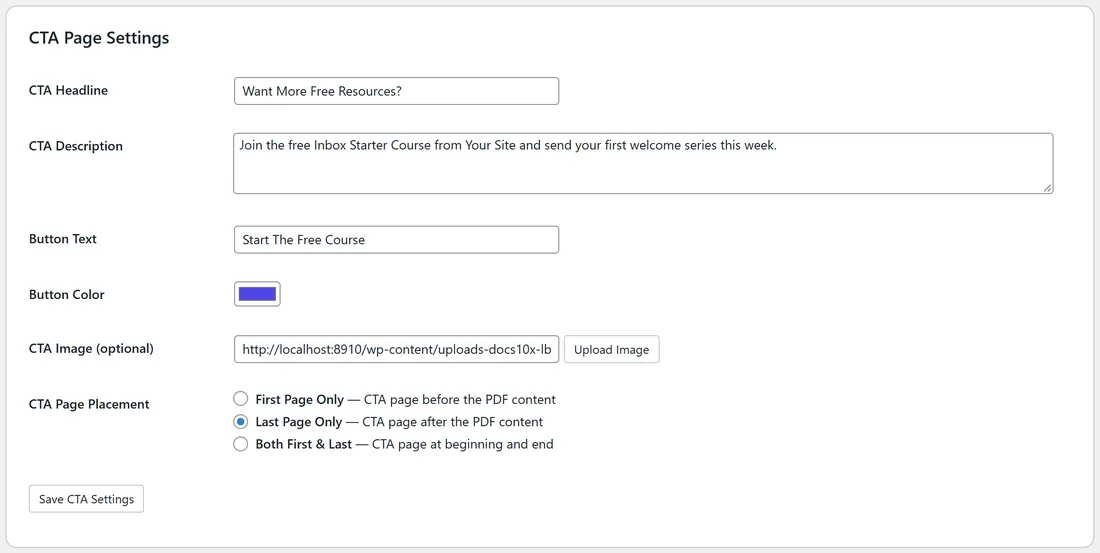
- In CTA Page Settings, fill in CTA Headline, CTA Description, Button Text, Button Color and, if you like, CTA Image (optional).
- Choose the CTA Page Placement: First Page Only, Last Page Only or Both First & Last.
- Click Save CTA Settings. The rebrander uses your saved settings, so save before you start.
- If you want a footer, fill in Author & Copyright and click Save Author & Copyright.
- In Select Funnels to Rebrand, choose All Funnels, By Category or Individual, and tick the categories or funnels you want.
- Click Start PDF Rebranding.
- Watch the progress bar. The line under it reads, for example, Rebranding 3 of 12 followed by the funnel's folder name.
- When it finishes you see Done! followed by how many PDFs were rebranded.
Which funnels are included:

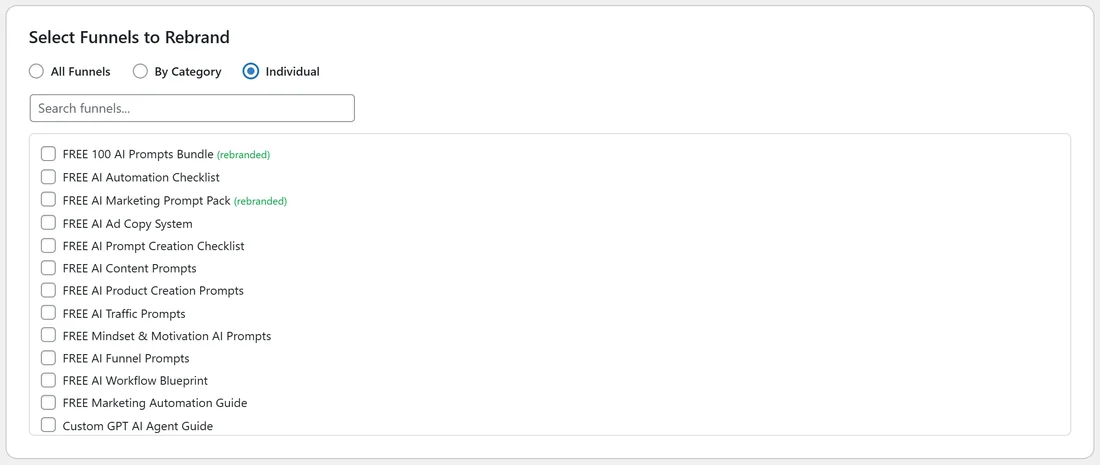
- All Funnels: every funnel with its files installed, including funnels that are switched off, so they are ready if you switch them on later.
- By Category: every funnel in the categories you tick.
- Individual: only the funnels you tick. A search box helps you find them, and funnels already done show (rebranded) in green.
Pacing on busy hosts:
The plugin waits half a second between PDFs. If your host says it is busy, the plugin waits and tries the same PDF again, up to three times. The status line shows Server busy and the wait while it does this.
A real example:

Sam saves the headline Want More Free Resources?, the button text Start The Free Course in the purple #4f46e5, a Your Site Toolkit image and Last Page Only. Sam adds the author footer, picks Individual, ticks the four most popular funnels and clicks Start PDF Rebranding. A minute later the status reads Done! 4 of 4 PDFs rebranded.
Tips:
- Test with one funnel on Individual first, open its download page and check the last page of the PDF.
- You can rebrand as often as you like. Each run starts again from the original PDF.
- To go back to the original PDFs, see Resetting PDFs to Originals.