People keep PDFs. They save them, print them and open them again weeks later. The PDF Rebrander adds a page of your own to each funnel's PDF, so every copy carries your recommendation and a clickable link back to your offer.
Your original PDFs are never changed. The plugin builds a rebranded copy next to them and gives that copy to visitors.
Where to find it:
Open the PDF Rebrander tab in the plugin.
What the call-to-action page holds:
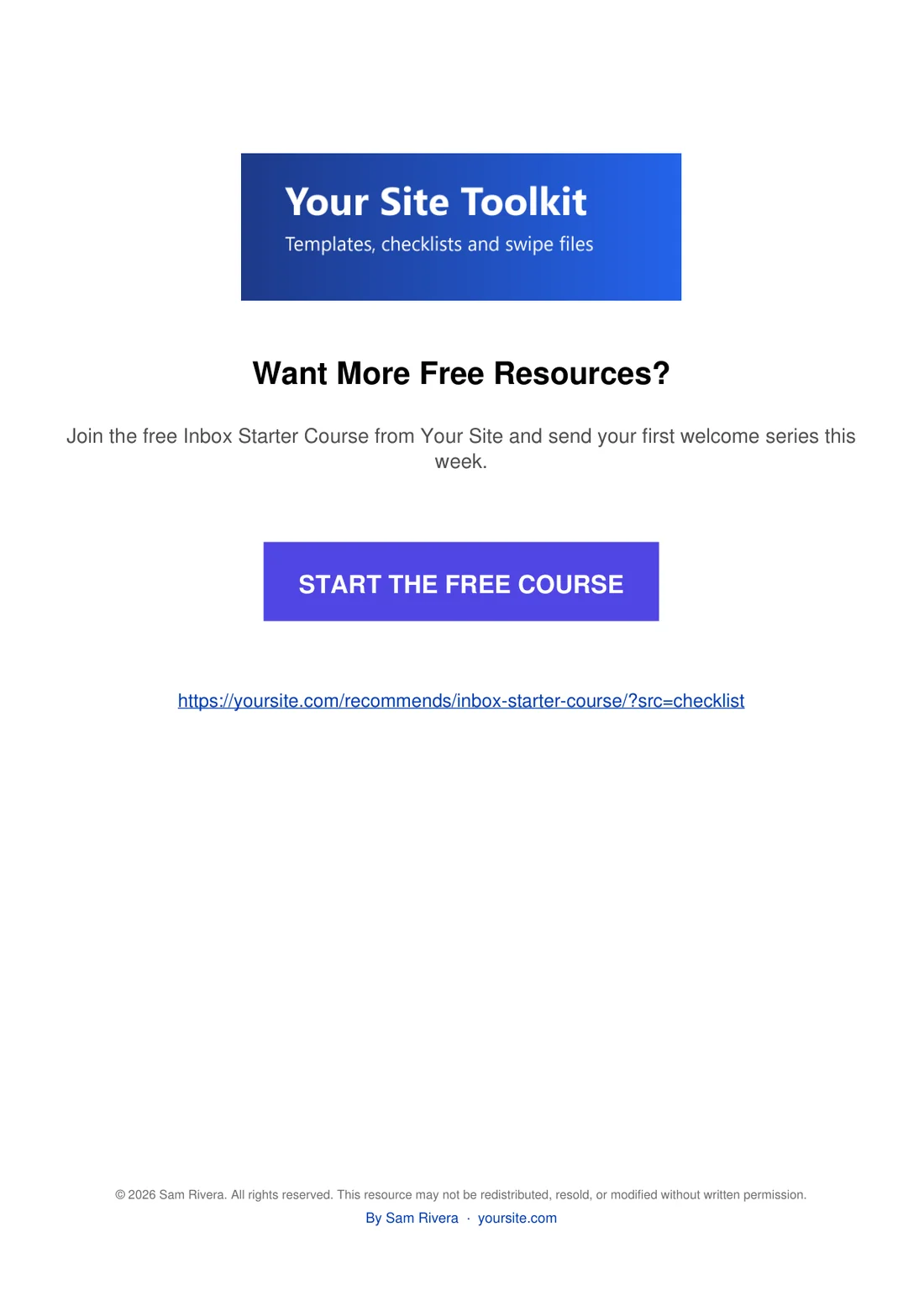
- An optional image at the top, for example a banner or product picture. It is clickable.
- Your headline, for example Want More Free Resources?
- A short description.
- A coloured button with your button text in capitals. It is clickable.
- The link itself, printed under the button, so it also works on paper.
- An optional footer with your copyright line and By your name, linked to your website.
Where the link goes:
The button uses the funnel's Recommended Resource link: the funnel's Affiliate Link Override if it has one, otherwise the Default Affiliate Link in Settings. So one funnel can promote one offer and the rest another. A funnel with no link at all gets no call-to-action page.
Where the page goes:
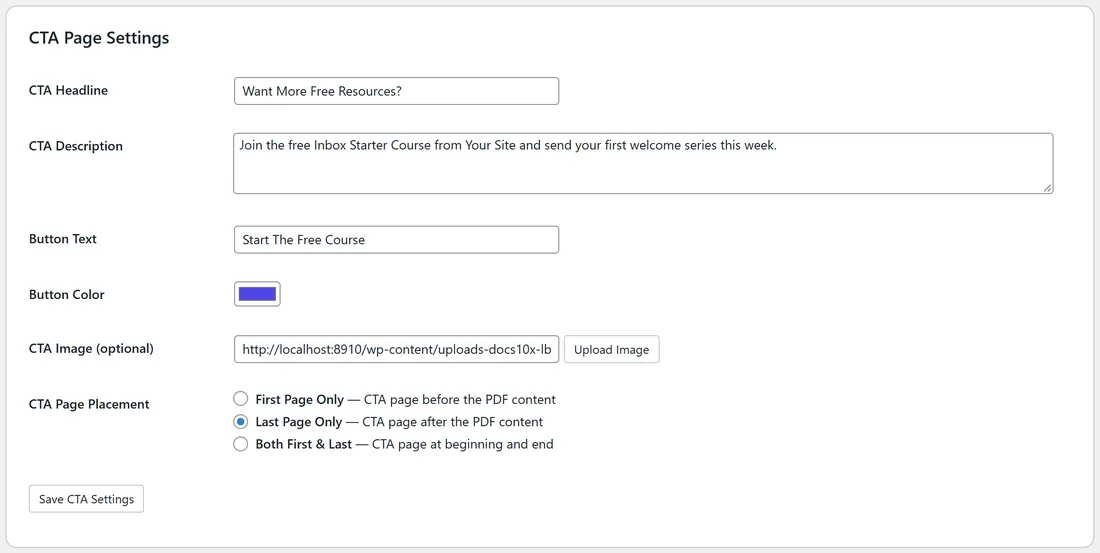
You choose First Page Only, Last Page Only or Both First & Last in CTA Page Settings.
What visitors get:
Once a funnel is rebranded, the download button on its download page gives the rebranded copy automatically. You do not need to change any links.
A real example:
Sam's call-to-action page shows a Your Site Toolkit banner, the headline Want More Free Resources?, the line Join the free Inbox Starter Course from Your Site and send your first welcome series this week, and a purple START THE FREE COURSE button. The footer reads By Sam Rivera, yoursite.com. It is the last page of each PDF, so readers see it when they finish.
Tips:
- Set your Default Affiliate Link in Settings first, so every rebranded PDF has a link.
- Rebrand again whenever your offer changes. Each run starts from the original PDF, so you never get two call-to-action pages.
- See How to Rebrand Your PDFs for the steps and Custom CTA Settings for every field.