Resources and banners you set on the Settings tab are global: every funnel's download page shows them. That is the quickest setup and suits offers that fit everyone on your list.
Some funnels deserve a more exact offer. A checklist about building an email list is a perfect lead in to an email course, while a guide about affiliate niches suits a niche research tool. A per-funnel override lets one funnel show its own resource cards and banners.
Where to find it:
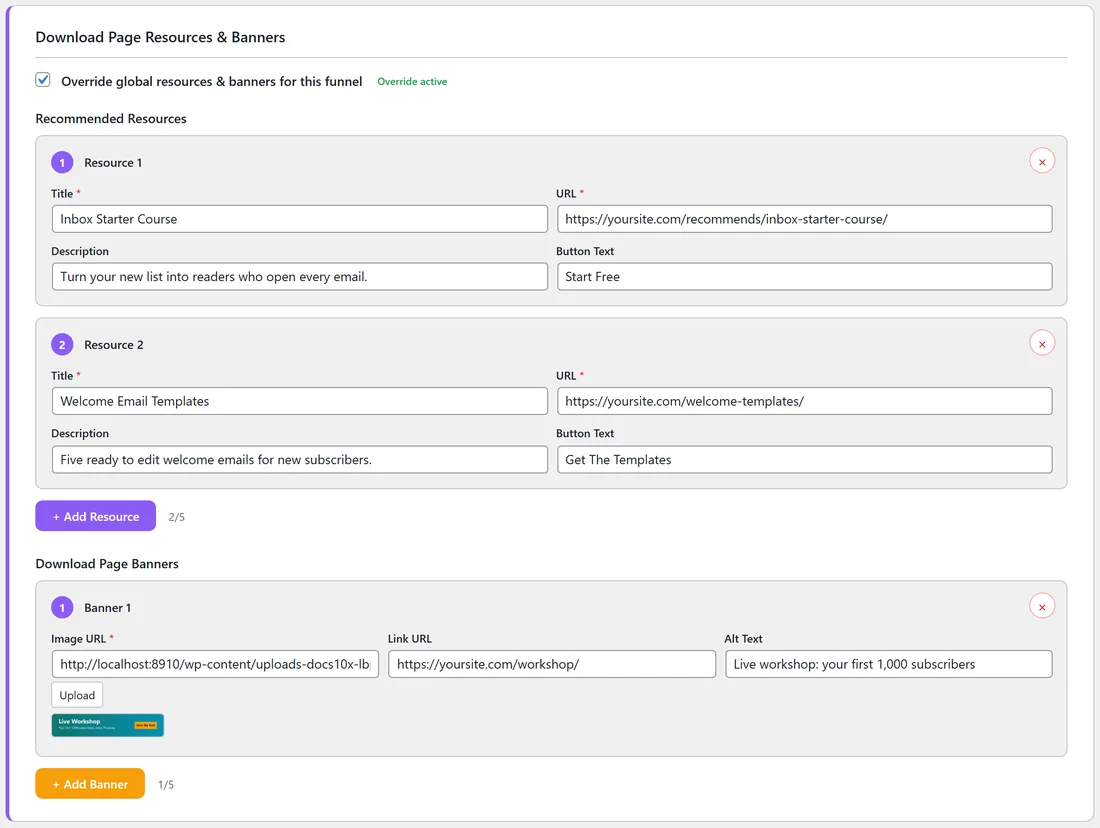
Go to Free List Building, click the Funnels tab and click Edit on the funnel. Scroll to the section called Download Page Resources & Banners.
Step by step:
- Tick Override global resources & banners for this funnel. The label Override active appears and the resource and banner rows open.
- Click + Add Resource and fill in Title, URL, Description and Button Text, the same fields as in Settings. You can add up to 5.
- Click + Add Banner and fill in Image URL (click Upload to pick an image from the Media Library), Link URL and Alt Text. You can add up to 5.
- Click Save Funnel Settings at the bottom of the page.
How the override works:
- One tick covers both resources and banners. With the box ticked, the funnel uses only the resources and banners on its own Edit page. The global ones are not shown on that funnel.
- If you tick the box and add resources but no banners, that funnel shows your resources and no banners at all.
- If you tick the box and leave both lists empty, the funnel shows its original single Recommended Resource box with the affiliate link for that funnel (its Affiliate Link Override, or your Default Affiliate Link from Settings).
- Untick the box and save to go back to the global resources and banners. The funnel's own rows are cleared when you save.
A real example:
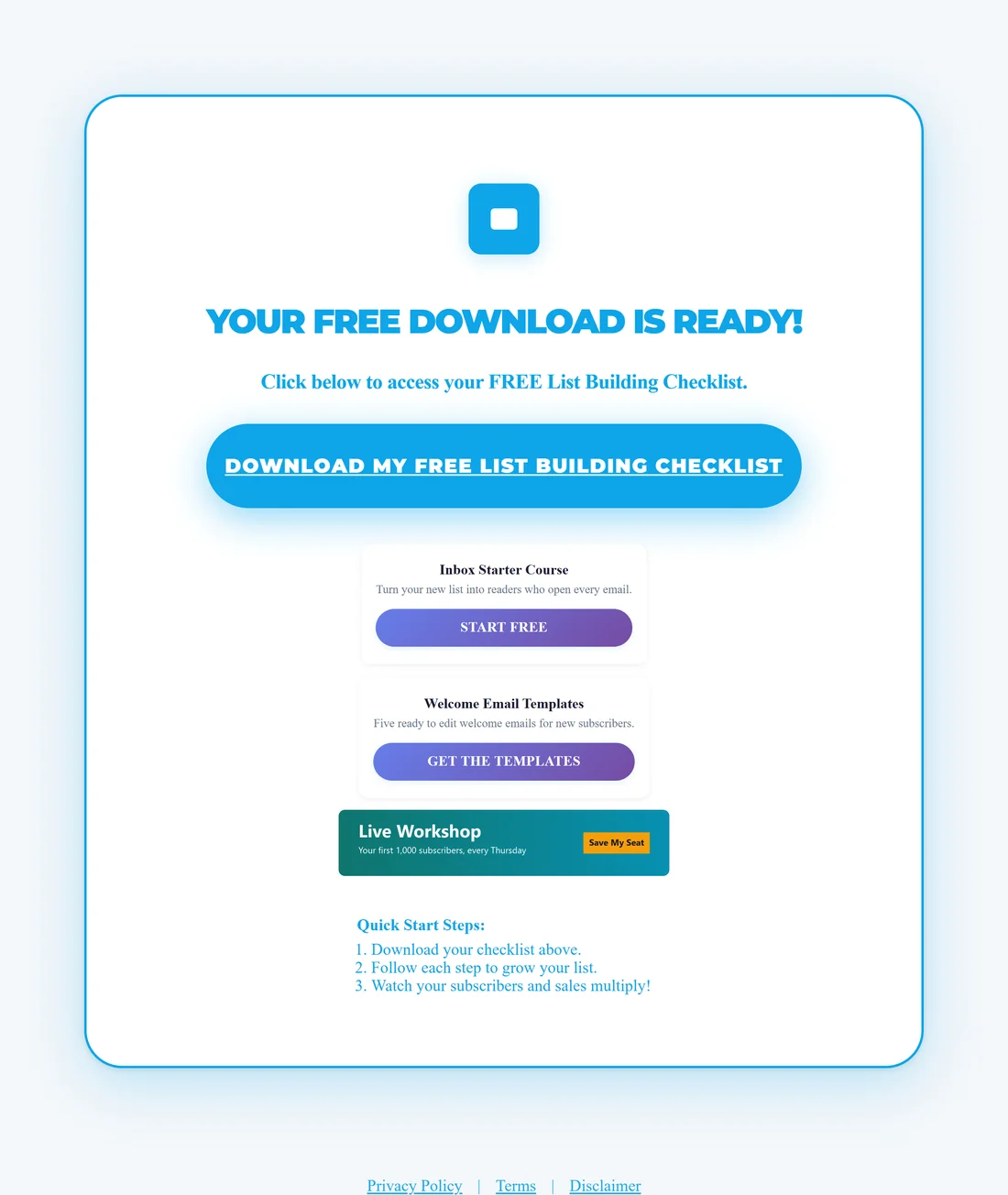
Your Site's best performer is FREE Email List Building Checklist. Sam opened its Edit page, ticked the override and added two resources (Inbox Starter Course, "Turn your new list into readers who open every email.", button Start Free, and Welcome Email Templates, "Five ready to edit welcome emails for new subscribers.", button Get The Templates) plus one banner for the live workshop. Every other funnel still shows the global cards; this one shows its own.
Tips:
- Start global, then override only your top few funnels. The Dashboard's Top Performing Funnels table shows which ones are worth the time.
- Keep the offer close to the topic of the free guide. A matched offer converts better than a general one.
- The same Edit page also holds the funnel's Affiliate Link Override and its own tracking codes. See Editing a Funnel.
- Check the result on the live page. See How Resources and Banners Appear.