The wizard turns your PDF into a complete funnel in about five minutes. It asks for a title, the PDF, an optional cover, a page design and your wording, shows you a preview, and then builds the squeeze page, download page and legal pages for you.
Where to find it:
Open Free List Building, Funnel Builder in the WordPress sidebar, or click + Create New on My Custom Funnels. The six steps show across the top: Basic Info, Upload PDF, Cover Image, Choose Template, Customize, Preview & Save. Use Next and Back at the bottom to move between them. Back to Funnels at the top returns to My Custom Funnels.
Step 1, Basic Info:
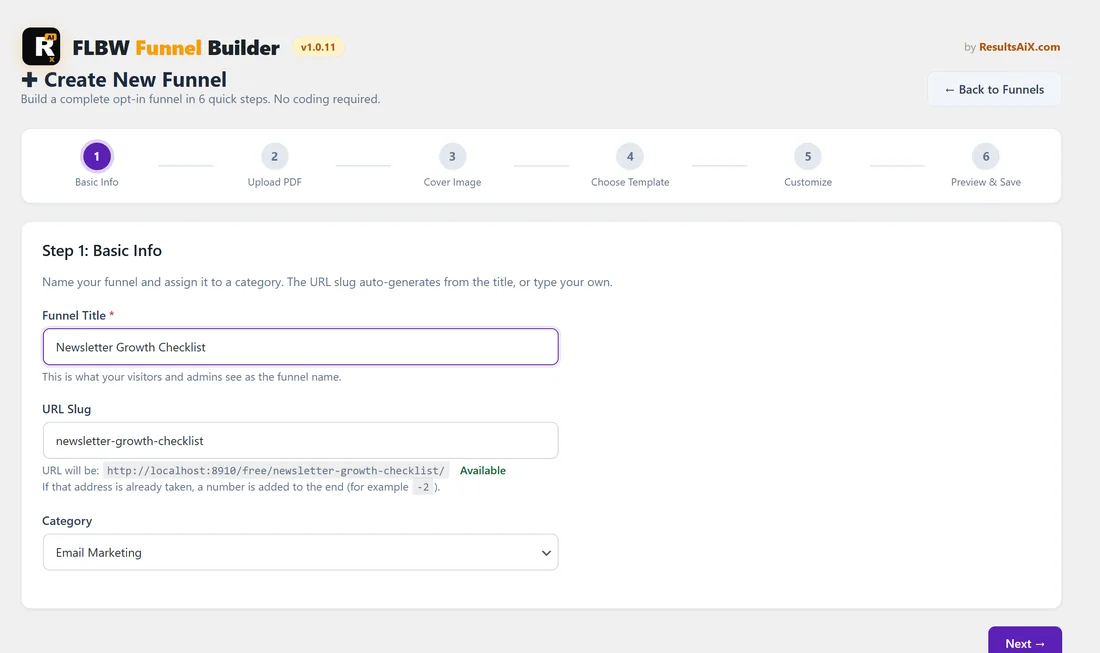
- Funnel Title (required). The funnel's name, used on the pages and in the admin.
- URL Slug. Fills in from the title, or type your own. It shows the address, for example yoursite.com/free/newsletter-growth-checklist/, and says Available or Already taken.
- Category. Pick one from the list. Your own categories appear here once you add them on the Categories screen.
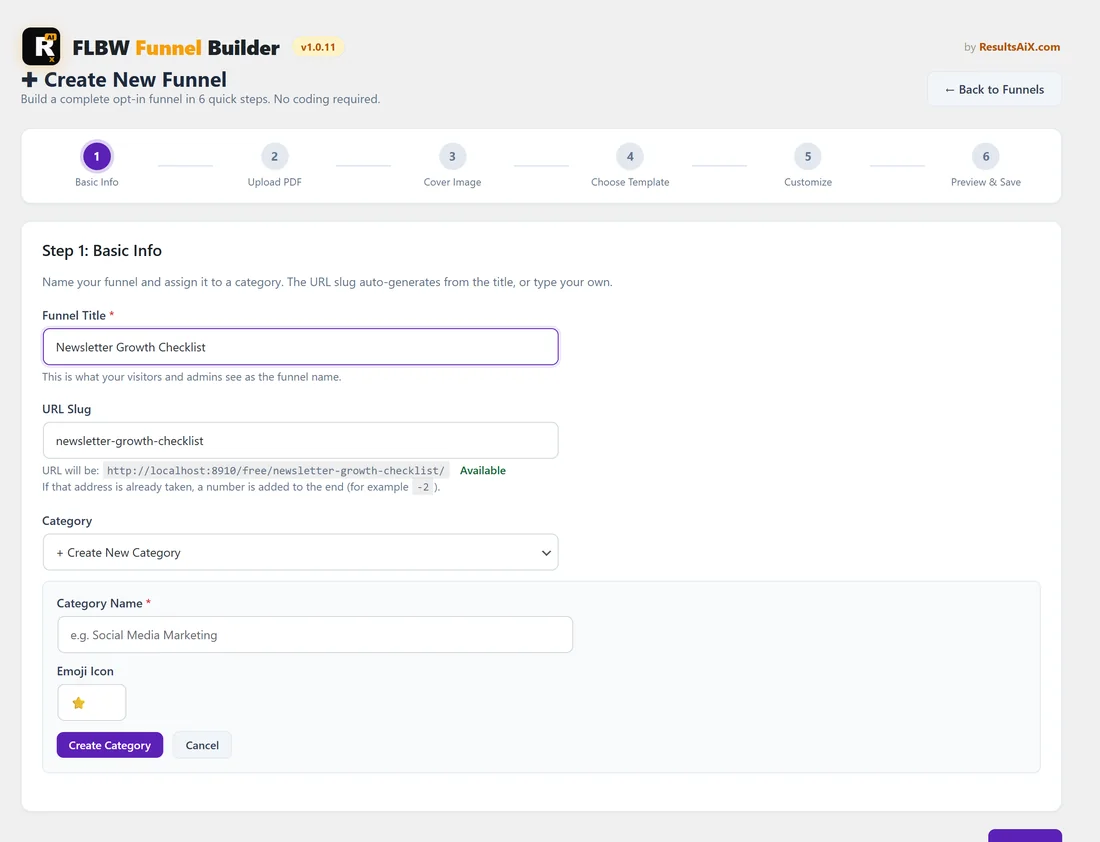
To add a category without leaving the wizard, pick + Create New Category at the bottom of the list, type a Category Name, change the Emoji Icon if you like, and click Create Category. It is added to the list and chosen for you. Cancel closes the box. When you save, the funnel gets the address in URL Slug. If that address is already in use, a number is added to the end, for example -2.
Step 2, Upload PDF:
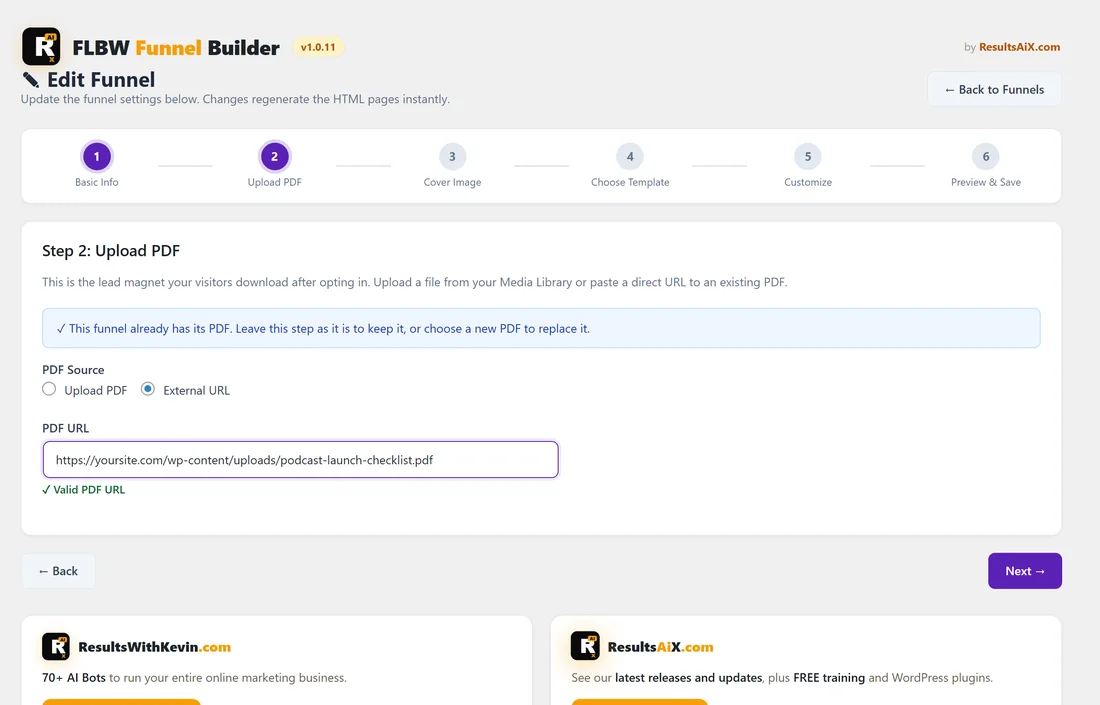
- Upload PDF: click Choose PDF from Media Library, upload your file or pick one, then click Use this PDF. The file name shows with a Remove button.
- External URL: paste the link in PDF URL. You see Valid PDF URL, a note that the link does not end in .pdf (it may still work), or Invalid URL.
When you save, the add-on copies the PDF into the funnel's own folder on your site. A link must be a direct, public link to the PDF file itself, not a share page.
Step 3, Cover Image:
This step is optional. Upload Image with Choose Cover Image picks an image from the Media Library, and Remove Image clears it. External URL takes a link in Cover Image URL that starts with http:// or https://, with a preview below. The cover is the funnel's card picture on your Showcase page and the thumbnail on My Custom Funnels. A 3D book or ebook image works well, square or portrait, at least 400 by 400 pixels.
Step 4, Choose Template:
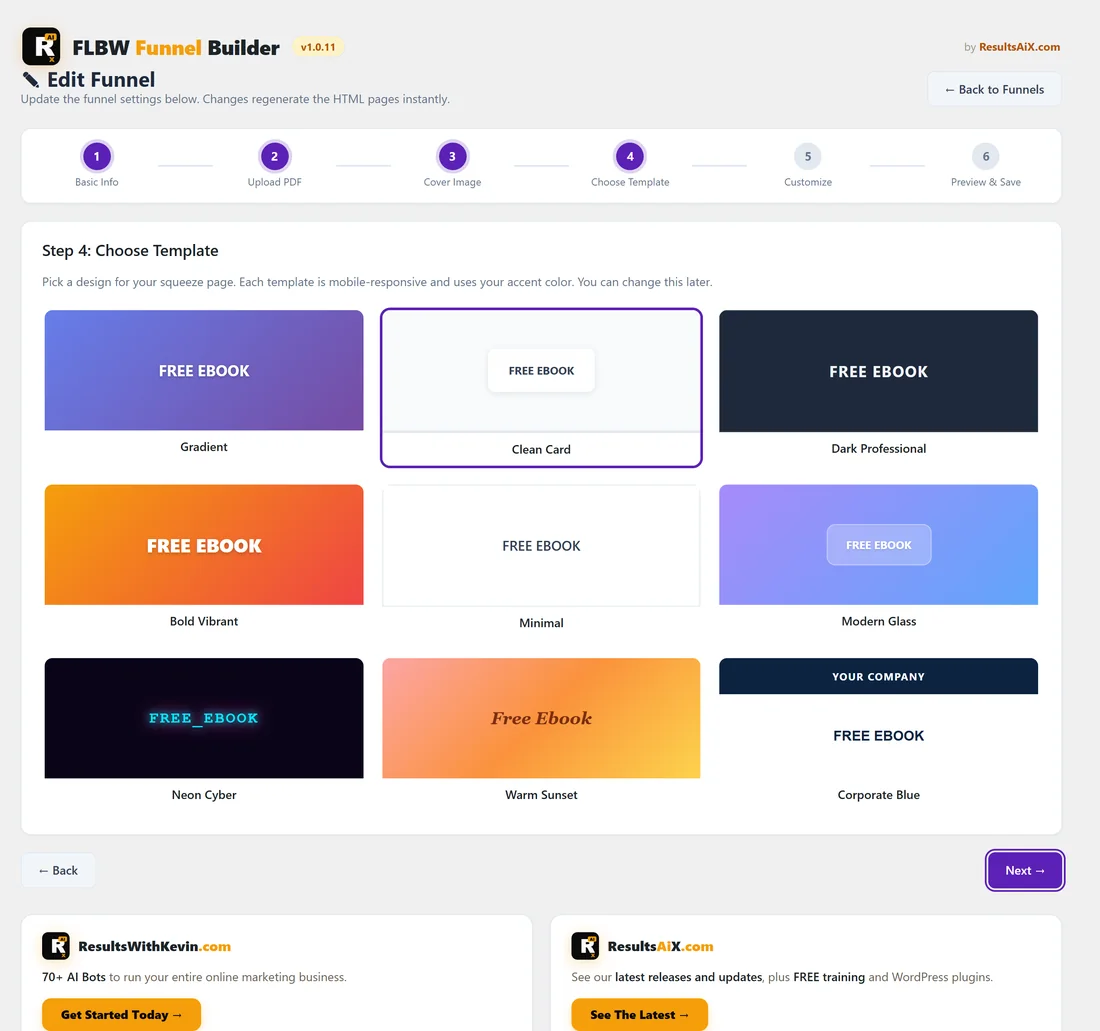
Click one of the 9 template cards: Gradient, Clean Card, Dark Professional, Bold Vibrant, Minimal, Modern Glass, Neon Cyber, Warm Sunset or Corporate Blue. The chosen one gets a purple border. Gradient is chosen to start with. Every template works on phones and uses your accent colour.
Step 5, Customize:
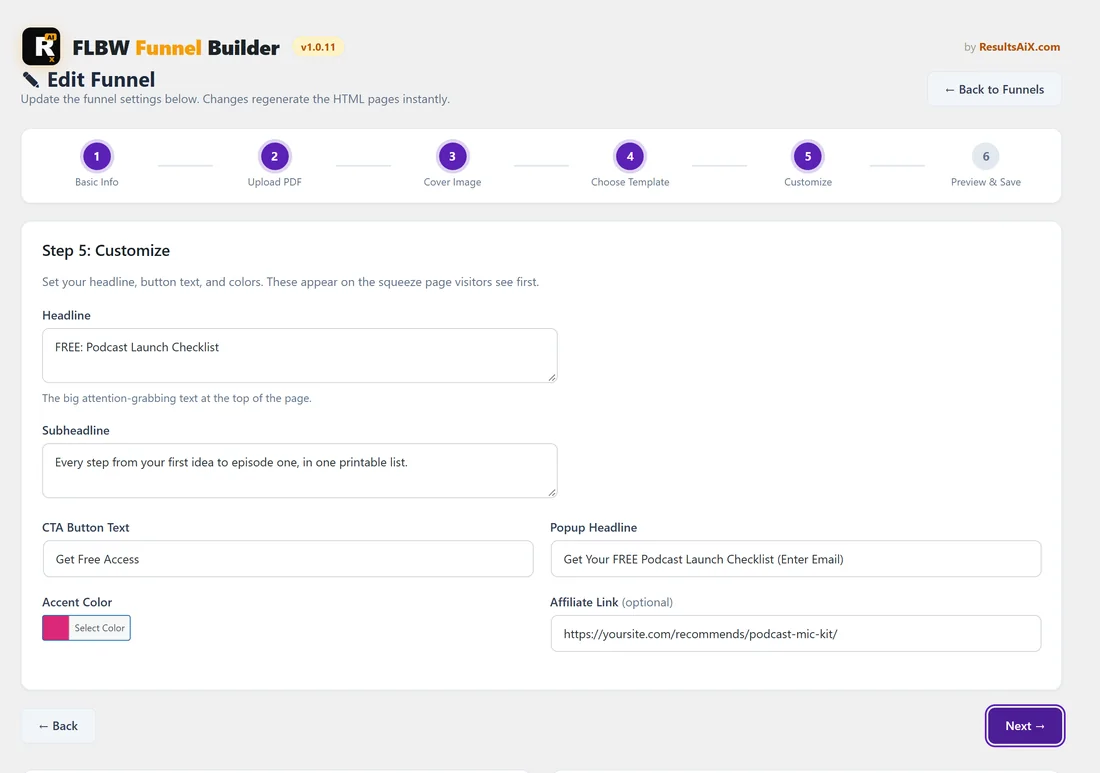
- Headline (required). Filled in as FREE: plus your title. The big text at the top of the squeeze page. Once you change it, your own headline is kept, also when you go Back and return.
- Subheadline. The line under the headline.
- CTA Button Text (required). Starts as Get Free Access.
- Popup Headline. The text above the email box in the opt-in popup. Starts as Get Your FREE plus your title plus (Enter Email).
- Accent Color. The main colour of the page.
- Affiliate Link (optional). Used for the Check Out This Resource button on the download page. Leave it blank to use the Default Affiliate Link from the main plugin's Settings.
- Gradient Start Color and Gradient End Color. These only show when you picked the Gradient template.
Step 6, Preview & Save:
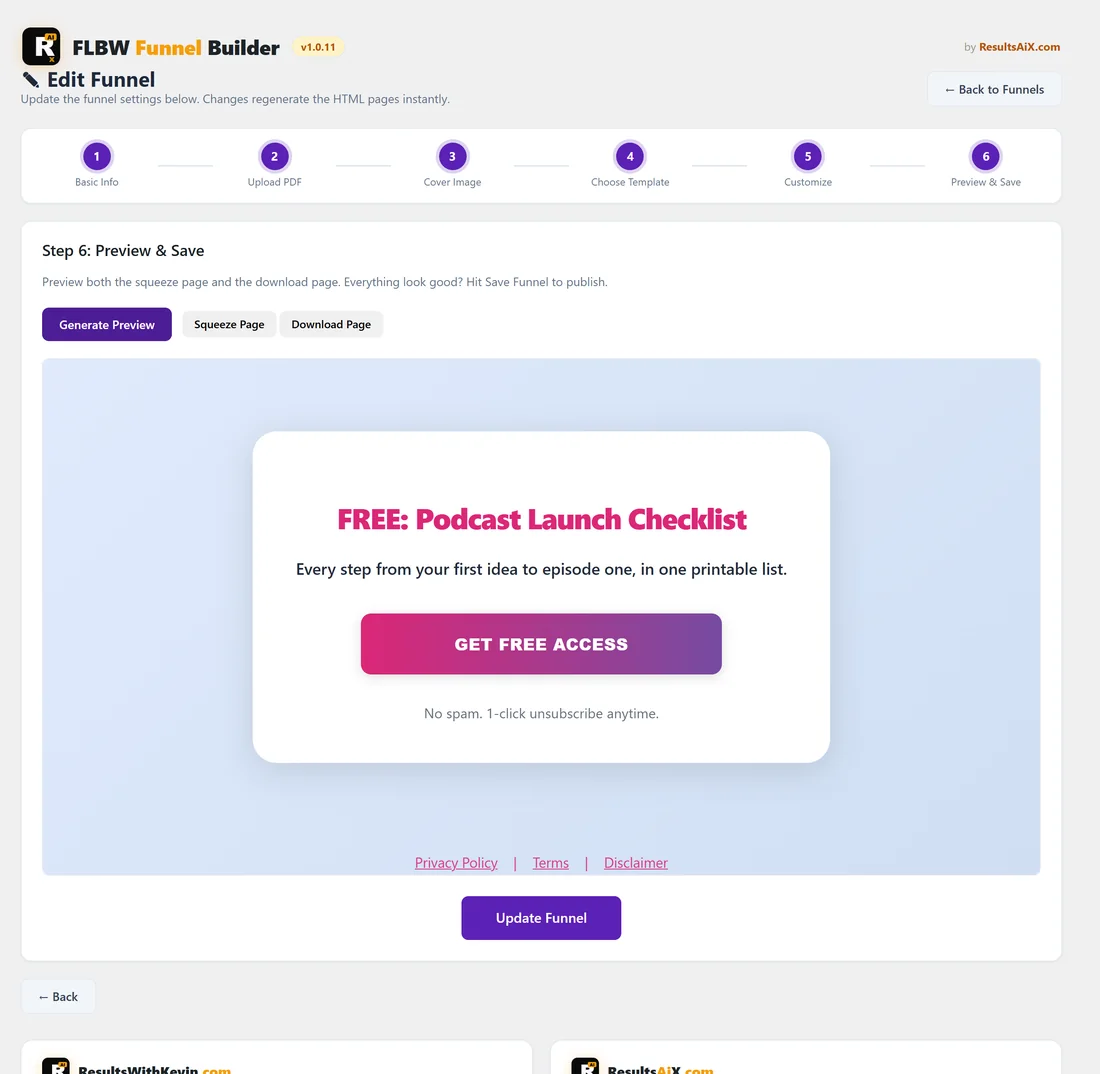
- Click Generate Preview. Your squeeze page appears in the box.
- Use the Squeeze Page and Download Page buttons to switch between the two pages.
- Click Save Funnel (Update Funnel when you are editing).
You see Funnel created successfully! with the funnel's link, plus Create Another and View Funnels buttons. The preview shows the Check Out This Resource box only when you typed an Affiliate Link in step 5; the live page also uses your Settings default.
Editing a funnel later:
Click Edit next to the funnel on My Custom Funnels. The wizard opens as Edit Funnel with everything filled in.
- The URL Slug is locked, so links you have already shared keep working.
- Steps 2 and 3 keep the current PDF and cover image. Leave them, or choose a new file to replace them.
- The Created date stays the day you first built the funnel.
A real example:
Sam built the Podcast Launch Checklist on yoursite.com: title Podcast Launch Checklist, category Podcasting, the PDF uploaded from the Media Library, a pink cover, the Clean Card template, a pink accent colour, subheadline "Every step from your first idea to episode one, in one printable list." and an affiliate link to a recommended microphone kit. Generate Preview showed the page, and Save Funnel put it live.
Tips:
- Add your categories before you start, or use + Create New Category in step 1.
- Choose the URL Slug with care. It stays the same for the life of the funnel.
- For the PDF, uploading the file is the surest route. If you use a link, open it in a private browser window first: it should show or download the PDF straight away.