Every funnel needs its own files on your site: the squeeze page, the download page, the PDF lead magnet, the cover image and the legal pages. The Asset Manager fetches all of them for you and keeps track of what is installed.
You normally do this once, in the Setup Wizard or right after it. A funnel only goes live when its files are installed.
Where to find it:

Free List Building, then the Assets tab (in the sidebar menu it is called Asset Manager). The top card, Overall Status, shows how many funnels are installed, for example 96 / 96 Funnels Installed, with a progress bar.
The buttons:
- Download All Funnel Assets: fetches the complete funnel package from the update server and unpacks it into your site's uploads folder. It needs your license key to be active.
- Scan for Manually Uploaded Assets: counts funnel folders already on your server, for example after an upload by FTP, and tells you how many it found.
The Category Breakdown table:
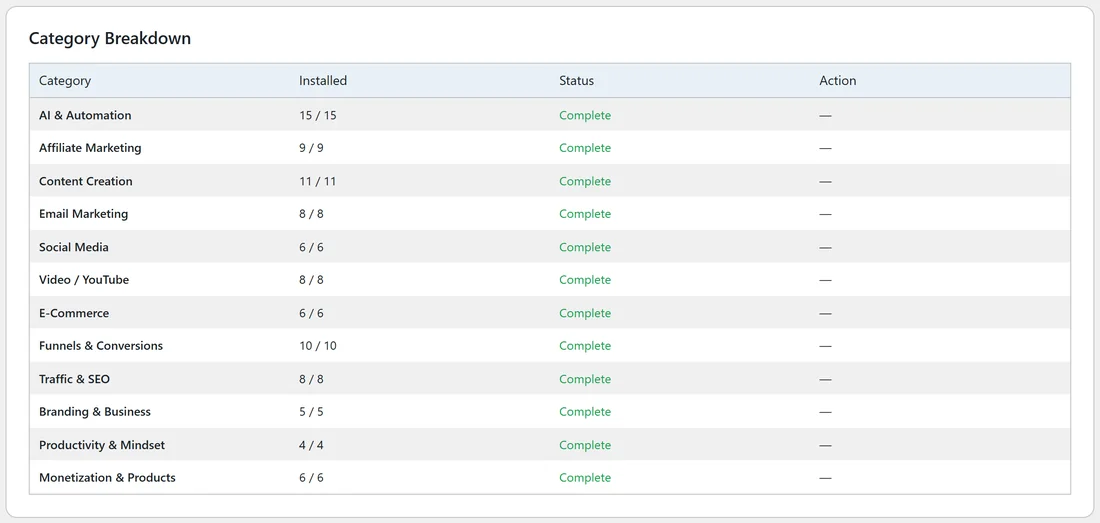
One row per category, with Installed (for example 15 / 15), a Status of Complete, Partial or Not Installed, and an Action. When a category is not complete, its Action column shows a Download button that fetches just that category.
Step by step:
- Open the Assets tab.
- Click Download All Funnel Assets. The button reads Downloading... and a progress bar appears.
- Wait until you see "All assets installed!". The page reloads by itself after two seconds.
- Check that Overall Status reads 96 / 96 and every category shows Complete.
- If a category still shows Partial or Not Installed, click its Download button.
Where the files go:
Each funnel gets its own folder inside your uploads folder: wp-content/uploads/listbuilderpro-assets/funnels/ followed by the funnel's folder name, for example EmailListBuildingChecklist. The plugin serves the pages from there at your funnel addresses. A funnel counts as installed when its folder holds index.html and download.pdf.
A real example:
Sam installs the plugin on yoursite.com, activates the license and opens the Assets tab. One click on Download All Funnel Assets brings in all 96 funnels in a couple of minutes. The Category Breakdown shows AI & Automation 15 / 15, Affiliate Marketing 9 / 9 and so on, all Complete.
Tips:
- Downloading again is safe. Files are simply replaced with fresh copies.
- Your rebranded PDFs are stored in a separate folder, so downloading again never removes them (see How to Rebrand Your PDFs).
- On a slow or strict host, download category by category with the Download buttons, or use Manual Upload via FTP.
- For what each folder holds, see What's Included in Each Funnel Folder.