Your funnel pages are served outside your WordPress theme, so tracking plugins that add code to your theme do not reach them. The Tracking & Analytics section adds your codes to the funnel pages directly.
Where to find it:

Free List Building, then the Settings tab. Scroll to Tracking & Analytics, below Download Page Resources & Banners. It has an intro box and four cards: Google Analytics, Squeeze Page Tracking, Download Page Tracking and All Funnel Pages Tracking.
The intro box:
It explains that squeeze pages are the opt-in pages and download pages are the thank-you pages. It also has the box "Exclude logged-in administrators from page view tracking". The plugin's own Dashboard and Lists numbers never count your administrator visits or search engine bots, whatever this box says. The box keeps logged-in users out of the detailed page view log as well.
Google Analytics:

- GA4 Measurement ID: paste your ID, for example G-XXXXXXXXXX. The plugin adds the Google Analytics tag to every squeeze page and download page. Find the ID in Google Analytics under Admin, Data streams, your web stream.
The three code cards:
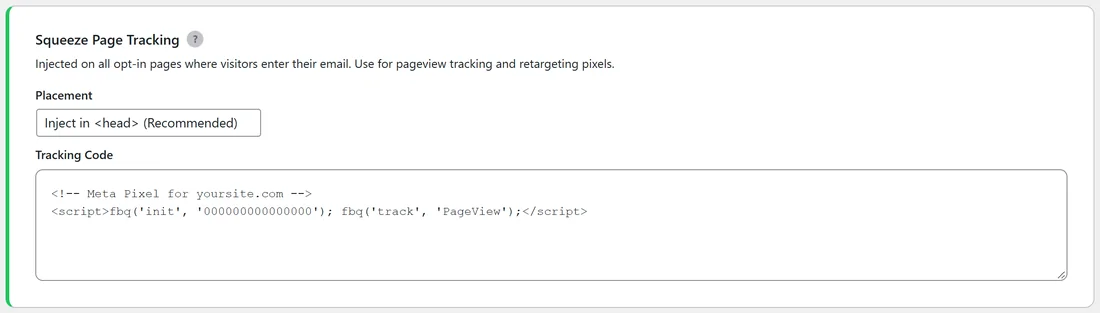
Each card has a Placement drop-down and a Tracking Code box.
- Squeeze Page Tracking: code for opt-in pages only. Good for page view pixels and retargeting.
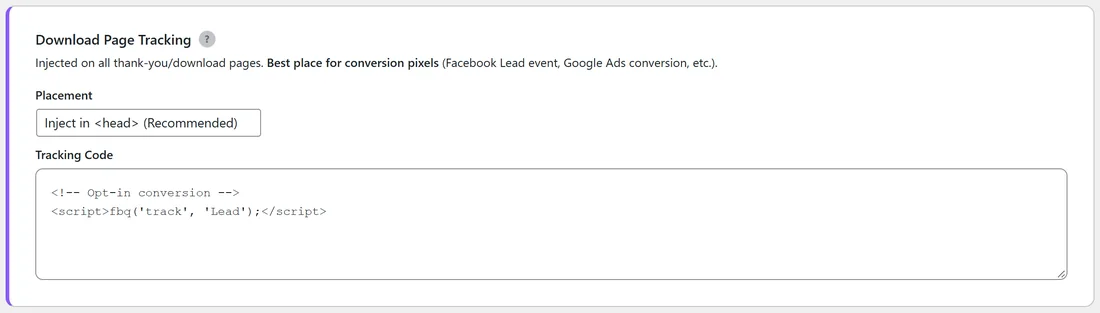
- Download Page Tracking: code for download pages only. The best place for conversion events, because a visit here means someone opted in. For example a Meta Pixel Lead event.
- All Funnel Pages Tracking: code for both. Good for site-wide scripts such as a chat widget or a heatmap.
- Placement: Inject in head (Recommended) for most pixels, or Inject before the closing body tag for scripts that should load last.
Step by step:
- Open Settings and scroll to Tracking & Analytics.
- Paste your GA4 Measurement ID if you use Google Analytics.
- Paste your pixel base code into Squeeze Page Tracking.
- Paste your conversion event into Download Page Tracking.
- Leave Placement on Inject in head (Recommended) unless your provider says otherwise.
- Click Save Settings.
- Open a squeeze page and use your provider's helper tool to check the code fires.
Per-funnel codes:
Each funnel's Edit page has its own Tracking Codes section. A code entered there is used instead of the global code for that one funnel (see Custom Tracking Codes).
A real example:
Sam runs Facebook ads to yoursite.com funnels. Sam pastes the Meta Pixel base code into Squeeze Page Tracking and the Lead event into Download Page Tracking, adds the GA4 ID G-YS7Q2K4P1M, and saves. Facebook now counts every opt-in as a Lead, and Google Analytics shows visits to every funnel page.
Tips:
- Paste the full code your provider gives you, script tags included.
- Use one card per job: base code on squeeze pages, conversion on download pages.
- See Google Analytics GA4 Integration and Custom Tracking Codes for more detail.