The download page is the thank-you page every new subscriber sees. It hands over the free PDF and it is the best place to recommend your next offer, because the visitor has just said yes to you.
Where it is:
Each funnel's download page is at the funnel address plus download/, for example yoursite.com/free/EmailListBuildingChecklist/download/. You can open it from the Preview section of the funnel's Edit page.
What the visitor sees:
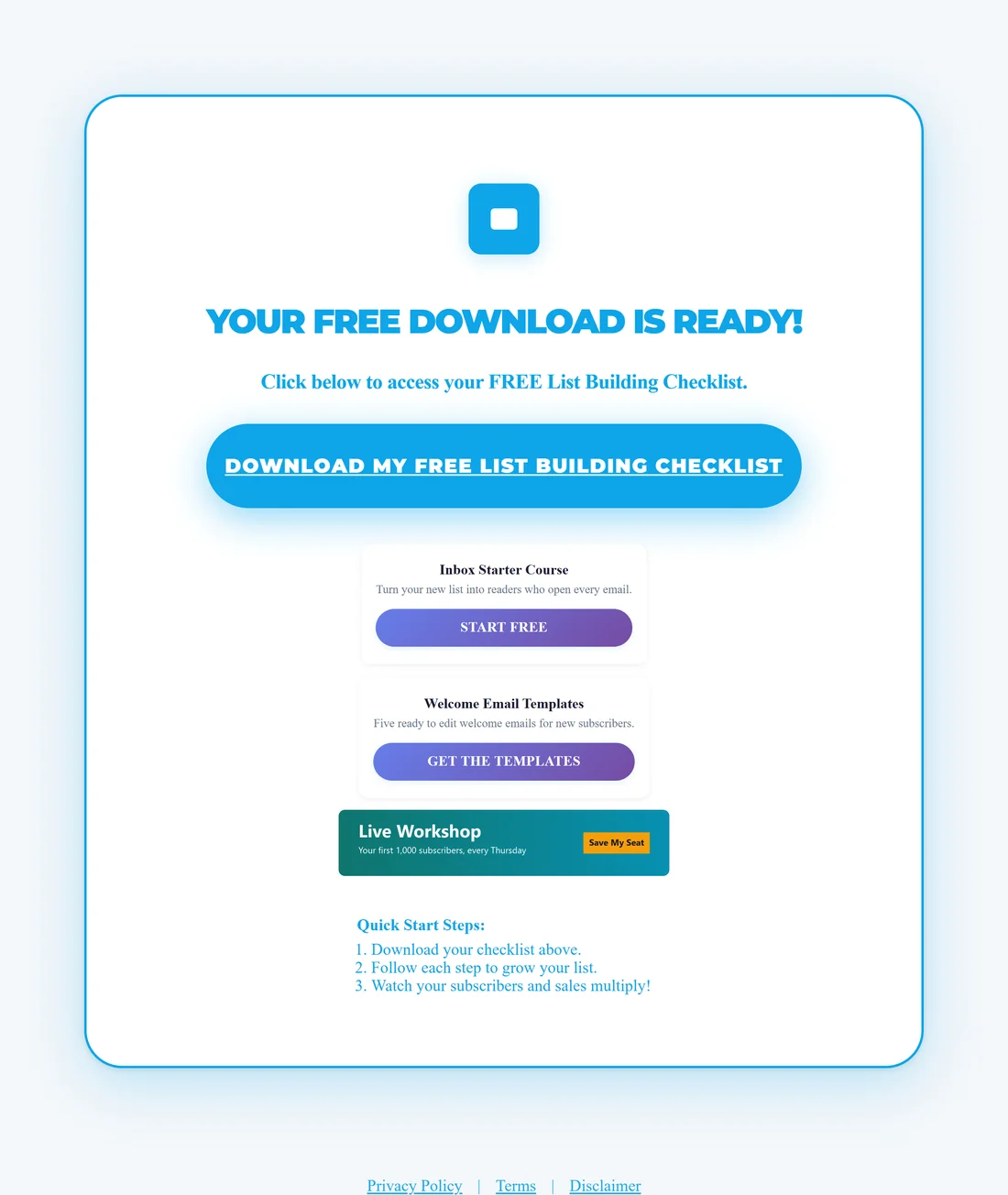
- A thank-you headline, such as Your FREE Download Is Ready!
- The big download button. It opens the PDF. If you have rebranded the funnel's PDF, visitors get your rebranded copy.
- Your Recommended Resource, or the resource cards and banners you set.
- Footer links to the privacy, terms and disclaimer pages.
Where the recommendation comes from:
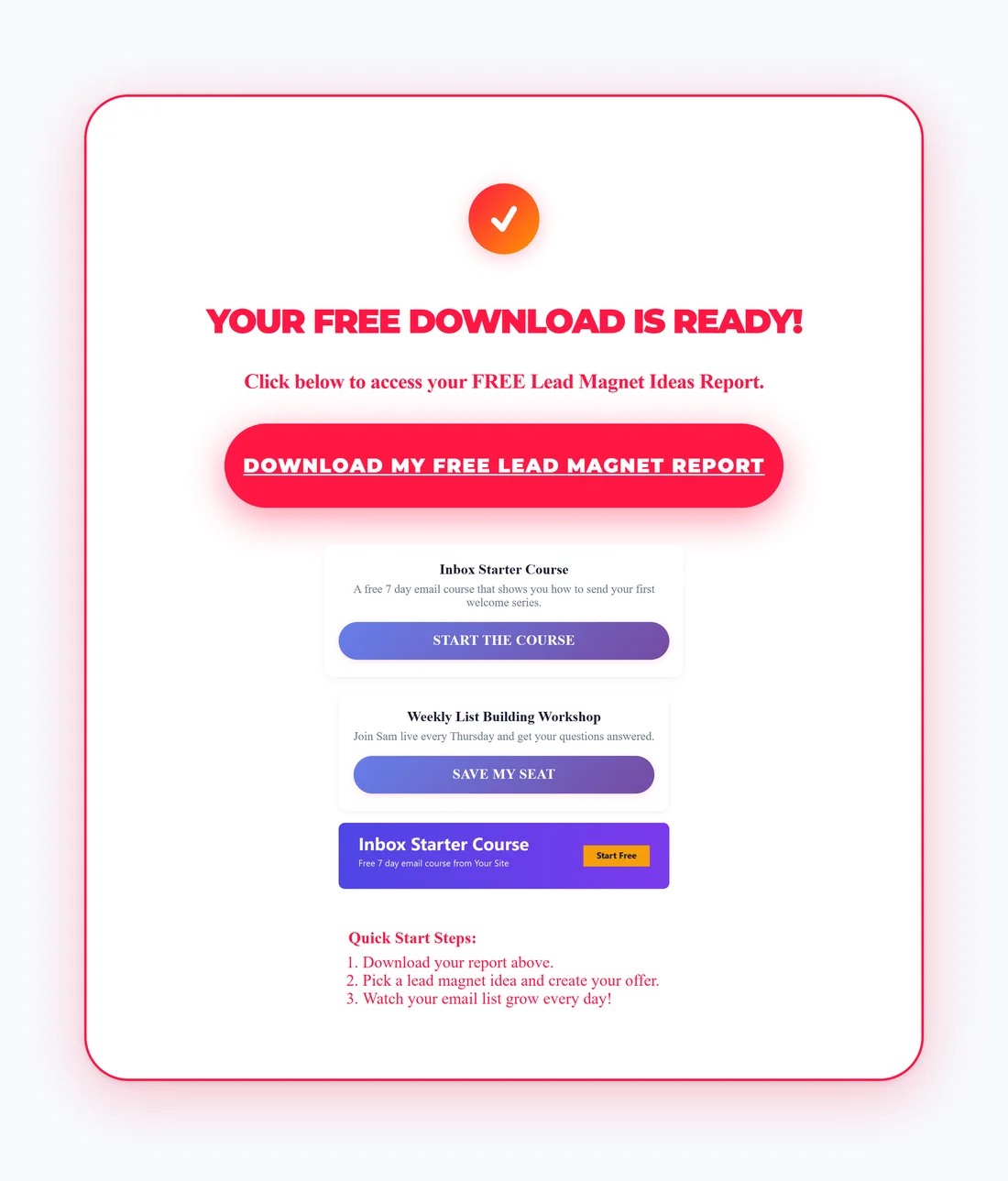
The plugin picks the first one of these that is set:
- Resource cards and banners on the funnel's Edit page (when Override global resources & banners for this funnel is ticked).
- Resource cards and banners in Settings, under Download Page Resources & Banners.
- The funnel's Recommended Resource box, linked to its Affiliate Link Override, or else to the Default Affiliate Link in Settings.
When no link is set anywhere, the Recommended Resource box is left off the page, so visitors never see a button that goes nowhere.
Step by step, set what the page promotes:
- Open the Settings tab.
- Fill in Default Affiliate Link and click Save Settings. Every download page now has a Recommended Resource.
- For more than one offer, add cards under Recommended Resources and images under Download Page Banners, then click Save Settings.
- For one funnel only, open its Edit page and use Download Page Resources & Banners.
- Open the download page from the funnel's Preview section to check it.
Button colours:

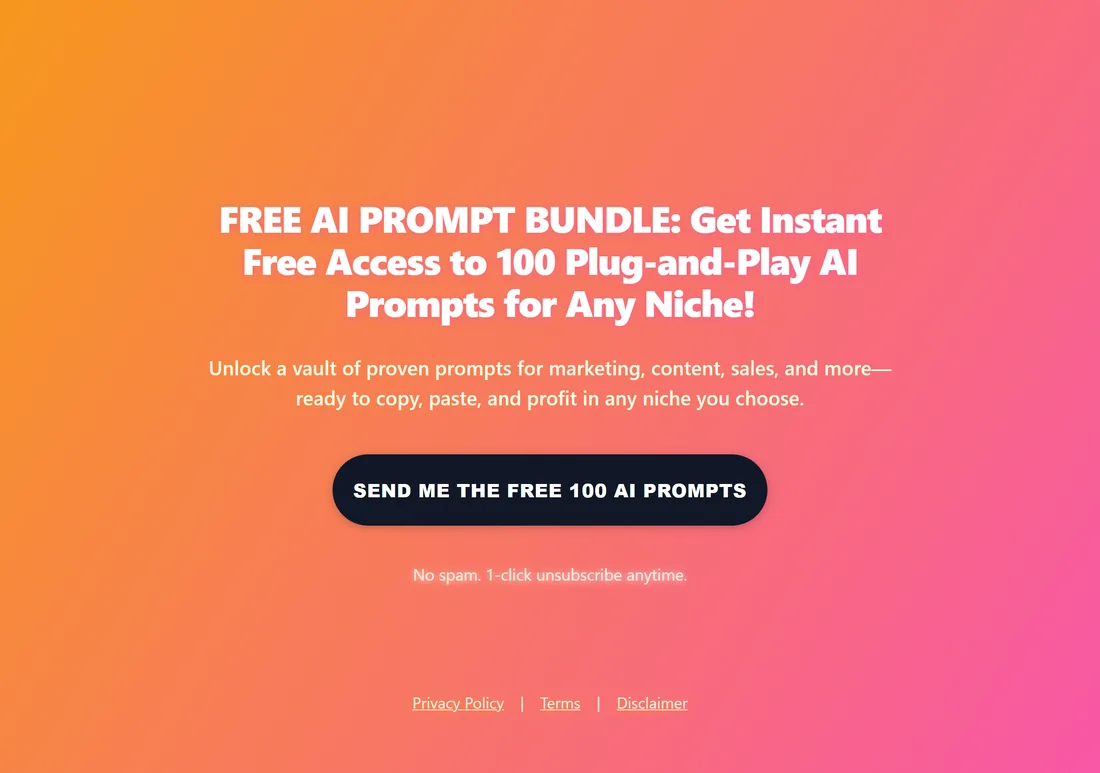
Every funnel has its own gradient buttons. To use one colour everywhere, open Settings, tick Use one solid button color on ALL squeeze and download pages under Button Style, and choose the Button color, Hover color and Text color. It changes the opt-in button on squeeze pages and the download button on download pages, for every funnel and every template. Untick it to bring back each funnel's own gradient. Your resource card buttons keep their own style.
How it counts:
Every visit to a download page by a real visitor counts as an opt-in in your stats. This is how opt-ins sent straight to a provider's own form are counted too.
A real example:
On yoursite.com/free/EmailListBuildingChecklist/download/ subscribers see the download button, then two cards: Inbox Starter Course and Welcome Email Templates, then a banner for Sam's weekly workshop. Every other funnel shows the two global cards from Settings and the Inbox Starter Course banner.
Tips:
- Pick a recommendation that fits the funnel's topic. A per-funnel override takes a minute and fits the reader better.
- Keep descriptions short. One sentence on why it helps is enough.
- See Recommended Resources and Download Page Banners for every field.