The ConvertKit (Kit) card connects with your Kit API key. Once connected, the list dropdowns show both your forms and your tags, so each funnel can subscribe people to a form or straight to a tag.
Where to find it:
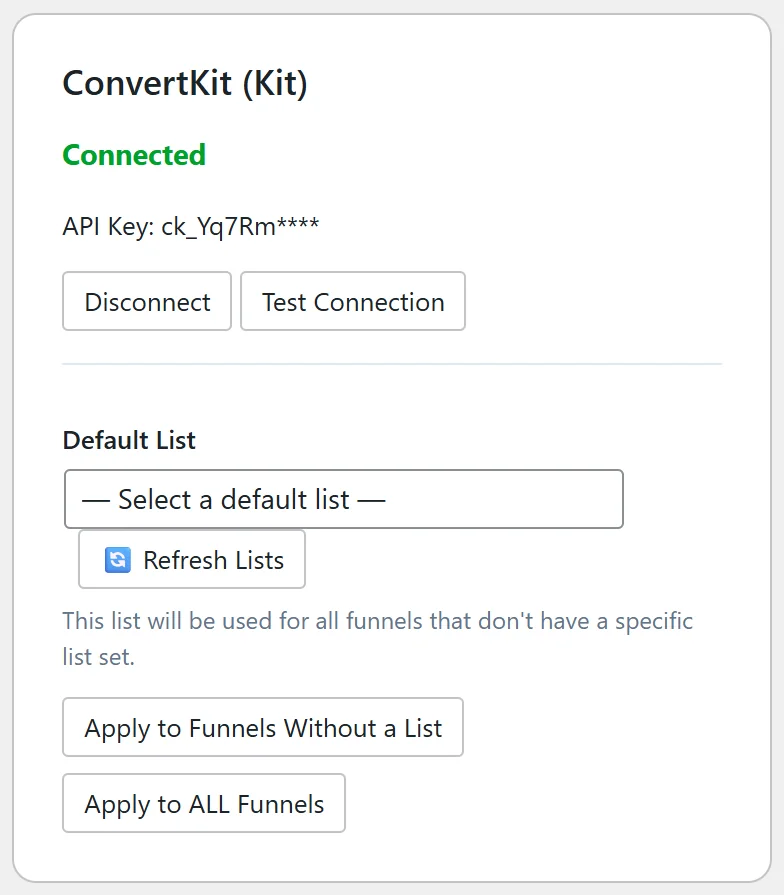
Go to Free List Building → Autoresponders and find the ConvertKit (Kit) card.
Where to find your API key:
- Log in to Kit (ConvertKit).
- Open Settings, then Developer (called Advanced on older accounts).
- Copy the API Key. The plugin only needs the API key, not the API secret.
Step by step:
- Paste the key into API Key.
- Click Connect. The card shows Connected and the first characters of the key.
- Click Test Connection to check it.
- Pick a form or tag in Default List. Forms are shown with (Form) after the name and tags with (Tag).
- Use the Apply buttons to set it on more funnels if needed.
Forms or tags:
- A form subscribes the person through that Kit form, so any sequence or automation tied to the form starts.
- A tag subscribes the person and applies the tag, which is handy when one form serves several freebies and you split follow-ups by tag.
What happens on each opt-in:
The email and first name are sent to the chosen form or tag. Kit's own settings for that form decide whether people get a confirmation email.
Per funnel:
On a funnel's edit page choose ConvertKit (Kit) in Autoresponder Provider. The field is then called Form / Tag. Pick the one for that funnel.
A real example:
Sam Rivera sends FREE 100 AI Prompts Bundle to the Kit form AI Prompts Form, which starts a short sequence of extra prompts. All other funnels stay on the default.
Tips:
- After you add a new form or tag in Kit, click Refresh Lists on the card.
- Name your Kit forms after the funnel so you can spot them in the dropdown.
- See Default Autoresponder vs Per-Funnel Overrides for mixing Kit with another service.