A short footer with your name and a copyright line makes your rebranded PDFs look finished and reminds readers where the guide came from. It is fully optional: leave all three fields blank for a clean page.
Where to find it:
Open the PDF Rebrander tab. Author & Copyright is the second box, marked OPTIONAL. Click Save Author & Copyright after any change. A message confirms it is saved.
The settings:
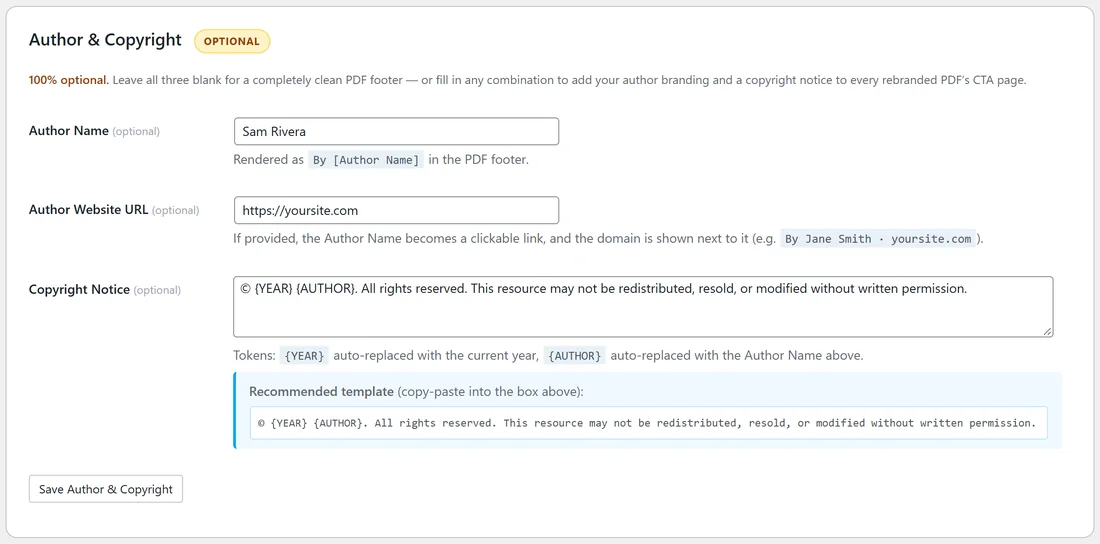
- Author Name (optional): shown as By followed by your name, for example By Sam Rivera.
- Author Website URL (optional): when filled in, your name becomes a link and the website shows next to it, for example By Sam Rivera · yoursite.com.
- Copyright Notice (optional): a line of small text above the author line. Two tokens are filled in for you: {YEAR} becomes the current year and {AUTHOR} becomes your Author Name.
The box shows a recommended template you can copy into Copyright Notice:
© {YEAR} {AUTHOR}. All rights reserved. This resource may not be redistributed, resold, or modified without written permission.
Step by step:
- Open the PDF Rebrander tab.
- Type your Author Name, for example Sam Rivera.
- Type your Author Website URL, for example https://yoursite.com.
- Paste the recommended template into Copyright Notice, or write your own line.
- Click Save Author & Copyright.
- Click Start PDF Rebranding to add the footer to your PDFs.
Where it shows:
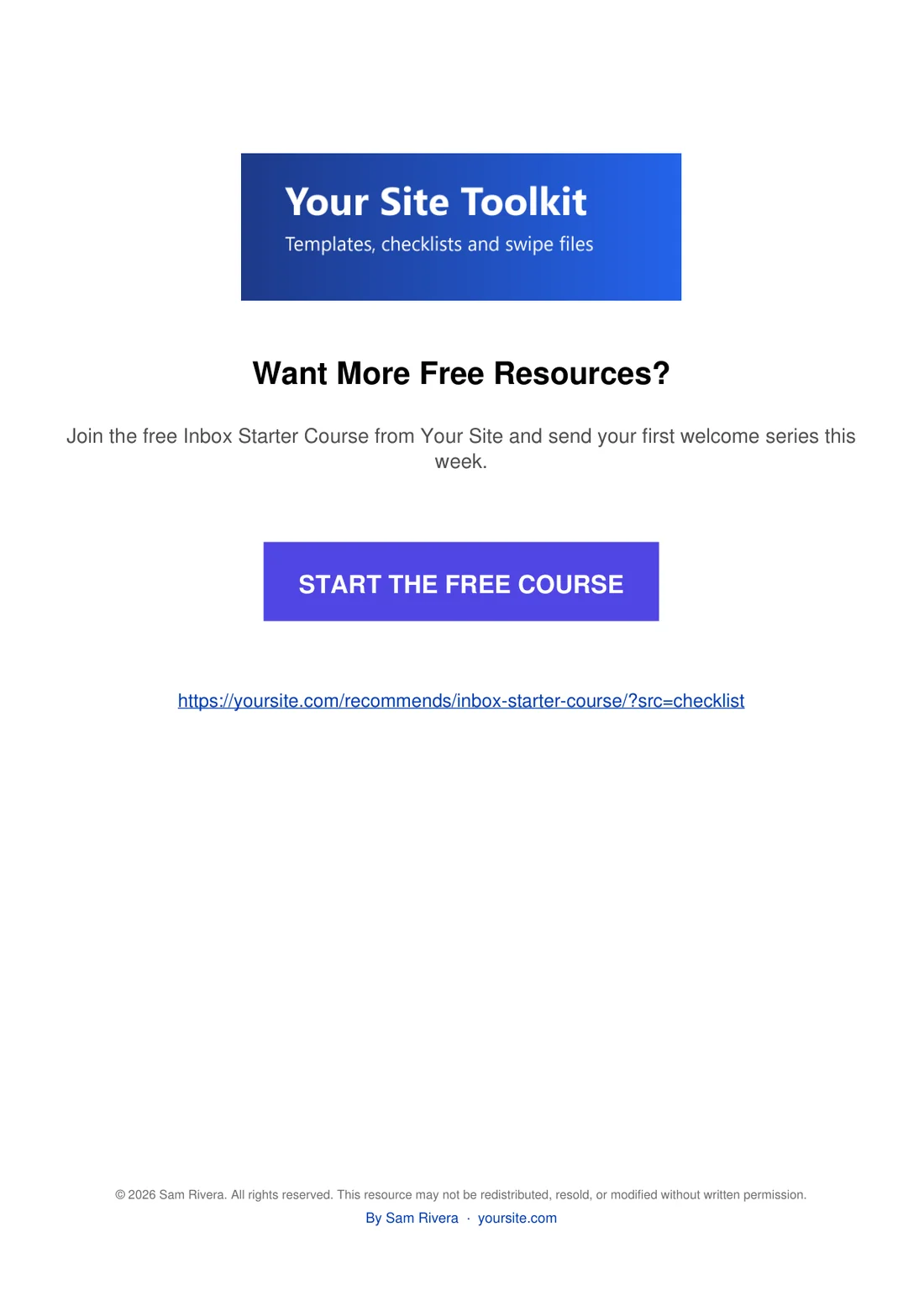
The footer sits at the bottom of the call-to-action page, under your button and link. It does not change the pages of the original guide.
You can use any mix of the three fields. With only a copyright line, there is no author line. With only a name, there is no copyright line.
A real example:
Sam fills in Sam Rivera, https://yoursite.com and the recommended template. The footer on each rebranded PDF reads © 2026 Sam Rivera. All rights reserved. This resource may not be redistributed, resold, or modified without written permission. Under it, By Sam Rivera · yoursite.com links to the Your Site home page.
Tips:
- Use your business name in Author Name if you prefer, for example Your Site.
- The year updates by itself each time you rebrand.
- Changes apply the next time you rebrand, so run Start PDF Rebranding after saving.